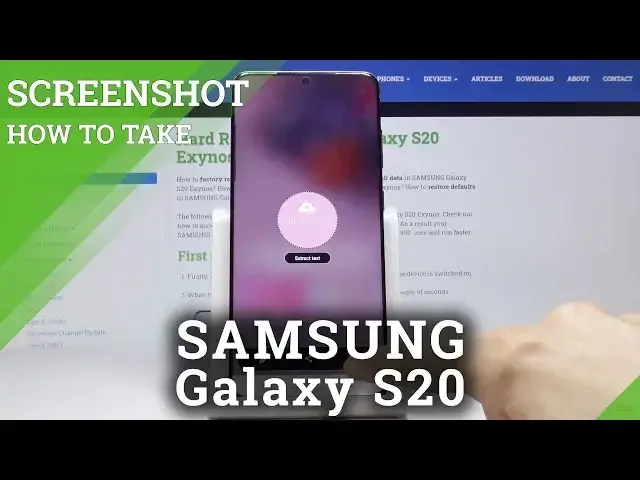
0:00
Welcome, in front of me is a Samsung Galaxy S20 and today I'll show you how to capture
0:09
a screenshot on the device. So there's actually two ways of doing it
0:13
The first one just captures the entire screen and to do it you just want to have it open
0:18
whatever it is that you wish to capture which for me is just going to be the home screen
0:22
and from there you want to just press both keys at the same time, so power key and volume
0:27
down, like so, you get this animation, then you get a pop-up at the bottom where you can
0:31
edit and share, stuff like that. And the image itself can be found in your gallery, so this tab right here and that is
0:39
the image, so there we go. So that is how you would capture a screenshot in the first way
0:44
And the second way actually gives you a little bit more control, so you have this panel right
0:48
here, not sure if it's visible but there's like a slight dark edge to it, so you just
0:55
want to swipe up, oops I just moved it to the other side, but you can see it clearer
1:00
now, so what you want to do is swipe from it and then move to a couple pages until you
1:06
see smart select and here you have a couple ways, so you can have the rectangle, rectangular
1:12
which just allows you to select a box area, then you have the oval, this is a circular
1:17
area, animation which not really sure how that works, and then pin screen just allows
1:23
you to pin a specific part of the screen at a different location, so this doesn't
1:28
actually apply. So these basically too allow you to select specific area in a shape
1:36
As you can see, you can basically resize it and if you for instance just want to capture
1:42
this as an example, you want to have it selected like this and then press done and that's it
1:50
So now, you tap on the save button which is this down arrow over there and the image
1:55
can be found in your gallery right here, as you can see
2:00
So that is the second way you can do this and if you found this video helpful, don't
2:03
forget to hit like, subscribe and thanks for watching