0:00
Hi everyone. In front of me I've got
0:01
Motorola Edge 70 Pro and let me share
0:04
with you how to change the wallpaper on
0:11
So uh first of all, make sure that
0:13
you've got the internet connection if
0:15
you want to use the um the pre-installed
0:18
wallpapers because sometimes the
0:20
Motorola needs the the internet
0:22
connection to show you additional
0:24
albums. However, if you just want to use
0:26
something from your own gallery, you
0:28
don't really need to I think about it.
0:31
So let's begin with opening the settings
0:33
and here let's scroll down
0:38
uh the personalize. Let's tap on it.
0:41
Now let's tap on this preview here in
0:43
the left upper corner. And as you can
0:45
see here we've got the lock screen and
0:46
the home screen. We can we can check
0:48
which wallpaper we've got right now
0:49
applied. And as you can see under it
0:51
we've got three albums from which we can
0:53
choose the wallpaper from. Uh so image
0:56
studio, my photos, which is um
0:58
your own gallery. In image studio you
1:00
can uh I believe create something using
1:02
AI. You need to be logged in into your
1:04
Motorola account. And curated images
1:07
where you've got the um
1:09
the the [clears throat] pre-installed
1:12
Uh so after tapping on curated
1:14
wallpapers, you need to open more
1:16
wallpapers here because we are
1:17
transferred to the strange section. So
1:19
just tap on more wallpapers and here
1:21
we've got additional albums and those
1:23
are the albums that are available if
1:25
you've got the internet connection. Here
1:27
you can also again enter your own
1:29
gallery if you want to.
1:31
Uh and basically it works
1:34
similar. You just need to give the
1:36
permissions it needs and to you will be
1:38
transferred to your gallery. You need to
1:40
select the photo you want to apply. I'll
1:42
pick something from those options, maybe
1:44
something from geometric shapes.
1:49
Um let me maybe choose this one. So just
1:51
tap on the wallpaper that you'd like to
1:53
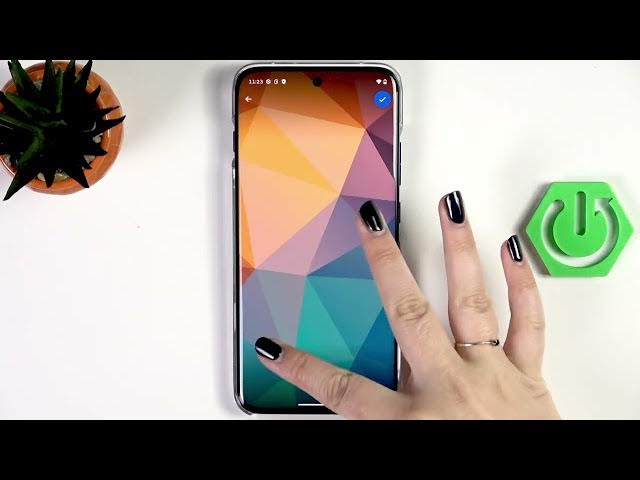
use. And here we can and to edit the
1:55
photo so we can adjust the position,
1:57
scale, and angle of the photos. Uh so,
2:00
uh we can zoom it in, we can kind of
2:02
zoom it out, we can change the position.
2:05
I don't really understand what's going
2:07
on with the angle. We cannot really, I
2:09
don't know, rotate it or whatever.
2:11
I think we can leave it like that. And
2:13
if you're happy with the results, tap on
2:15
the tick icon in the right upper corner.
2:17
So again, here we've got the preview of
2:20
the lock screen and the home screen. Uh
2:22
so, uh now we can simply tap on set
2:24
wallpaper in the right upper corner. And
2:26
now finally, we can decide whether we
2:28
want to uh set it on the lock screen,
2:30
home screen, or both. Uh it's up to you.
2:32
Just make sure that the option you want
2:34
to use is marked. If you want to do it
2:35
only for the home screen, make sure that
2:37
the lock screen is unticked. And the
2:39
same situation if you would like to set
2:41
it on the lock screen, just untick the
2:43
home screen. However, I'll pick both and
2:47
Now we can go back, and as you can see,
2:49
the wallpaper has been applied
2:52
All right, so that'll be all. Thank you
2:53
so much for watching. Please hit the
2:55
subscribe button and leave the thumbs