0:00
Hi everyone, in front of me I've got Xiaomi Redmi Note 12s and let me share
0:04
with you how to add the photo to contact in this device
0:10
So first of all let's open your contact list and of course find the contact you'd
0:15
like to edit and tap on it. So let me pick Timmy, then tap on the edit icon and
0:20
tap on add picture. And as you can see we will be immediately transferred to those
0:26
three different sections. So we've got those illustrations which are pretty cool and I highly recommend to check them because they are really really nice
0:34
You can pick something from those options if you want to of course. If not you can always enter Google photos which is basically your own gallery or
0:43
device photos, the same situation. But here this section is divided between again two
0:49
different options. So the gallery again, your own photos or the camera. And after
0:53
picking the camera your device will open obviously the camera app. So this is the
0:57
best option to choose if you've got the person right in front of you and if you're able to catch a photo of him or her. However I will pick something from
1:04
the gallery so let me tap on it and of course give all the permissions. And for some reason I cannot see my photos. All right maybe here
1:14
All right that's not what I wanted to. Okay finally. All right whatever. I've got this
1:25
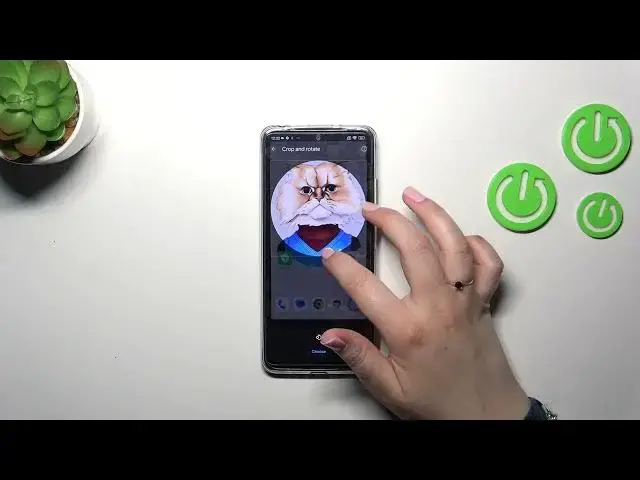
great shot. After picking the photo you can change the position of it. You can
1:31
zoom it in or zoom it out a little bit. And thanks to this you can decide what
1:35
you will see after semi-in-the-hole contact because basically this highlighted area in this circle is responsible for it. So what you can see here will be saved and
1:44
applied. So if you are happy with your choice just tap on choose and as you can
1:48
see the photo will be immediately applied right here. And remember about
1:53
picking, I mean tapping on save because if you will not do it then the contact
1:58
will not be saved. As you can see this is how our contact looks like. You will be
2:02
able to see this photo for example on the contact list or during all incoming
2:06
calls from that number. All right so that will be all. This is how to add the
2:11
phototech contact in this Xiaomi device. Thank you so much for watching. I hope
2:15
that this video was helpful and if it was please hit the subscribe button and leave the thumbs up