0:00
Welcome! In front of me I have Xiaomi Mi LED TV P1 and today I'll show you how
0:10
can open browser on this TV. So at first we have to be sure that we are connected
0:15
to the Wi-Fi network. As you can see I am connected to this to this Wi-Fi network
0:20
and next we have to move to the Play Store and download one of the browser
0:25
that we can use so let's go for the Play Store. Of course you have to be in
0:31
login to the Play Store so if you don't sync in with your account just make it
0:35
and after that you are you are in the Play Store so we can go for the search
0:39
right here we can speak to search. I'm going to download Google Chrome so let's
0:46
type here Chrome. Of course you are simply navigate with your remote control
0:55
just like that with arrows and go for the search
1:15
Okay I don't unfortunately I don't I don't I cannot find here the Google Chrome
1:20
so we can find for example this TV browser internet so let's get this one
1:24
for example let's install of course if you want to get any other any other
1:30
browser we can choose it from the list I just decide to download this one
1:42
and as you can see right now we can simply open that browser and we can for
1:50
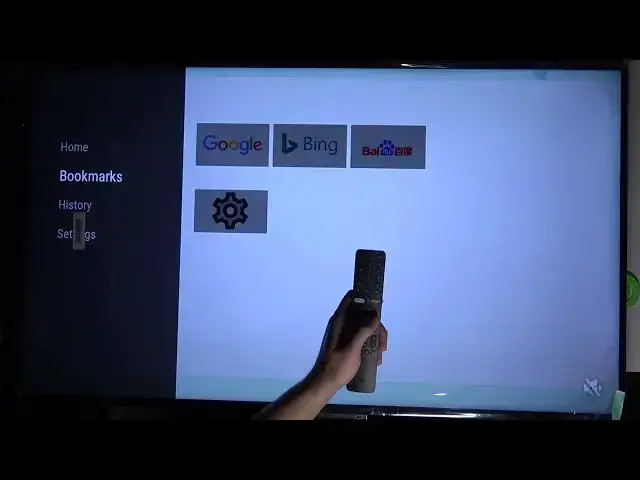
example enter for Google search and as you can see here we are in the browser
1:58
we can type something here so you are navigate with your arrows as you can see
2:05
here we got the pointer or if you want to make make search right here just tap
2:10
and then input type whatever you want and right now let's go back and I will
2:15
also show you where you can find this browser because we installed it up best
2:18
but as you can see we don't have it on the screen so we have to simply choose application and this icon and then you will find the browser in this place if
2:31
you want to change position of the browser you have to tap on it okay let
2:37
me show you one more time we can go here and add it to the favorites apps it will
2:43
get quicker access to this to this browser as you can see so it appears
2:51
here so right now we can open it and then make the search so that's how we
2:55
can install and open browser in this TV if you find this video helpful remember
3:01
to leave a like comment and subscribe