0:00
Welcome! In front of me is a Samsung Galaxy Note 10 and today I will show you
0:12
how to perform a hard reset of the device in order to remove the screen lock
0:16
As you can see there is one right here that keeps disappearing. But to get
0:21
started we will have to forcibly shut off the device because otherwise we
0:25
can't really turn it off. Like if you don't know the passcode you try to shut
0:30
it off like so and turn power off. It will give you this message. Draw the
0:35
pattern to turn off phone. So to basically bypass this what you want to
0:42
do is hold the power key and volume down together till the screen goes off and
0:48
once it does then switch to holding a volume up and power key. Now make sure
0:54
your screen is actually on so you can see when it turns off because while
0:58
you're holding the keys the screen won't turn off. So yeah let's begin
1:04
Power, volume down, hold it till it turns off. Okay and now switch to volume up and
1:17
once you see the Samsung Galaxy Note 10 logo you can let go and we should now be
1:21
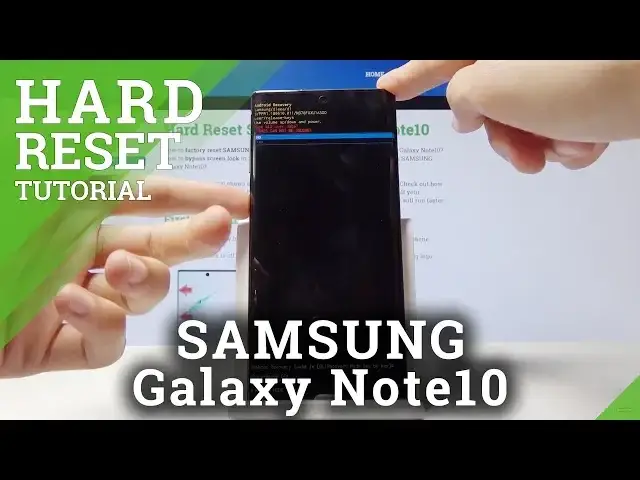
in recovery mode. And there it is. So from here we will use a volume up and
1:26
down to navigate respectively up and down and power key will be used to confirm. And with that in mind let's select factory, wipe data factory reset
1:35
and confirm with the power key. Select yes and once more. You get a little
1:39
message on the bottom. Wiping data then data wipe complete and reboot system now
1:44
should be selected by default so all you need to do now is press power key to
1:48
confirm that. And now the device will continue to perform the data wipe in a
1:54
background and it might take a little bit longer than it normally does for it to turn on and once it's finished it will be greeted with the Android setup
2:02
screen. So I'll be back once that is actually visible. And as you can see now the process is finished and we can set up the device. So
2:33
I'm just gonna simply go through it. Let's choose English and continue. Nope
2:44
we should turn you off. Again. Stop on I have read and agreed. Skip for now. I'm
2:53
primarily skipping everything you don't really need to. You can set up the device if you like to. I just want to save on time
3:00
And we should now be on the home screen. And there it is. And if I lock the device
3:15
and unlock it you will see that there is no more any kind of pattern or any
3:21
protection. So that is how you would perform a hard reset and also remove the
3:24
screen lock in the process. And if you found this video helpful don't forget to hit like, subscribe and thanks for watching