Up next in 10


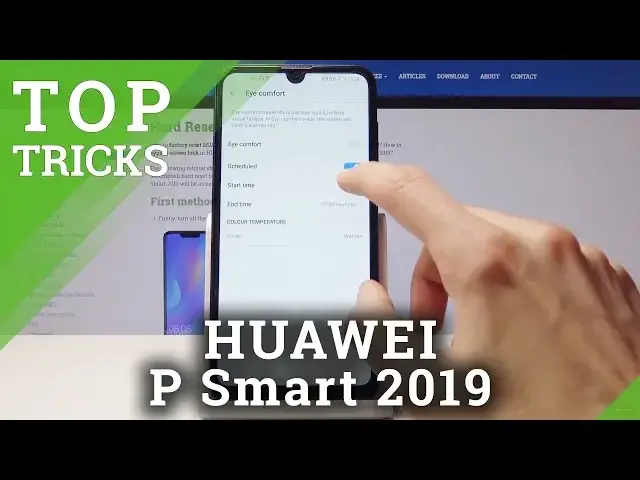
If you are interesting how kind of extra features you are able to use in your Huawei device, let’s watch presented tutorial to discover best features and helpful tips in Huawei P Smart 2019. Became a master in usage of Huawei smartphone.
How to enable hidden options in Huawei P Smart 2019? How to enable secret options in Huawei P Smart 2019? How to activate super feature in Huawei P Smart 2019?
Let’s find out more information about Huawei P Smart 2019:
https://www.hardreset.info/devices/huawei/huawei-p-smart-2019/hardreset/first-method/
Follow us on Instagram ► https://www.instagram.com/hardreset.info
Like us on Facebook ► https://www.facebook.com/hardresetinfo/
Tweet us on Twitter ► https://twitter.com/HardResetI
Show More Show Less View Video Transcript
0:00
Welcome in front of me is a Huawei Y7 from 2019
0:12
and I'll show you a couple tweaks and tricks that you can do on this device
0:16
so we'll start off by enabling the up drawer and how you do it is by going into settings
0:24
then go into display and from here you should see home screen style so tap on it and as you can see you have two options
0:34
standard which is the one that is right now with all the apps smack in the
0:38
middle of the screen on basically all pages or you can also enable the drawer
0:44
where once you once it loads you all have this little button here we can
0:52
top on it and you get all the apps in a drawer and from here you can also
0:58
to make it cleaner so you don't have like two screens right now
1:03
You can basically remove these apps by selecting them all. And it's dropping them and to remove and also these as well
1:19
And don't worry, they're not actually being removed. They're just not going to be visible on the home screen
1:24
So that's it. And as you can see, now it's gone. but they're still all over here and
1:34
another nifty thing that can actually do on a home screen I'm already here
1:40
for instance if I find messages see I'm just going to drop or whatever
1:45
actually it's here so never mind but for instance let's say if you want to write someone
1:52
you can hold it and you basically get your contacts some of them
1:57
after you hold and you can just tap on it to write a message
2:01
but you can also hold on contacts and go into favorites or recently dialed numbers Basically a lot of the apps have additional function when you hold the icon
2:16
With Chrome, you can open a new tab, as you can see. So yeah, from here, oops, I don't want to really click it
2:26
So as you can see, when you hold it, you can choose what function you want to open the camera at
2:32
vertically open it straight into the video mode instead of normally how it goes into photo
2:37
So it's a fairly nifty feature that isn't really visible anywhere and
2:43
sometimes it helps with like how quickly you access something. So just a little fun one
2:51
So moving on the battery is dying, but moving on it's gonna be the hiding the notch, which not every
3:02
likes it so it's like there is an option to hide it and it's located in settings
3:07
and then display and from here you see the notch right here so click on it and
3:16
you get two choices which standard is the one like as you see right now or
3:21
you can click here and we'll put that black bar to make it look like the
3:26
screen just ends right here and it's really a matter of preference
3:32
I like to have it normally as it is right now, but that's just me, so everybody has their own taste
3:43
Now moving on, I think that I personally like using as the eye comfort, which can be found in notifications somewhere here
3:53
and if it's not visible, you can top on the pencil and it will be right here
3:57
so you can just grab it, drag it, drop it, and click on back, and now you have it
4:02
And from here you can either tap it to activate it manually and it will basically what it does is remove the blue light in a way or just tones it down in a way and makes it makes the screen look a little bit more yellowish but it helps if you using the phone at night it will help you not so your
4:24
eyes aren't strained so much on the blue light because blue as a color itself is fairly
4:29
intensive on the eye and it will kind of wake you up if you're trying to use use a device
4:35
It's just harsh. So this is a little bit more subtle and helps you fall asleep easier after you're done using the phone
4:45
But moving to it, you can also hold it. And in settings, you have option to set up a schedule
4:55
And you can set up the start time or it turns on. So let's say at 8 and you can then set up where it ends at 7 in the morning
5:02
And basically whenever you pick up the phone between these hours, you will have this yellowish color and also once it's on I can
5:11
we slide it to change the intensity of it to whatever suits you so yeah so moving on
5:23
another thing that I'll show you is the gesture navigations and to do it we'll
5:29
need to or to enable them we'll need to go into settings go into system and from here
5:35
system navigation and you have a couple options but we're just talking about the gestures so it's this
5:44
one as you can see now the buttons are gone and basically how it works is if you pull up from the
5:51
top you go to home screen if you hold it it will open up recent apps and if you slide from
5:56
sides any side so actually demonstrate it you slide you see this little thing open and it's
6:02
basically the bug button and goes one time back and same goes from the other side you also go back and then if you pull from the top it acts as a recent
6:13
apps because I held it there but if you just swipe it once quickly from the so like so swipe swipe it it will just close hold recent apps where you can close it
6:29
And if you like using the Google Assistant, that is when you're holding the Home button
6:33
before when you had the button there, it's still here, it's just from the side
6:38
As you can see, little icon, just drop it and opens up the Google Assistant now
6:45
So it's still here. And moving on to the last thing that I'll show you is the split screen feature
6:52
which would be done by actually having some apps open probably would be good
6:57
So let me open, I guess we can open this on that now and hold it
7:05
And from here you can top on these two little bars that you see right here. And it will then open this in split screen and you can choose another app that you want to open
7:15
So for instance, I'm going to open YouTube. and I'm pretty sure it's going to update so not now dismiss
7:25
As you can see, you have functioning YouTube while also being able to just write messages
7:34
And if you would roll like this on top instead of being on the bottom, you just start with YouTube and make this
7:39
like, I'm just going to show it. I think it's going to be easier than explaining
7:44
So to do it, we would open up YouTube first. then see it be completely gone where is it not right here so just tap on
7:56
YouTube as a split screen and then choose messages for instance or any other app and
8:03
as you can see it works fine still both are usable so yeah those are some of the
8:12
tweaks and tricks that I like and if you found this video helpful don't forget to hit
8:17
like, subscribe and thank you for watching
Consumer Electronics
Science