0:00
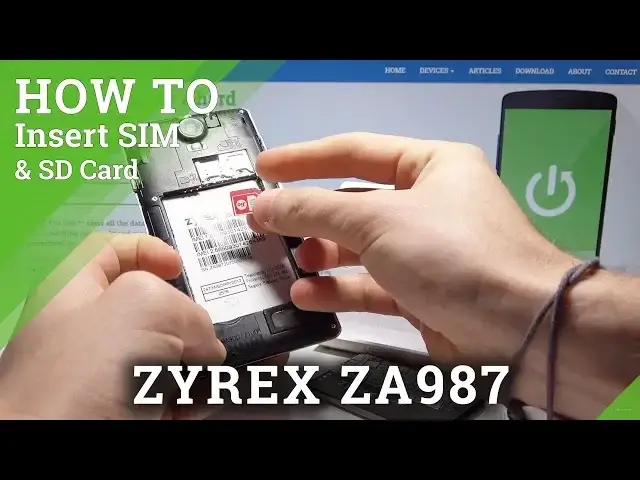
Here I have Zyrox ZA987 and let me show you how to insert here micro SIM and microSD card
0:12
So at the very beginning let's start here by pressing the power key
0:16
Let's choose here power off and tab OK to confirm it. Let's wait until your device will be completely switched off
0:22
Let's open the following back cover. Let's do it step by step and now you can open the Zyrox
0:30
So let's open the Zyrox by using the following cavity. Let's open this battery
0:38
And here you can insert three cards. You can insert one regular card, regular SIM card right here at the bottom
0:45
But in my case let me leave this slot empty. Let me insert the second SIM, the micro SIM with the characteristic edge right here
0:52
We need to put this card right here and press it to the end
0:59
Alright, now let's insert the microSD. Here I have microSD with the characteristic edge right here and put this card in that
1:08
position also to the end. Now let's close the battery, close the back cover protection and simply switch on the device
1:21
Let me show you how to do it. The Zyrox is turning on
1:37
Alright, the home screen pops up so everything went well. Now you can choose settings
1:42
Here you've got information about the SD card. You can also choose here more and connect your device to one of the mobile network
1:52
You need to wait until the SIM card will be initializing and here you will be able to
1:57
use the mobile network. So that's it. Everything went well. Thank you for watching
2:02
Please subscribe our channel and leave a thumbs up under the video. And we will see you in the next video