0:00
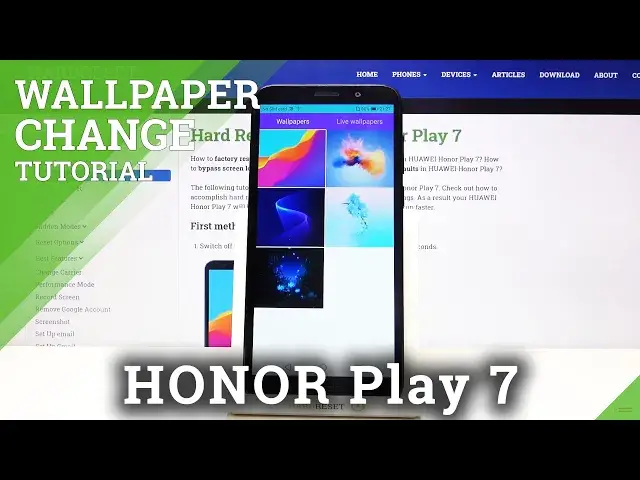
Hi everyone! Here we've got Honor Play 7 and let me show you how to change the
0:11
wallpaper on this device. So first of all let's tap on the settings and here we
0:15
have to choose the display. Now let's tap on the wallpaper and here we can choose
0:20
the wallpaper from our own gallery so you will be able to set your own photo
0:25
as a wallpaper. We can choose it from live wallpapers if you have one from
0:30
Google Photos or regular wallpapers. Let me pick for example the wallpapers. Here
0:35
we've got some defaultly installed options. If you want to check how the particular one will look like, if you want to see the preview, just tap on it
0:43
And as you can see here we've got the preview. You can change the position of
0:47
this wallpaper. It's really up to you how you want to set it. What's more you
0:52
can blur the image. Simply tap on this illusion icon and by swiping you can
0:56
change the level of this effect. Let me turn it off. What's more here we've got
1:01
the scrollable option so after tapping on it and applying the wallpaper, the
1:06
wallpaper will change while you will go through all the home pages you have
1:12
applied. But let me turn it off. Let's position it like this and if you are
1:17
happy with your results and if you want to set the wallpaper, simply tap on this
1:21
tick icon in the right upper corner. Now you can decide where you want to set it
1:26
You can set it on the lock screen, home screen or both. I will pick both for
1:30
example. Now let's wait a second. Okay let's go back to our home page and as you can see the wallpaper has been
1:42
successfully applied. Let's lock our device and let's check and it is also
1:48
visible on our lock screen. So that's all. This is how to change the wallpaper in
1:54
your Honor Play 7. Thank you so much for watching and if you find that this video
1:58
was helpful please hit the subscribe button and leave the thumbs up