0:00
Welcome! If you want to connect your Mi Smart antibacterial humidifier to your
0:11
Android smartphone at the first you have to plug your humidifier to the power
0:18
supply with this cable and when this icon is blinking it means that it's
0:24
turned on. Next we have to move to our smartphone so we have to download Mi
0:29
Home application. So if you download this app from the Play Store you have to
0:33
enter and then when you want to connect you have to tap right here on this
0:38
marker on the right upper corner. We have to turn on Bluetooth so click here and
0:43
then we have to set localization so click here, turn on location, go back, go
0:51
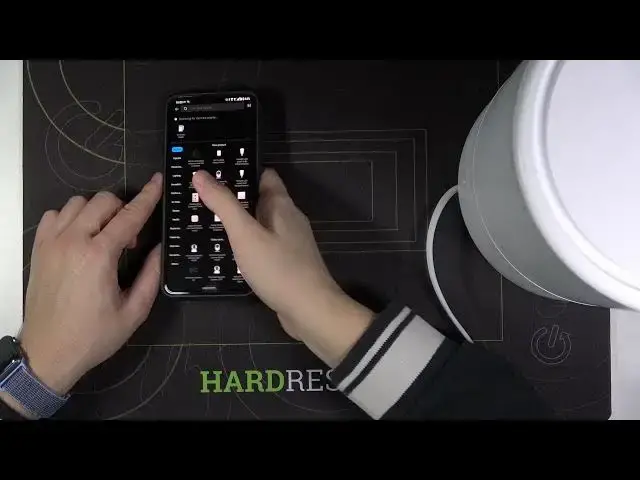
back to your app and right now it is scanning for the Nerby devices and as
0:54
you can see here we can find the first device Mi Smart Kettle but we are
0:59
waiting for our humidifier so just wait until it pops on the screen. If it is not
1:05
going to happen we are going to use this button right here on our device so just
1:12
be patient. Okay as you can see it's not going to happen so let's put the
1:20
smartphone right here and then we have to click and hold this button so click
1:25
and hold, keep holding. Okay right now we can release this button and then we have
1:34
to make something like that so we have to go back from this app and enter one
1:39
more time by this switcher in the right upper corner and as you can see right
1:47
now the Mi Smart antibacterial humidifier pops on the available devices so we have to simply tap on it to connect. Click to connect to another
1:57
router. We have to choose available Wi-Fi network so I'm going for this one for
2:04
example and let me just input the password. Okay and if you input password you have to accept this stuff right here by
2:16
tapping. Click next. We have to bring our phone near humidifier so just keep
2:24
holding it like that. Click connect. As you can see connection is successful. Right now we have to wait
2:47
Okay right now we can select room so I'm going to leave it with the living room
2:54
so click then tap next. We can change name of our device but I'm leaving it
3:00
like that. Click next. As you can see right now we can start it so click, tap
3:05
agree and as you can see right now it's turned on and here we can also add the
3:11
relative humidity and information about the dump and here we are able to adjust
3:19
our device. So that's how we can connect Mi Smart antibacterial humidifier to
3:25
your Android phone. Thank you guys for watching. Leave thumbs ups, comments and
3:29
subscribe to our channel. See ya