0:00
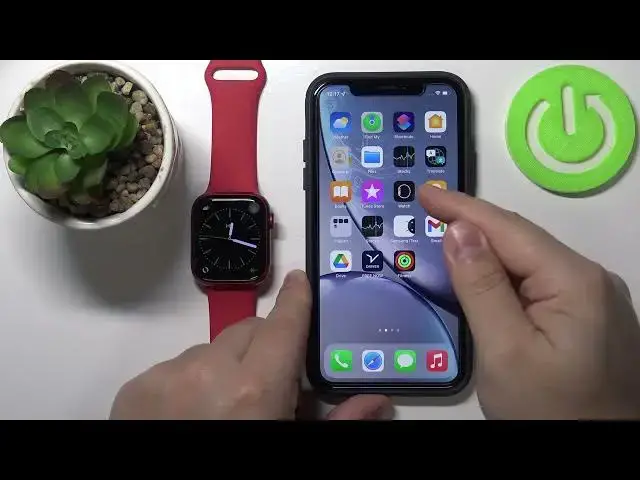
Hello! In front of me I have Apple Watch Series 7 and I'm gonna show you how to add more watch
0:12
faces to your watch. So let's wake up the screen on our watch by pressing the crown
0:18
button and then present hold on the screen to open the watch face menu. And as you can
0:23
see here we have the list of watch faces on our watch that are available on our watch
0:28
and we have only couple 1, 2, 3, 4, 5 right here. And we can add more basically if you
0:38
want to. To do it scroll to the right side and here you have this new plus button. Tap
0:43
on it and here you have list of watch faces you can add to your watch. And for example
0:50
let's add this one. To do it tap on add button. Now you'll be able to customize the watch
0:55
face. First you can change the color by using the crown. Then you can swipe left to change
1:02
the dial type. Then you can swipe left again and here we can change the complications
1:09
Basically widgets. You can tap on one and select the complication from the list. For
1:14
example let's select weather. Next let's change it to moon phase. Then change it to something
1:24
like blood oxygen. And finally let's change it to voice memos maybe. And there's one
1:37
on the in the middle too. You can select for example heart rate. And once you're done
1:41
press the crown button. As you can see the changes were applied and this watch face is
1:48
on the list right here. We have more now. And you can tap on it to apply it on your
1:52
watch like this. You can also add the watch faces via the phone app. So let's bring our
1:59
iPhone right here. On our iPhone let's open the watch app. And here we have the list of
2:09
watch faces that are available on our watch. As you can see we have six now. And we can
2:16
add more via phone app. To do it tap on face gallery. And here you have different categories
2:24
of watch faces. As you can see find the one you like to add. For example breathe. Tap
2:31
on it. And here we can customize it. You can change the type. Complications. Like that
2:48
And once you've done customizing it tap on add. And the watch face will be applied to
2:55
your watch as you can see. And also it will be added right here to the list of watch faces
3:01
installed on your watch. We can also remove the watch faces from this list and from our watch
3:07
To do it you can select the watch face by tapping on it. Scroll down and tap on remove watch face
3:16
You can also tap on this edit button right here. And remove the watch face by tapping
3:24
the minus. And remove. We can also change the order of the watch faces on the list by grabbing
3:36
one and dragging it to the position we want it to be. So basically you need to press and hold on
3:41
this sort button and drag the watch face to the position you want it to be in. And once you tap
3:47
you can see that when you open the menu this watch face will be second. Like I said it too
3:55
And to remove the watch faces from the watch you can open the watch face menu. I believe swipe up
4:02
and then tap on remove to remove it. Like this. And that's how you add more watch faces to your
4:11
watch. Thank you for watching. If you found this video helpful please consider subscribing
4:16
to our channel and leaving a like on the video