Up next in 10


XIAOMI 12T Tutorials:
https://www.hardreset.info/devices/xiaomi/xiaomi-12t/tutorials/
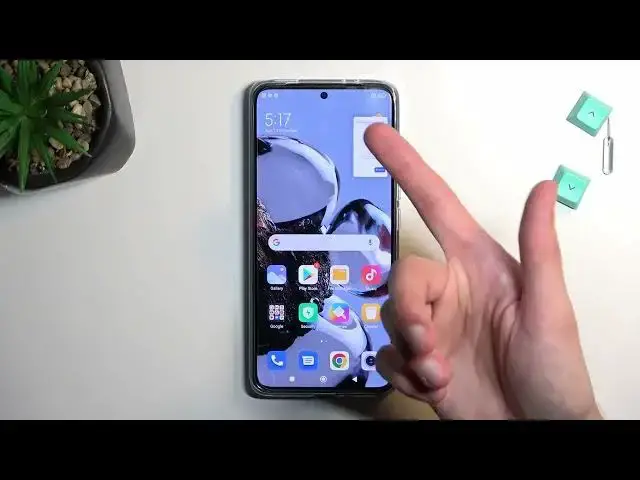
Today we have something really special for you - we want to show you the best tricks you can use on your XIAOMI 12T. We present the unusual tips for XIAOMI 12T. Use great features and useful settings for XIAOMI 12T. Become a pro user of XIAOMI 12T. A few way to get more out of XIAOMI 12T. Cool things that you can do on XIAOMI 12T.
#TopTricks #Tips #xiaomi12tpro
Follow us on Instagram ► https://www.instagram.com/hardreset.info
Like us on Facebook ► https://www.facebook.com/hardresetinfo/
Tweet us on Twitter ► https://twitter.com/HardResetI
Support us on TikTok ► https://www.tiktok.com/@hardreset.info
Use Reset Guides for many popular Apps ► https://www.hardreset.info/apps/apps/
Show More Show Less View Video Transcript
0:00
Welcome, in front of me is a Xiaomi 12T and today I'll show you a couple tweaks and the tricks you can do on this phone
0:10
So let's get started by opening up our settings where we'll find all of the different changes that we can do to our device
0:17
So I'm gonna start off with the options that are located under the display
0:21
Here we have two, I think if I remember, or three maybe. So number one we have the dark mode, we have light and dark mode which you can obviously swap between them
0:28
This is kind of like the permanent swap. So that's one way, but you can also navigate into the scheduled dark mode
0:36
And when enabled it will automatically switch the dark mode from light mode to dark mode based on the time
0:42
Which is a nifty feature. If you tend to have your phone in light mode, if you tend to go outside during the day
0:52
you probably know that dark mode is a little bit harder to see than light mode
0:57
So this will allow you to have it in direct sunlight and light mode
1:01
And then during night it will switch back to dark mode giving you this darker feel that doesn't singe out your irises
1:08
Which is a win-win. Now going back, we have also in here a refresh rate, right over here
1:16
It's set to default by default, which is also recommended. I just refresh rate dynamically based on scenarios
1:27
So this will change it from 60 to I believe 120. Yep, 120 when it needs to
1:37
So as an example, if we have it right now in default, right here on this page it will be running at 120 Hz always
1:44
Just because we have this little animation going on right here. But if I go back here, there's nothing moving on here so it will swap it down to 60 to preserve battery life
1:53
Now the default option would be probably the best option for majority of the people that do like the smoother motion
2:00
But still want to have a relatively better battery life. But under custom, if you prefer to just prioritize your battery life and you don't really care about that high refresh rate
2:11
you can change it to 60, have it set to hard cap 60 and it will never go above it
2:16
Meaning you will get a better battery life in general. You could also hard cap it to 20 but I wouldn't recommend that one
2:25
If you're planning to use 120, just go with the default which gives you the 120 but doesn't run it all the time when you don't need it
2:33
Or when you can't actually utilize the 120 Hz. Now moving on to the next thing
2:39
And here is going to be the color scheme. By default it is set to vivid
2:43
For some people the vivid might be a little bit too colorful. So if you tend to consider the vivid to be a little bit too overdone, you could change it to something else like saturated
2:57
which actually is a little bit even more overdone. Or original. Okay, that's actually very weird
3:11
So it looks like the vivid colors are the most toned down colors of them all
3:16
Even the original colors are more saturated. And saturated is, well, the most saturated of them all
3:25
We also have the advanced settings. This will allow you to customize it a little bit further based on P3 or sRGB
3:33
And you can also just change the levels I believe. There we go
3:37
So you can for instance remove completely red colors if you want to, though not really recommended
3:42
It looks like this might be the most accurate scenario right here for the colors to be the most representative of what they are
3:52
Now moving on to the next thing. It's going to be the floating windows
3:57
Now by default you can launch it by going into your recent applications
4:02
You have the floating windows right here. And when you press on it, it gives you a bunch of applications that you can open up in this kind of floating window
4:11
And there we go. I can click on home button and it minimizes it
4:15
You can then interact with it again. And you can obviously use this fully like it's a normal application
4:23
There we go. You can also open up other apps there and still use this whenever you want to
4:29
And if we go into the settings, scroll down to special features, we'll have floating windows right here
4:38
And as you can see we have a couple options. So open floating windows. That gives you a tutorial
4:43
This is for applications that give you notifications. So for instance if you get a message, you get this banner right here
4:51
You can pull it down. It opens it up in a floating window. You can respond to it and then close it down or minimize it
4:58
There we go. I also have something for the sidebar. So you can always show or not show it
5:06
There we go. There's our sidebar. You can pull it out and you have access to a bunch of applications right here
5:12
You can just kind of flip through. I believe you can select what apps are visible right here by pressing on the plus button
5:19
Or you can hide it if you don't want it. Now moving on to another thing that I wanted to show you
5:27
It's going to be the gesture shortcuts, which are located on the additional settings
5:32
Gesture shortcuts. And here we have a couple different ones. Now the one that I myself really like is the turn on torch or flashlight
5:44
And as you can see it's a double press power button to launch
5:48
Basically quickly open up your flashlight. So let me just kind of do this
5:55
Now it locks the device too, but it obviously allows you to turn on your flashlight whenever you want with a quick double press of a power button
6:03
We have a couple additional ones. Though I will clarify this. Not every shortcut will be, I think, working
6:11
Just because some of them I think might be using power button. Like this double press power button
6:16
You can use this, but this will replace the torch as you can see
6:20
But luckily Xiaomi actually did think about it. And they added double press volume up button or volume down to launch camera, which props to them
6:29
Not every phone does that. And you have a couple additional ones like partial screenshot with three fingers
6:36
Take a screenshot and also launch Google Assistant. So if you don't want to have this
6:46
It doesn't even open up because I'm not logged in. But if you don't want to have the Google Assistant show up whenever you hold your power button to access the power menu
6:55
You can just completely disable it. And get back the actual functionality of a normal power button
7:01
So there we go. And moving on to another thing which was actually in here
7:06
I'm going to just go back. So in additional settings if you scroll down
7:13
So that was just settings and additional settings. At the bottom you have this blue text where you'll find full screen display
7:20
And this is the gesture navigation right here in the OS. Now you do have the option to select which one you want throughout the setup of your phone
7:29
But maybe you just kind of skipped over this. Didn't really give it much thought
7:33
If you want to you can change it right here. So by default the phone selects button navigation
7:38
Like these buttons right here. But if you want you can change it to gesture
7:42
We can learn it if you have never used it. I do recommend going over this
7:46
But I already know so I'm just going to not learn it. And just to quickly go over
7:52
It removes the buttons from the bottom. Shifts everything a little bit further down
7:56
And then whenever you want to go home you just quickly swipe up. Like this
8:00
You swipe up and hold to go to recent. And you can swipe up from either side to go back
8:04
Pretty neat way of navigating through your device. And specifically the swipe from sides is just a really comfortable way
8:11
Like natural way to navigate through your phone. But anyway with this being said if you found this very helpful
8:17
don't forget to hit like, subscribe and thanks for watching
#Consumer Electronics
#Software
#Skins, Themes & Wallpapers