0:00
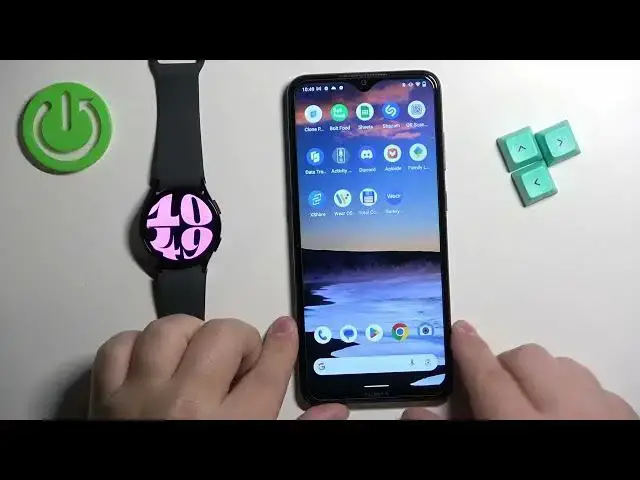
Welcome. In front of me I have Samsung Galaxy Watch 6 and I'm gonna show you
0:04
how to customize the app menu on this watch. First we need to wake up the screen on our watch. You can do it by pressing the
0:13
home button. Once you wake up the screen you should see the current watch face
0:17
the home screen and once you see the screen you can swipe up on the screen to
0:21
open the app menu. And here we have it. And we can customize this menu in a
0:26
couple ways. We can move the icons around, change the order of the icons. We can
0:31
remove the icons which basically will uninstall the application you removed from the menu. And we can also put the icons into a folder to group them
0:41
together. To move the icons press and hold on the one you want to move, keep
0:46
holding on it and then drag it to the position you want it to be in and then
0:49
release it. Oh I basically put it in the folder. Let me move it back somewhere
0:59
here like that. This is a bit wonky. Don't put it in the folder please. Just
1:06
yeah drop it. Okay finally. Basically you can drop it somewhere else. To put the
1:12
icons in the folder as you saw before you simply press and hold on the icon
1:16
then drop it on different icon to put them back or rather to put them in the
1:20
folder. You can change the name of the folder by tapping on folder name. Like
1:30
this. You can change the color of the folder if you want to and you can also
1:35
add more icons to it by tapping on the plus button. Like that. And once you're
1:41
done you can go back and here we have our folder. And to remove the icons from
1:47
the menu press and hold on one. Come on. Tap on uninstall. The app will be
1:55
uninstalled from your watch and the icon will disappear. Like this. You can also
2:00
customize this in the phone application if your phone or rather if your watch is
2:06
paired with a phone. So I'm gonna move this to the side. Bring our phone in. Like
2:13
this. Zoom out the camera so you can see the whole screen of the phone. And now
2:20
let's open the Galaxy Wearable application on the phone that is paired
2:24
with our watch. Once you open the app you should see your Galaxy Watch 6 right
2:31
here on the page. And now you can tap on the app screen. And here we can customize
2:36
the app menu. We can again move the icons by pressing and holding on one and
2:41
then dropping it in the place you want it to be in. You can remove the icons by
2:45
pressing and holding on one and then tapping on uninstall. This one can't be
2:53
removed. Removed I believe. Can it be? No. We can't remove this one. Maybe music
3:00
Some of the apps won't be able to uninstall. Okay. We can
3:05
uninstall the music. And if you uninstall it the icon will disappear. And to put
3:09
the icons in a folder simply press and hold on the icon and drop it on the
3:14
folder or the other icon to group them together. So you can drop it right here
3:20
to put them in the folder. You can also drop the icons on the folder to put
3:25
them in the folder. And of course you can change the folder name and the color if
3:30
you want to right here in the app. And once you're done you can tap on save to
3:35
save the settings. And if you open the app menu you will see that the change
3:39
applied. Okay. And that's how you customize the app menu on this watch
3:44
Thank you for watching. If you found this video helpful please consider subscribing
3:49
to our Channel and leaving the like on the video