Up next in 10


Read more info ULEFONE P6000 Plus:
https://www.hardreset.info/devices/ulefone/ulefone-p6000-plus/
In the presented tutorial, we show you the best apps that your ULEFONE P6000 Plus has. If you would like to discover all super options and cool features in your Ulefone device, stay with us to get access to the location of all top tricks. Let’s follow attached video guide and enable the best options in ULEFONE P6000 Plus.
How to enable the best tricks in ULEFONE P6000 Plus? What are the coolest features in ULEFONE P6000 Plus? How to locate top tricks in ULEFONE P6000 Plus? How to extend options of ULEFONE P6000 Plus?
Follow us on Instagram ► https://www.instagram.com/hardreset.info
Like us on Facebook ► https://www.facebook.com/hardresetinfo/
Tweet us on Twitter ► https://twitter.com/HardResetI
Show More Show Less View Video Transcript
0:00
Hello, in front of me I have a Ulephone P-6,000 plus and I'm going to show you how to perform some of the tap tricks on this device
0:14
First, let's open the settings. To do that, let's just tap this icon right here
0:23
And now let's scroll down and tap on the first thing I want to show you, which is
0:29
I want to show you which is navigation bar right here. It's selected
0:35
And in here we have a lot of options for navigation bar
0:39
First one is a hide navigation bar. When we enable it, this icon will appear on the navigation bar
0:49
And we can tap on it to hide it. And then to bring it back, we just swipe upwards from the bottom of the screen
0:58
bottom of the screen, like that. We can also completely turn off the navigation bar and use the navigation gesture, I mean. Instead
1:13
So let's select, for example, full screen gesture. And this type of gesture is quite simple
1:22
Basically you swipe upwards on the screen to go to. to the recent apps
1:34
You touch this button right here to go to the home screen
1:43
And you go back by tapping this icon right here. Like that
1:50
Second type of navigation gestures, I'll use sliding gesture to perform the same function
1:56
And this basically means that the side of the screen will correspond to the button on the navigation bar
2:07
For example, if we swipe upwards from the button on the left side of the screen
2:15
like this, we're going to open the recent apps. If we're going to swipe in the middle of the screen, then we're going to go to home screen
2:32
And we're going to swipe from the right of the side, basically
2:37
Let's go back here and swipe on the right side. We going to go back Now let turn the virtual key back on And go back
2:53
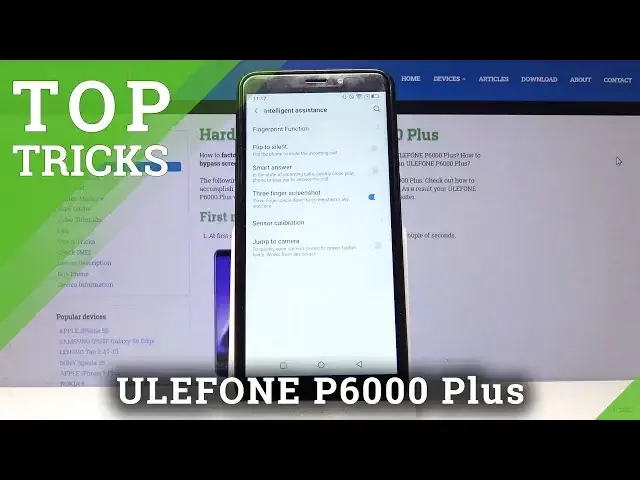
Another thing I want to show you is the intelligent assistance. Let's tap on it
3:03
And here we have a lot of useful settings. For example, we can turn on to flip phone to silence
3:10
flip phone to silent. Basically when we get the call, if we flip the phone it's going to
3:16
mute the incoming call. You can also turn on smart answers. If you pick up your phone
3:24
close to your ear it's going to answer the call. Three-finger screenshot is another
3:32
wishful one. When you swipe on your screen with three fingers, I think it should work like that
3:42
Oh, swipe down. Yeah, my bad. Then you're going to take a screenshot
3:47
You can also turn on jump to camera. Basically this makes that if you press the power button twice
3:58
It's going to open the camera up. We have also the fingerprint function
4:05
Let's tap on it. And here we can turn on that. on that the fingerprint answers the call
4:14
We can also take a photo video when we press the fingerprint sensor
4:22
Also we can turn on that the long press on fingerprint sensor will take a screenshot like that
4:30
And we can also turn on that the long press of the fingerprint will go to home like this
4:38
Let's go back. And we can also turn on that the tapping the fingerprint will go back like that
5:02
Now let's go back to settings. And another thing I want to show you is the magnification settings
5:14
So let's tap on system right here. And now let's select accessibility
5:26
And here we have a magnification Let tap on it And now we can choose between Magnify with Triple Tap and Magnify with button Let select Magnify with Triple Tap
5:39
And turn it on right here by tapping the slider. And this feature basically allows us to magnify our screen by just tapping three times on it
5:51
Like that. And as you can see, we can see, we can see
5:56
We can zoom in. To move our screen while we are zoom in, we just touch with two fingers and move around like that
6:04
And we can even zoom... Oh, my bad. Let's go back. We can even like zoom out and zoom in by just touching with two fingers and pinching out and pinching in like that
6:18
And to exit the magnification mode, we'll just triple tab the screen again
6:24
Like this. Now let's go back. And turn it off. This
6:39
And the last thing I want to show you is a thing called Super Screenshot
6:47
To do that, let's just swipe downwards on the screen from the top of the screen
6:52
I mean twice. twice to open the quick panel and here let's tap on the super screenshot and now we have
7:03
options like screen recording move funny and long screen recording basically when we
7:10
tap on it right here we can start recording our screen as a video and to start
7:17
let's just tap this play button Oh it started, my bad
7:26
And it's recording already. And to stop it, there's this blue stripe right here on the right side of the phone
7:38
We just tap on it. And then tap stop button. And now let's open the notifications
7:50
Here we have a save screen video. Now let's open it. As you can see, that's our video
8:03
Let's go back and open the super screenshot again. Another option we have is long This basically makes long screenshots I can really I don think I can show it to you here maybe in browser
8:28
And yeah, maybe this will work. Let's try. Oh, and this basically makes the screenshot long
8:40
It's gonna just go through the screen and take screenshot. Let's just go
8:44
Let's tap the next page, I'm going to show you. Next page, next page, next page
8:51
And that should be enough, I think. And then tap save. And now let's open the screenshot
9:01
Let's open it with photos, for example. And as you can see, we took whole page vielleicht down
9:08
Like that. That's what this feature allows you to do. If you have, let's say, some long emails or messages, you can take a hole with this feature
9:19
Now let's open this screen shot again. And we have also moved here
9:27
Basically you can move this thing around. And last thing is a funny
9:32
Let's tap on it. And here we can choose between rectangular square, screenshot I mean, lasso screenshot and daub screenshot
9:42
A rectangular screenshot is a basically we make a rectangle like that to take a screenshot
9:52
Another option is Lassau. I'm going to show it to you. Lassau is kind of more interesting because you can just take your finger and draw a certain pattern on it and close it
10:10
And as you can see now we can save it. And let's open it
10:17
And that's our screenshot. It's kind of funny. Now let's go back
10:24
And last option is Daup screenshot. And here we can just make a smudges on the screen like this
10:35
And the more bright area is the screenshot we're going to take
10:39
So for example if we do it like this and then save, we're going to take this part of the screen as a screenshot
10:50
And that's basically all I wanted to show you. If you found this video helpful, remember to subscribe to our channel and leave the like on the video
#Software
#Other