live_tv
Livestream Starting Soon
00
Hours
:
00
Minutes
:
00
Seconds
Up next in 10


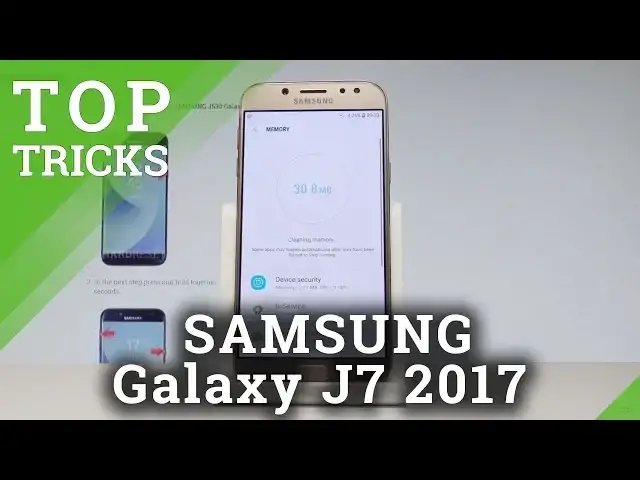
Check out top tricks for SAMSUNG Galaxy J7 2017. Most useful features for SAMSUNG Galaxy J7 2017. The coolest tricks in SAMSUNG Galaxy J7 2017.
More Info:
http://www.hardreset.info/devices/samsung/samsung-j730-galaxy-j7-2017/hardreset/first-method/
Show More Show Less View Video Transcript
0:00
Here I have Samsung Galaxy J7 2017 and let me show you a couple of tricks for the following device
0:11
So at the very beginning let me show you one of the most full features on the following
0:15
phone so the device maintains. Let's open the list of all applications, choose settings, scroll down and here you have to
0:21
find and select the device maintains, right here, let's tap it and as you can see here
0:27
you can accomplish a couple of useful features. So for example you can optimize your device, let's choose optimize now, so the device is
0:33
spinning up, let's see the result right here, let's tap done. What's more you can also choose device security and scan your device
0:43
Now let's choose scan phone, the device is looking for any viruses and risks, as you
0:46
can see scan is completed, there is no threat on my device
0:50
Let's go back and you can also free up some memory so let's tap on memory, choose clean
0:55
app and to improve the performance the device is closing the background apps and that's it
1:03
You just clear some memory on your device, you can go back and let's go for a second
1:08
trick so the floating camera button, let's open the camera icon right here, let's choose
1:13
settings right here, scroll down and find and select the floating camera button
1:17
So you can add an extra camera button that you can move anywhere on the screen
1:22
Let's enable this feature, let's go back, this is the floating camera button, you can
1:26
place it wherever you want, for example right here and you can capture screen by using this button
1:32
So that's it, let's go back. Now let's go for the third trick so the multi window, let's open the list of all applications
1:39
again, choose settings, choose the advanced features, sorry and here from the advanced
1:44
features you can choose the multi window. Let's enable this feature right here and now if you would like to use the multi window
1:52
let's use the left left key right here, let's hold down this key for a couple of seconds
1:57
and now you can use the multi window, for example you can choose the app list, you can
2:01
open the calendar and here you can use the for example settings and here you can use
2:06
the camera. That's it, you can use two screens on the phone, if you would like to use just one let's
2:14
swipe to the down and that's it, you just close the multi window
2:19
Now let me show you the one handed mode, the next very useful feature, very useful trick
2:25
let's open the advanced features one more time, find and select the one handed mode
2:31
so you can adjust the display size and layout for the easier control, let's enable this
2:36
mode, let me also tap on the one handed mode and here you can for example choose button
2:41
now you can press home key three times to enable this mode and as you can see this is
2:46
your mode that you can use right here. Alright, if you would like to quit this mode let's use some outside area, let's just tap
2:57
it and you may also choose gesture and now to enable the one handed mode let's swipe
3:01
diagonally, let me do it again and that's it, you just enable the one handed mode
3:09
So that's it, now let's go for the next last trick, so the blue light filter, let's go
3:14
back to the settings, find and select the display, let's choose the blue light filter
3:20
and you can reduce the eye strain by limiting the amount of the blue light so you can turn
3:25
it on now, this is the blue light filter, you can change the opacity if you would like
3:30
to and customize it yourself, you can also turn on a schedule for example from the sunset
3:35
to sunrise or you can choose some custom schedule if you would like to
3:39
So basically that's it, I just showed you the top tricks that you can use on the Samsung
3:43
Galaxy J5 2017. Thank you for watching, please subscribe our channel and leave thumbs up under the video