0:00
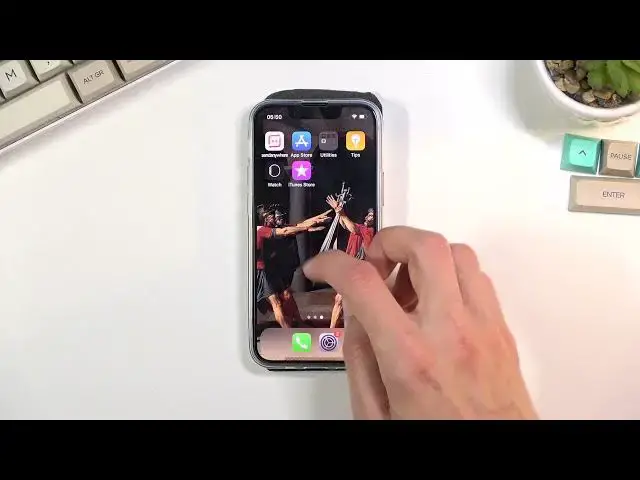
Welcome, in front of me is an iPhone 13 mini and today I will show you a couple tweaks
0:11
and tricks you can do on this phone. So we're gonna begin with the toggles which you can find under control center
0:19
So right here, as you can see, we have a bunch of toggles right here, it doesn't really matter
0:23
but as an example, we have the brightness one, right? And normally you can just modify the brightness by just sliding it, right
0:31
Not sure if you're ever new, but you can actually hold this toggle and this will give you a couple more options right here
0:35
So you have things like true tone, you can disable it or enable it on the go, you can
0:40
obviously modify this. We have the night shift off, so this is a scheduled night shift
0:47
I'm just gonna leave this. And obviously we also have dark mode
0:55
Normally you have things also like that with these toggles right over here
0:59
So when you hold this entire panel, it expands and gives a couple additional options
1:03
So as an example, Bluetooth, you can hold it and it will give you all the Bluetooth
1:07
devices that are right now connected. I can hold Wi-Fi's and this will show you all the Wi-Fi's that you have in your area
1:13
right now. You can connect to them quickly and so on. So go through these toggles
1:21
Now moving on to the next option, it's just gonna be the control center itself
1:25
So let's go into the settings and then we can navigate under the control center, which
1:31
allows you to add different toggles. As you can see, these ones right here are the ones that are added by default
1:37
So the ones right here. And anything below that are toggles that you can actually add
1:43
Now these are all the default ones that come basically with the device, but if you install
1:48
some kind of applications, there is a chance that some of them might have also toggles for them
1:52
For instance, actually I was gonna say Shazam, but it also has its toggle already baked into
1:58
the OS. But there might be other applications that will show up right here later on once you
2:04
install some applications, which you will be able to add them. Now anyway, all these toggles right here, the plus are the ones that are disabled
2:12
So if you want to enable them, simply tap on the plus like so, and you will see them
2:17
now right over here. Now moving on to the next option, it's just a simple dark mode, which actually again
2:27
it's in the settings, so let's go settings, display and brightness, and you will have
2:31
this right over here. You can switch to dark mode if you want to, or keep it at light mode, or you can also
2:37
select automatic, which will basically switch automatically based on the time. And moving on to the next option, and also last one, these are fairly quick and easy
2:51
It's going to be the widgets. Now if you ever like booted the device, you can probably see that there were some widgets
2:59
here by default on one of the pages. But to add new ones if you want to, you can simply hold on your screen, as you can see
3:06
your icons will start shaking, and from here you have this plus button
3:11
As you click on it, it gives you a list of different widgets which you can add additionally
3:16
Again, like I mentioned before, if you install some kind of application, those applications
3:20
might have widgets which will again appear right here. And all you would need to do is simply select the widget that you want to add, click on
3:28
it, you have different ways of adding the widget, different sizes, let's just go with
3:34
this one, add widget, and there you go. You have now your tiny little widget
3:39
So anyway, this will conclude all the tweaks and tricks that are on the show, and if you
3:45
found this video helpful, don't forget to hit like, subscribe, and thanks for watching