0:00
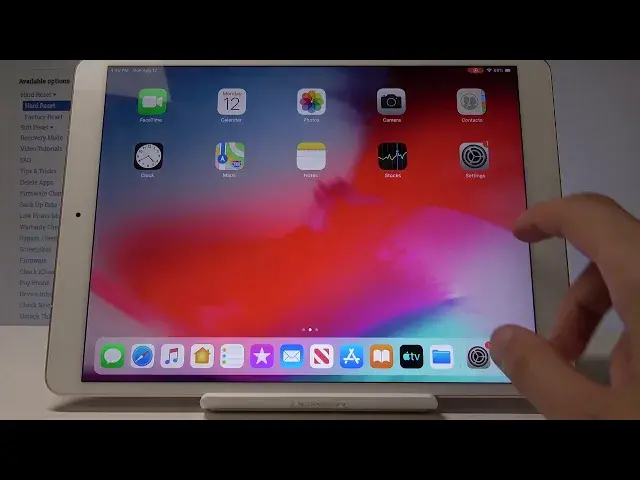
Welcome Infanomese an iPad and today I'll show a couple more tricks that you can do on this device
0:10
So we're going to go start with the control center which when you pull up from basically the side right here
0:17
Like so you get access to a couple different tuggles. You have brightness
0:22
volume, music controls and you can also hold them to gain a little bit more bigger view of them
0:30
works basically for most of them. As you can see, now volume seems to do only volume
0:38
But yeah, and then also you have additional options that again say go into the settings and find control center
0:46
So it's right here. And from control center, you can do customize controls and then add additional ones
0:54
For instance, like this, invoice memo. So if I pull, as you can see, there is additional ones
0:59
now so I can just start adding them and as you can see there is way more now. So we can
1:06
add whatever you want here and also remove it if you don't want something as you can see
1:11
and rearrange the order of it. Okay so moving on we're going to go into the
1:20
multi-finger gestures which is basically similar how you would have it on the laptops from
1:25
Apple on the track pad but it basically here so for instance if I open up Safari I can do four pinch to get like recent
1:38
five finger to close it. What else else is there? There is, well, this is just a normal one, I guess, without the gestures where you kind of swipe up in Safari to go a page back
1:53
There is also something like this. Let's go back. pack, I think three finger opens up recent
2:01
Okay, so there's a couple of ones. So you can just mess around with it
2:07
I think there's also, if you have multiple apps, let me just open something else
2:12
So I can actually swipe it between. I think there's like a three finger swipe or four
2:18
Yeah, four finger swipe across to basically swipe between apps. So yeah
2:25
Now moving on, we're gonna go into the gestures themselves which as you can see this there is a button right here and I
2:36
could just access everything and perform it as it usually is but even though there is
2:41
a button you also have gestures so you can kind of swipe up and get the recent apps if you
2:46
go into one you can swipe up to close them if you're in an app you can swipe from sides
2:57
let see let go here As you can see you can swipe between them like so And yeah so that one thing And moving on we going to go into something that is added
3:16
which is the screen recording. This is the second right here, which I have added previously when we're in control center
3:24
Right here, screen recording. So you can basically activate screen recording. Probably would have been better to do it with that
3:30
with that method to record this but I guess it would take a little bit too much time
3:35
so as you can see you have a little icon of recording right there and now whatever
3:41
I do it's being recorded every app and anything that I open and if I go back and
3:49
finish this continue as you can see now if I tap on it
4:00
It starts playing whatever I was doing previously. So you can basically record some kind of guide for someone or anything else and basically send them and yeah
4:22
and the last thing I wanted to show is the camera settings which can change the quality let's say of
4:27
of videos and yeah let go into settings and find camera which is right here and from here have record videos and when you top on it you have 720 1080p and 1080p comes in two different frame
4:47
rates so 30 60 and then 4k at 30 now if you have like the newer gen of the
4:54
iPad Pro I think it can still record 4k at 60 so that's a little bonus and
5:00
probably looks way better than this but yeah 1080p at 6 is still good enough in my opinion for a tablet and you can change it here
5:09
fortunately there is no way to change it in the camera app itself and you can
5:15
also go back and change let's say slow-mo recording to say 1080 p at 120 or
5:21
720 p.m. 2040 and in format you can high efficiency more capable so just a little preference what you how much you wanted and
5:35
And yeah, when you go in here, say I go to video
5:40
Let me just cover it so it's better visible. You can see right now that it's at HD 60 frames at the top
5:47
So you will basically see whatever it's set to in the app
5:52
although you cannot change it from here, as you can see. And yeah, that's basically all I wanted to show
5:57
And if you found this very helpful, don't forget to hit like, subscribe, and thanks for watching