0:00
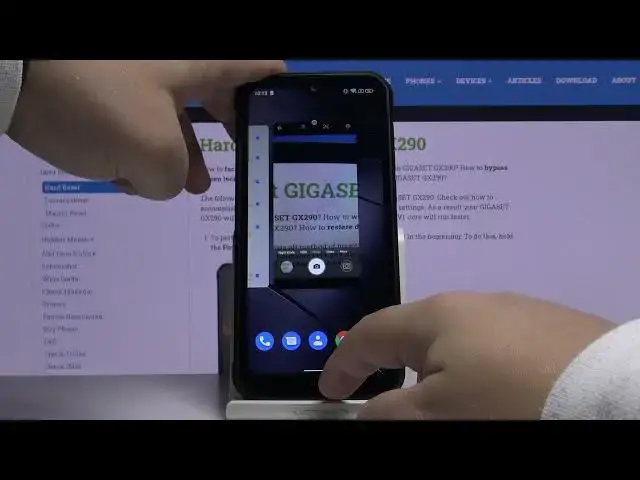
Hi, Infronomiya have Gigassette GX290 and I'm going to show you a few tricks you can use on this device
0:11
Let's start by opening the settings to do it, swipe upwards on the screen and then tap on the settings icon
0:18
In settings, let's scroll down and tap on the navigation bar. That's the first thing I want to show you
0:27
Here basically you can customize this navigation bar at the bottom. On it we have recent apps button, home button
0:37
and the back button, and you can kind of customize it. We can turn on the hide navigation bar option
0:46
This arrow will appear in the left corner. You can tap on it to hide the navigation bar
0:53
You can bring it back by swiping upwards from the bottom of the screen
0:57
like this, right here we can change the layout of the buttons, basically the order of them
1:04
And at the bottom we have background color, we can also change it or use the custom one
1:13
Like this. Now let's select the gesture navigation. This option removes the bar all together
1:21
the navigation bar, and you can navigate your phone with the gestures
1:27
Basically to go back, you simply swipe from the left side or right side of the screen
1:32
Like that. To go home, you swipe from the bottom upwards
1:42
Like this. And to open recent apps, you swipe from the bottom upwards, but you hold your finger for
1:49
second or two in the middle. Like this. Okay, let's go back to settings
1:55
let's find another thing which is intelligent assistance. Let tap on it And here we have a few features First one is flip to silent If you turn it on you can silence the incoming calls or mute them by flipping your phone face down
2:13
Below we have smart answers. You can turn it on. And when you turn it on, you can answer the calls by putting your phone next to your ear
2:24
Next one is the anti-fake touch mode. This allows you to prevent mis-operation
2:30
and miss operation of your phone when it's in your pocket basically
2:35
Below we have a free finger screenshots. If you turn it on, you can take screenshots by swiping down on the screen with three fingers
2:44
Like this. Next one is three fingers kit starts split screen. You can open the split screen with three fingers
2:53
Below we have a sensor calibration. Here we can calibrate the sensors
3:00
And next one is emergency rescue. Here you can customize the SOS feature
3:05
Basically, you can turn it on and off. By tapping the slider, you can edit the emergency message
3:13
You can select the frequency of message sending. And at the bottom you have emergency contacts
3:21
And you can add some by tapping this plus button. Okay, let's go back
3:26
And last option is jump to camera. If you turn it on and your screen is locked, you can go to the camera up by pressing the volume down button twice quickly
3:38
Like this. Now, let's see. Now let's go back, scroll down and here we have smart touch feature, let's tap on it
4:05
We can turn it on and off right here. And when you turn it out you will see this button will appear on the screen And here we can customize it We can use gesture mode or menu mode Let look into gesture mode first
4:19
Basically, simple... Oh, my bad. Let me go back. Click up the screen
4:25
Here we have functions of the gesture settings. Single tap on this button
4:30
We'll go to the previous page. Like that. Double click will go to home screen
4:36
Like this. and long press will lock this screen like I did before by mistake
4:43
Let me try again. Oh, like this. And I think you can customize this
4:50
Yes, you can tap on any function. And for example, I selected long press
4:55
Let's select screenshot. And now it should take a screenshot when I long press this button
5:02
And it did. You can also turn on auto height after three seconds with no
5:07
operation so this button should hide itself like this and you can bring it back by just
5:14
tapping on this little arch or something on the screen like that we can also
5:23
select menu mode and here basically we won't have gesture functions you just
5:30
when you tap on this button the menu will appear and here you have home screen control
5:35
many recent apps, lock screen and I'm not sure what the last option is, but like I said
5:47
you can tap the button home screen to go to home screen, open the recent control panel rather
5:55
recent apps, lock the screen, and the last option, I'm not sure what it does, but does something. Okay
6:04
You can also tap right here to restore default settings. Like that
6:08
Okay, let's go back. And another thing I want to show you is the split screen option or feature rather And to use it simply open the app that supports it for example Chrome then go to recent apps menu that
6:27
tap on this Chrome icon the tab basically the app icon a present hold now on it and the menu will appear here you can select the
6:38
split screen and then open the app another app for example Play Store. As you can see, we have two apps at the screen on the same time
6:53
Now, we can quickly switch the apps by going to recent apps menu, tapping on screen for example
7:00
and opening different app like this. To exit the split screen, you can simply press and hold
7:07
on this border or this bar between the screens and drag it to the top or the bottom
7:14
of the screen. And the last thing I want to show you is a little trick that could help you sometimes
7:21
Basically if you have problems with reception or the internet, you can turn on the airplane mode and
7:27
then turn it off to reconnect to any cell towers or Wi-Fi
7:34
And hopefully that will fix your problems. And to do it, simply open the quick panel by sweeping down from the tap on the screen twice
7:42
And here we have AirPlay mode icon. Just tap on it, turn it on and wait for a few seconds, then tap on it again
7:50
Oh my butt to turn it off. And the phone will reconnect to any cell towers and networks that was connected before
7:58
And hopefully that will fix your issues with the reception or the internet connection
8:04
And that should be all. Thank you for watching. If you found this video helpful, please consider subscribing to our channel and leaving the like on the video