0:02
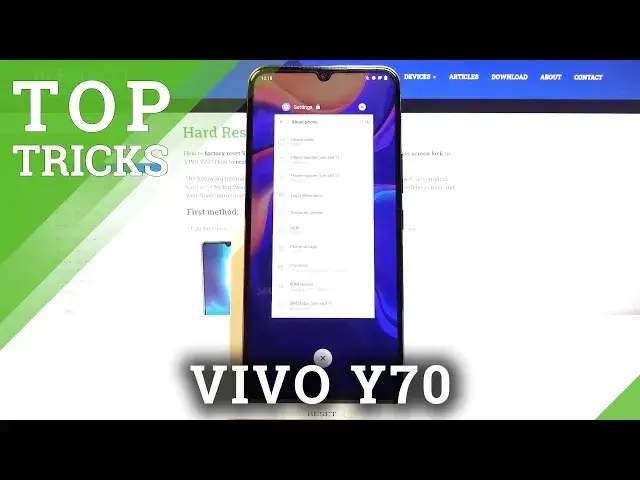
I film is a Vivo Y70, and today I'll show a couple tweaks and tricks you can do on this device
0:12
Now starting off, we're going to begin with the app locking option, which is fairly good for applications like music players
0:20
which will allow you to prevent them from being closed off. So to enable it, simply go to your recent, I'm going to show it simply with the settings
0:29
So when you go into recent you have this little dot right here. I'm going to tap on it and it will bring up couple options
0:34
And you have the lockdown option. Now once you tap on it, you can see that there's a lock next to the name of the application
0:42
So what will happen now is let me just quickly open a couple different things
0:47
So if you go back to recent, I can see that only one app has this lockdown
0:53
And if I were to now clear all of them, you'll see that one of them will constantly remain
0:58
no matter how much I try to clear it. So it will be prevented from closing off
1:02
when you're clearing basically every other app quickly. Like I said, this is a good option
1:07
for music players, where some of them will literally stop playing music
1:13
once they're closed. So this will allow you to lock them and in this case, they won't be actually closed
1:21
Now moving on to the next option, it's going to be the gesture navigation
1:27
So as you can see, right now we have the outdated buttons on the bottom
1:31
but you can change it for something a little bit more up to date
1:35
So all we need to do is go into the settings, then scroll down to system and choose system navigation From here tap on gesture navigation and it is now set Now this uses the normal Google gesture navigation they don have any new spin on it
1:51
So as you can see there's this tiny little bar at the bottom, swipe up on it to go home
1:56
let me go, then once you swipe up quickly just access a home button
2:01
If you swipe up and hold it opens up recent. now this works from either here or here as well and then swipe from the side to go back
2:11
you can see it opens up this kind of arrow now you do have to oh it's barely visible here let me
2:18
just open up chrome so it's still barely visible so it creates this barely visible arrow
2:26
and maybe see it like right over here moving up and down hopefully it is visible
2:32
so whenever you tap on it it just kind of acts as a back button now on the white surface it is a little bit more visible as you can see it pops out and acts just as a simple back
2:40
gesture now when it comes on to the actual gestures themselves if you have some kind of problem
2:47
with swiping up to go home i strongly advise you to basically swipe off of the screen so when you
2:52
have this chin before the screen actually begins so as can see right here the black bar you want to
3:00
start swiping basically from it onto the screen and that will ensure that you always
3:05
get the gesture navigation correct. So that is for people that haven't been using it much
3:13
But the bug gesture from side to side is fairly easily accessible Now moving on to the next one it going to be the dark mode which can be access again through settings or also through here Now if you go to the notification panel it just a toggle which you get to click on like so
3:31
As you can see it turns into dark mode that also will include default apps
3:39
As you can see, even Chrome is included in that along with settings as well
3:45
So if we go into settings, you can see that it is also dark
3:50
Now we can also enable it or disable it through display section right here
3:55
And you should have it right over here. So I can simply turn it on or off from here
4:01
And also if you go into it, you'll have a couple additional options
4:04
So you have dark theme always off or always on. Then you have sunset to sunrise which will allow you to set it basically almost as a schedule
4:13
It will turn on automatically at a given time and then turn off again by itself
4:19
honestly I think this might be the best option to use this because it will basically
4:24
allow you to never think about it and have the display either fully bright which will allow you to
4:30
well see it during the daytime and then also in a dark mode during night time which will
4:36
also increase the or decrease the eye strain so this is go-to option for me here
4:44
and moving on to the next one Now let me quickly check it if it's even here
4:56
Actually I know what it is. So we can go into the dynamic effects. Now initially I just wanted to touch upon one option from here but on this device we actually have plethora of others I saying it because for instance think like the VivoY I think it 11S have way less option in here
5:16
But as you can see, we have things like ambient lighting effect. So you have a couple options
5:23
Scan enable it. If we go back, we have things like fingerprint icon animation
5:31
So this is for just a fact. fingerprint animation, and you have a couple different ones, which is really nice that they include them
5:39
So you can just switch to whichever one you want. Now, I don't really have any fingerprint set right now, so I don't really have a way of showcasing this
5:48
but you can see clearly how it will look like on the turned-off display. Instead of having the default one, you can just change it to something else
5:56
And top on apply, and, yeah, I can't apply it because I would have to set it up
6:00
So I'm just going to go back. Apart from that, you have face recognition animation
6:06
Again, you can set it up, but for me it won't really work because I don't have any protection
6:11
on the device. But as you can see, you can change it to a couple different ones
6:15
There is one that kind of look funny too. So instead of the typical lack, you can change it to something more fun
6:25
And also you have different icons for charging animation and USB animation, so you can change those
6:30
up if you want to. That's basically all I wanted to show and if you found this video helpful
6:38
not forget to have like, subscribe and thanks for watching