Up next in 10


Check out more info about LG K42:
https://www.hardreset.info/devices/lg/lg-k42/
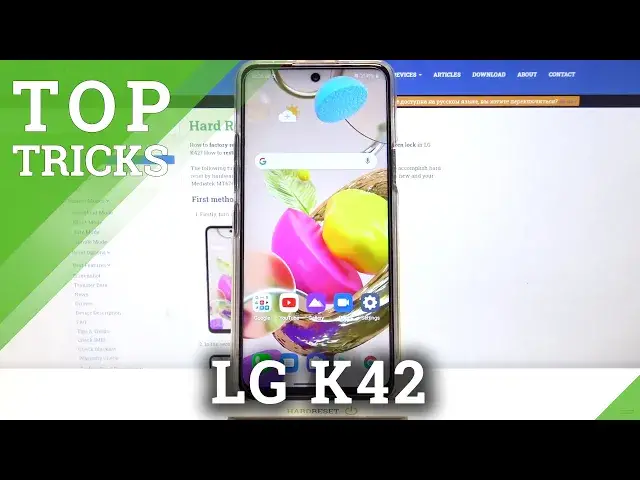
We are coming with the video guide, where we show you the best apps that LG K42 has. If you wish to make the usage of your LG device easier, check out the attached tutorial and use the top trick on your LG K42. Follow the attached tutorial and locate super features hidden in your OnePlus device. Visit our HardReset.info YT channel and discover many useful tutorials for LG K42.
How to find the best options in LG K42? How to locate super features in LG K42? How kind of useful options has LG K42? How to make usage of LG K42 easier? How to use top and tricks for LG K42?
Follow us on Instagram ► https://www.instagram.com/hardreset.info
Like us on Facebook ► https://www.facebook.com/hardresetinfo/
Tweet us on Twitter ► https://twitter.com/HardResetI
Show More Show Less View Video Transcript
0:00
Hi, Infronomy, I have LGK42 and I'm going to show you a few tricks you can use on this device
0:12
First, let's open the settings by tapping on the settings icon, and settings let's select display
0:19
And here we have a few things I want to show you. First is navigation bar
0:24
By default, your phone is set to the gesture navigation. So basically to go back, you swipe from the edge of the screen to the middle
0:33
Like this. To go to home screen, you swipe upwards from the bottom of the screen, like that
0:42
And to open recent apps, you swipe upwards and hold in the middle, like this
0:48
But you can change it to button navigation. To do it, tap on buttons only
0:57
And the buttons will appear at the bottom of the screen. Here we have Resent Apps button, home button, and back button
1:09
We can also customize this bar right here. We can tap on button combination
1:15
And here we can add more buttons, for example. We can press and hold on screenshot button and add it to the list right here
1:24
Like that. And now we can take a screenshot by tapping on screenshot button like this
1:32
We can also change the order of them by pressing and holding on one and dragging it to the desired place
1:43
And we can also remove the buttons from the list by dragging them to the bottom of the list
1:51
You can remove the three default ones unfortunately but because if you try they won't go
1:56
the list below but you can add and remove the buttons right here okay you can also customize gestures if you want If you select gesture navigation
2:09
here you can adjust the bug gesture sensitivity by swiping and on the slider right here
2:18
You can also tap on gesture guide to see how or get into a tutorial how to use the gesture navigation
2:27
And you can just go through. through it by tapping on next. Okay
2:32
Let's go back. Here, another thing I want to show you is somewhere below
2:39
Oh no, it's right here. It's called night mode. Tap on it. And here we can enable night mode
2:45
Basically, it's a dark mode, but it's called night mode on this phone
2:49
I don't know why. And this feature makes your phone. Darker. Basically, the background on the phone is black
2:57
the text is white, and other things. are green as you can see. And this mode is quite useful when you're using your phone at night
3:04
Everything is more clear and easier to read, basically. You can also set up schedule for it by tapping on schedule right here
3:13
You can enable it. And here you can select from sunset to sunrise or set time
3:19
And tap on from to set the hour on which is going to be turning on
3:23
For example, 7.30. like that, and two, of course, the hour on which is going to be turning off
3:35
For example, nine. Like that. And that's how you set up schedule for it. And now your dark mode will enable, or night mode rather, will enable at 7.30 and disable at 9
3:47
Okay. Now let's scroll all the way down to the bottom. Another thing I want to show you is right here, 100 screen
3:54
And this feature allows you to make the screen smaller, basically. so it's easier to tap on the screen with only one head
4:01
Let enable it by tapping the slider right here You can also tap on 100 screen text right here to see the tutorial how to use it And to use it simply swipe left or right from the edge of the screen like you would go back
4:17
And instead of letting it go, simply hold in the middle and you're going to enter the 100 screen
4:23
And now you can use your phone right here on the screen. Unfortunately, if you go back, for example, to display settings, it's going to really
4:33
enter the full screen mode, I don't know why it does that, but you can enter the 100 again
4:40
and now you can use the app normally. You can also exit this mode by tapping on the screen right here on the empty area, or
4:52
oh my bad. Or using the swipe and hold in the middle shortcut again to exit it
5:02
Like that. Okay. Another thing I want to show you is called pop-up window
5:08
And to open the app in pop-up window, simply open the app first
5:12
For example, let's open the Chrome, then open the recent apps menu by swiping and holding
5:18
in the middle, like that. Tap on the Chrome icon right here above the app window and select pop-up window
5:28
The app will open in this small window right here. We can move it around
5:32
By pressing and holding on it and dragging it around. I believe we can make it bigger and smaller if we want to
5:40
We can minimize it. It's going to appear as this icon right here
5:46
We can drag it. We can remove it to close the app
5:50
Or we can tap on it to open the pop-up window again. You can make it full screen by tapping this icon or close it by tapping x
5:58
I think you can open more than once. more than one app in the papa window
6:03
Let's try. Let's open the settings this time. So let go back to recent apps This is kind of in the way but we going to try to manage
6:17
And open the settings also. As you can see, we can have multiple pop-up windows like that
6:25
Okay, let's close this. Another feature I want to show you is split screen
6:29
Basically, you can split your screen in two and use two times, two apps at the same time
6:36
So let's open settings, for example, swipe upwards and hold in the middle to enter the recent apps menu
6:44
tap on the settings icon, and here we have option called multi-window
6:49
Let's tap on it. Here tap next. Next again. And now we can select the app from the recent apps menu to open in the split screen mode
7:03
or we can tap on free area right here to go to homes. screen and find the app
7:08
For example, let's open the Google Play Store. And as you can see, now we have two apps at the screen on the screen at the same time, my bad
7:20
And here we can use them normally like that. You can also change the app by swiping and holding, swapping up and holding in the middle of the screen
7:32
Like that. For example, let's open the Chrome. And to close the split screen mode, simply press and hold on the bar between the screens
7:44
and drag it to the bottom or tap of the screen, or you can also tap on this bar and tap X
7:52
Like that. And that should be all. Thank you for watching. If you found this video helpful, please consider subscribing to our channel and leaving the like on the video
#Online Video
#Gadgets & Portable Electronics