live_tv
Livestream Starting Soon
00
Hours
:
00
Minutes
:
00
Seconds
Up next in 10


Find out more about ZTE NUBIA LITE Z9 MAX: https://www.hardreset.info/devices/zte/zte-nubia-z9-max/
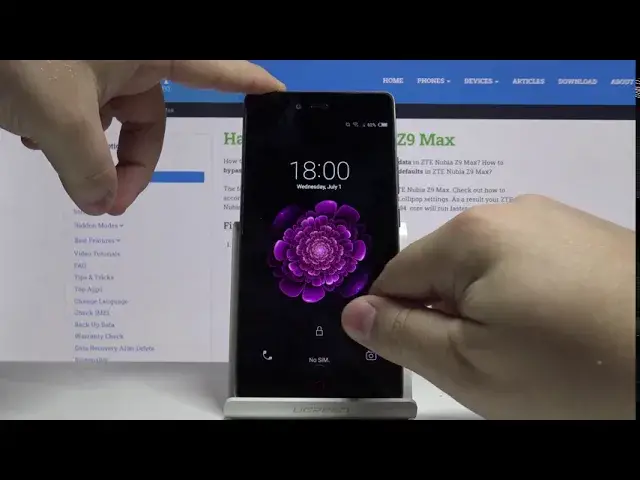
By watching this video, you'll learn top tricks that you can use on ZTE Nubia Z9 Max! Check out, cool features that you might not know you have on your smartphone. Follow steps shown by our expert and get access to amazing modes you need to try.
How to use Top Tricks for ZTE NUBIA Z9 MAX? How to Locate Super Features in ZTE NUBIA Z9 MAX? How to Find the best options in ZTE NUBIA Z9 MAX? How to Enable Secret Options in ZTE NUBIA Z9 MAX? How to Make usage of ZTE NUBIA Z9 MAX Easier?
Follow us on Instagram ► https://www.instagram.com/hardreset.info
Like us on Facebook ► https://www.facebook.com/hardresetinfo/
Tweet us on Twitter ► https://twitter.com/HardResetI
Show More Show Less View Video Transcript
0:00
Hi, Infronomy I have ZTE inubia Z9 Max and I'm going to show you a few tricks you can use on this device
0:12
Let's start by opening the settings to do it, swipe left on the screen and tap on the settings icon
0:21
Here let's select features and in this menu we have a few things I want to show you
0:27
First one is screen split up. Let's tap on it. And this feature allows you to split the screen into parts
0:33
and open different apps on each of them. So let's enable it by tapping the slider right here
0:42
It's going to automatically open the split screen mode. So as you can see, we enter this split screen mode
0:49
Here we can open any app on this list, or we can tap on home, go to home screen
0:55
and here we can find any app you want to open. Some of them don't support the split screen so they won't work with it but a lot of them do
1:05
For example, let's open the Google folder and open Google Chrome. As you can see, we have Chrome right here
1:13
And above, we can tap right here to highlight the top part of the screen
1:20
As you can see, settings are not really fitted to the screen. That's because they don't support the split screen
1:24
So let's tap on home button to go to home screen and find any or some up to open
1:33
For example, let's open. Now let's go back and let's open normal browser, the default one
1:42
As you can see now we have two browsers open at the same time
1:47
To exit the split screen, you just need to tap on home button twice
1:51
or more than twice basically tap on it until the split screen closes
2:00
you can also open the split screen another way to do it just
2:05
swipe from the home button upwards on the screen like that and as you can see we enter the split screen Okay let close this
2:18
Go back to settings, features. And here we have another thing I want to show you, which is custom bottom key
2:26
Let's tap on it. And this little feature allows you to basically change the layout of the buttons at the bottom of your phone
2:36
First one is a menu home in the middle and back on the right
2:40
And the second one is back on the left, home in the middle and menu on the right
2:45
And you can select whatever you like. Okay. Let's go back and tap on touch gestures
2:52
That's another thing I want to show you. Let's tap on it. And here we have few features
2:57
Features, I mean. We can tap on each of them. For example, double click to light up
3:03
And we have little presentation how it works. We can turn it on and off right here by tapping the slider above
3:10
Like that, let's turn it on. What this feature does basically allows you to wake up the screen by double tapping on it
3:17
So let's lock our screen and double tap on it. Hmm. Maybe..
3:26
It doesn't seem to work. Interesting. Maybe it can be locked. I don't know
3:35
But it says double-click the screen to light it up when the screen is turned off
3:39
It should be working but I didn't. I don't know why. Okay. Another option is Palm Screen Lock
3:45
Basically, this option allows you to lock your screen by putting your palm to it
3:54
So let's turn it on. Let's try it. Oh, this one worked
4:00
As you can see, the screen locked. And now let's unlock it
4:06
Okay. Another option is a free screenshot. This option allows you to basically take a screenshot and then draw the area you want to capture So let enable it And now to take the free screenshot you need to press and hold the power button and volume
4:30
up button together. Press them. Here we have some tutorial about this
4:38
You can select Don't display this again, and then tap start. And now we can draw the area we want to take a screenshot off
4:48
Remember it needs to be closed off, like this. And here you can save it, discard it, redraw or share
4:56
Depends what you like. Let's save it. And we should have our screenshot in the gallery, in the screenshots folder
5:06
Right here. Open please. Okay, let's go back to settings. settings
5:19
Another option is a three-finger screenshot. This option allows you to basically take a screenshot by swiping up on your screen with three fingers
5:32
So let's turn it on, take three fingers and swipe up and as you can see the screenshot was taken
5:41
When we open the notification bar, it says screenshot captured. Okay. And the last option is a screenshot
5:48
three-finger switch up. Basically, this option allows you to switch between the apps
5:53
the opened apps in the background, by swiping three fingers on your screen, left or right
5:58
So let's turn it on and swipe three fingers. As you can see, we entered the Chrome, browser, gallery
6:07
and settings. Quite useful option. Okay, let's go back. And another thing I want to show you is smart sensing
6:18
Let's tap on it. And here we have a few features. First one is flip to mute slash pause
6:26
Basically, you can tap on it and see the presentation. This feature allows you to mute your phone when somebody is calling or pause the music when you listening to it by flipping your phone face down And you can turn it on and off right here
6:45
And a second option is shake to clear. You can clear the notifications by shaking your phone
6:52
Let's turn it on. We have one notification. Let's try shaking our phone
7:01
It doesn't seem to work, so I don't know, maybe
7:11
It works when we shake it more violently, I don't know. I don't want to drop it by mistake. Okay
7:22
Last thing I want to show you is in settings, so let's go back to settings, find the other system
7:31
settings, tap on it. Here, let's tap on accessibility and tap on magnification gestures
7:48
And that's the last thing I want to show you. Let's turn it on by tapping the slider right here
7:56
And what this feature allows you to do is basically magnify your screen
8:00
You can do it by triple tapping on the area of the screen
8:05
Like this. We enter the magnification mode. To move this frame around, you just use two fingers like this
8:12
To zoom in and zoom out, you just pinch or unpinch two fingers on the screen like this
8:18
And to exit the magnification, you just triple tap on the screen again
8:25
And that's all. Thank you for watching. If you found this video helpful, consider subscribing to our channel and leaving the like on the video
#Online Video
#Gadgets & Portable Electronics
#Other