0:00
Welcome, in front of me is a Xiaomi Poco M4 Pro and today I will show you a couple
0:12
tweaks and tricks you can do on this device. So we're gonna start off with the
0:16
I'm gonna start off and continue with some of the ones and all of the ones
0:21
that you can actually find in the settings if you are you know actually
0:25
searching for them. So starting off with the dark mode which can be found under
0:29
the display section and the settings you'll have the light and dark mode. So
0:33
you can either choose one to have it permanently on or you can go in the
0:38
schedule dark mode and have it auto change based on the date, not the
0:44
date but the time. So during the night time it can be in dark mode and during
0:49
the daytime it can be in light mode giving you basically best of both worlds
0:54
So if you're gonna choose the overall the dark mode I probably recommend to
0:59
stick with the actual like scheduled one. I'm gonna turn it off and continue in
1:06
light mode throughout the video. Now moving on to the next option which is
1:09
also under the display section it's the refresh rate which can find right here
1:14
and I believe by default that is set to 60 because that's Xiaomi so you will
1:19
want to toggle on 90 which will give you this smoother look to the to your
1:25
basically anything that you're doing on a device. When you're scrolling up and down you will see the text looks much smoother in motion rather than when it
1:33
was on like the 60 where it kind of was choppy and it's kind of like skipping a
1:37
little bit. Now I will mention that having it set up 90 will consume a
1:42
little bit more of your battery life so if you want to only prioritize battery
1:47
then stick with 60. Everybody else that prefers to maybe compromise a little bit
1:53
of the battery life I do recommend setting up to 90. And moving on to the
1:58
next option it's going to be the simple split screen which you can access by
2:02
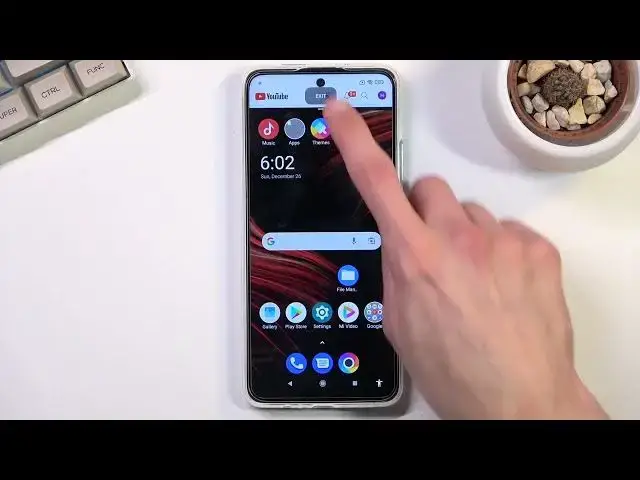
going into the recent applications holding your up and selecting this button right here. Best use case scenario for this is with something like a YouTube
2:11
or you can use YouTube listen to it at the top and for instance browse the web
2:18
on Chrome that is going to be below. So putting that in like actual view
2:24
you find YouTube first. There we go there is YouTube. So let's open it up in split
2:32
screen and then I can open up something like Chrome. There we go. And as you can see
2:40
you can use two different apps. When you're playing videos on YouTube even when you go home they will continue to play. So that is something that you want
2:47
to keep in mind to utilize this to its fullest potential. Now moving on to the
2:52
next option it's the home screen. Now this is in settings under option that is
2:57
called home screen. So let's just relocate it right here and as you can
3:02
see in here we have a couple different options. So we have default launcher. If you're using different launchers you can change it right here so when you press
3:08
home it picks the one that is set right here. We have things like icon packs so
3:13
if you have some installed you can apply them here. Additionally we have layouts
3:18
of icons and so on. Though if you're using some kind of custom launcher the
3:23
launcher itself will have a different icon layout. And you can go over
3:29
additional settings that are in here to customize just the home screen itself
3:33
And moving on to the last option that I want to show you it's the gesture
3:37
navigation which can be found under additional settings fullscreen display. And this will allow you to set up gesture navigation instead of the
3:48
buttons that are set by default. So simply tap on this as you can see it
3:52
removes them. It literally doesn't show anything. So now to navigate to your
3:56
system you will basically swipe up to go home, swipe up and hold to go to recent
4:00
and swipe from either side to go back. And that's basically how you use this. So
4:05
anyway that being said if you found this very helpful don't forget to hit like
4:09
subscribe and thanks for watching