0:00
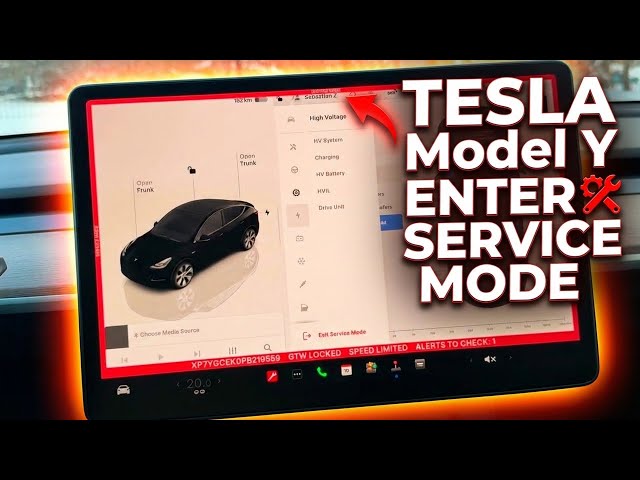
Here I have Tesla Model Y and on this
0:02
example, let me show you how to enter
0:03
the hidden mode called service mode. So
0:12
At the very beginning, you need to
0:14
start, of course, by putting your car in
0:16
park mode. So let's just use this
0:17
trigger right here. Then all you need to
0:20
do is use the car icon in the down left
0:23
corner. Let's tap it. Here you've got
0:25
the full list of available settings that
0:28
you can use on your device. So now all
0:30
you need to do is choose software. Here
0:34
you need to do one simple trick. You
0:37
need to hold down the model. So as you
0:40
can see in my case it's model Y. Let's
0:43
just hold down this model for a couple
0:54
And if you put your finger away, the
0:57
following menu should pops up. The
1:00
secret code in most of Tesla is service.
1:03
So all you need to do type in here
1:05
service. Let me just do it.
1:08
Of course, here service.
1:16
The caution pops up. It's important to
1:19
read it. Improper use of service mode
1:21
could result in loss of vehicle
1:23
operation, permanent vehicle damage or
1:26
serious personal injury. So you need to
1:28
be aware of this. In my case, let me
1:30
just show you what you can do in service
1:31
mode in few simple steps. I won't be
1:34
changing anything. So if you just
1:37
curious about the service mode, you can
1:38
just enter it and simply exit the
1:40
service mode. It will not damage
1:43
anything, but don't change anything if
1:45
you are sure about it. So in my case,
1:47
let me just tap here enter. As you can
1:50
see, the following red alert pops up. So
1:54
it's important to know the service mode.
1:57
It's so serious. You don't
2:00
uh necessarily be you don't need to
2:04
change anything here. If you are not
2:05
sure about it, let me just show you that
2:07
you can read here a few information. For
2:09
example, one of the most important one
2:12
is tools right here and service history.
2:15
You can read the service history about
2:16
your device. In my case, as you can see,
2:19
it's just the tire rotation. You can
2:22
also here see the cameras
2:25
information right here.
2:28
You can see here some infotainment, for
2:31
example, speakers. You've got the
2:34
location of all speakers in your car.
2:37
You can use the high voltage if you
2:39
would like to. For example, the
2:43
As you can see here, we got the
2:44
information about the ch charging, the
2:46
max temperature, the min temperature.
2:49
Let me use here the low voltage for
2:54
Here you've got the information about
2:58
The thermal for example, that's the
3:02
And here, for example, you can use some
3:04
test. You can also configure some
3:07
compressors if you would like to. You
3:09
can also choose here faces if you would
3:12
like to or you may choose closures for
3:15
example to see the windows settings
3:18
right here. You can calibrate the
3:20
windows if you would like to. You can
3:22
choose also the wiper model replacement.
3:25
But in my case, I won't be do anything
3:28
right here. Let me just show you how to
3:30
simply exit the service mode. Let's just
3:32
use this door icon, the red one. Tap
3:39
Let me just tap it for like two seconds.
3:41
And that's it. So, as you can see,
3:43
service mode, it's really simple to
3:45
access. You just need to know these two
3:48
tricks. Hold down the model and just
3:50
enter the service code. But don't change
3:54
anything. As I said previously, if you
3:56
are not sure about it, don't change
3:58
anything. But you can just enter to read
4:00
a few information and to show some
4:03
tricks to your friends. So, that's it.
4:05
Thank you for watching. Please subscribe
4:07
to our channel and leave thumbs up under