0:00
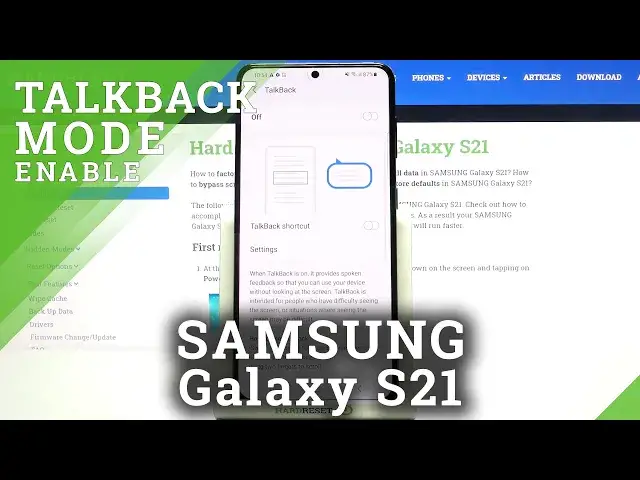
Hi everyone, here we've got Samsung Galaxy S21 and let me share with you how to enable
0:11
the talkback mode on this device. So firstly we have to enter the settings, so let's do it and as you can see here we've
0:18
got the accessibility, so you have to scroll down, actually to the very bottom and tap
0:23
on accessibility. On the second position we've got the talkback, so let's enter it and as you can see here
0:29
we've got three options which we can customize. Firstly here we can turn on the talkback but let me leave it turned off because firstly
0:37
I'd like to show you how to customize it. So under it we've got the talkback shortcut, if you will tap on it then you can see that
0:44
you can add accessibility button to the navigation bar right here so you will be able to enter
0:52
the talkback just by tapping on this, let's say person icon, I don't know how to say
0:59
it, human icon. Ok so if you'd like to turn it on just tap on the switch right here but I will leave
1:05
it like this and under it we've got the settings. So here you can actually customize the talkback, so for example you can decide if you'd like
1:14
to speak the passwords, if you'd like to turn off the sound feedback which is quite strange
1:20
because I think that the talkback needs to have the sound feedback, I mean this is based
1:26
on talking to you but whatever. Under it for example we've got the vibration feedback so actually a lot of options which
1:33
we can customize, what's more we can set the gestures so after tapping on it you can see
1:38
that you can decide what you want to do after for example swiping right, so you can tap
1:43
on it and here you've got all options from which we can choose so for example you can
1:48
swipe right and thanks to this you will scroll forward so actually you can have fun, you
1:56
can play with this section and customize the gestures just like you want to make it as
2:02
comfortable as it is possible. But let me get back and leave it like this and now let me turn on the talkback and you
2:10
can do it simply by tapping on the switcher right here. Now your device is telling you that the talkback needs to have full control of your device
2:17
so it has to view and control the screen and view and perform actions so if you are ready
2:22
tap on allow and I hope that you can hear it, the talkback is on
2:32
You can of course hear the feedback and as you can see the talkback just opened the tutorial
2:39
so if you will turn it on for the very first time then you will be able to go through all
2:44
of the lessons and you can learn how to use it but I will actually show you the shortcut
2:52
of it because for example if for some reason the talkback has been activated accidentally
2:58
and you have no idea what to do then this shortcut will be quite useful
3:03
So let me begin with choosing something for example the back button or entering the app
3:08
because you can do it the same way. All you have to do is simply tap on the option you'd like to use, you'll see a blue frame
3:14
around it and of course hear the feedback from your device and then you have to double
3:19
tap to activate and as you can see I just got back to the very first page of the tutorial
3:25
so let me do it again. I'm in the accessibility and let me get back again to the general settings and here I can
3:36
show you how to swipe because this is the second option, the second feature which is
3:41
the most important I think and all you have to do is simply to use two fingers just like that
3:48
It's quite easy and you won't have any problems with that. You can do it also this way but in my opinion the first option is much much easier
3:59
So actually I've just shown you the basics and now you know actually how to use the talkback
4:06
So now I can show you how to turn it off. So the same situation we have to go back to accessibility, tap on it, double tap, tap
4:15
on the talkback, double tap and tap on this switcher, double tap, tap on turn off and
4:21
double tap and as you can hear the talkback is off. So actually that's all
4:26
This is how to enable the talkback mode in your Samsung Galaxy S21
4:30
Thank you so much for watching. I hope that this video was helpful and if it was, please hit the subscribe button and