0:00
Here I have Panasonic Yulia i3 and let me show you how to use secret code on the following device
0:12
So at the very beginning let's open the font dialer, let's activate the keypad and let's
0:16
use the first secret code, so the engineer mode. Let's use asterix pound, asterix pound, three six, four, six six, three three, pound asterix
0:26
pound asterix. As you can see engineer mode just pops up so here you can use the following information
0:32
You can choose here telephony and here you can use the auto answer, band mode, LTE information
0:40
You can also go back and choose connectivity to check bluetooth, FM receiver and WiFi
0:45
You may use the hardware testing to test the audio, camera, the memory and sensors
0:52
You can choose also location, log and debugging and others. If you would like to quit this mode let's use debug key
1:00
Now it's time to open the Android testing menu so let's use this code, asterix pound
1:06
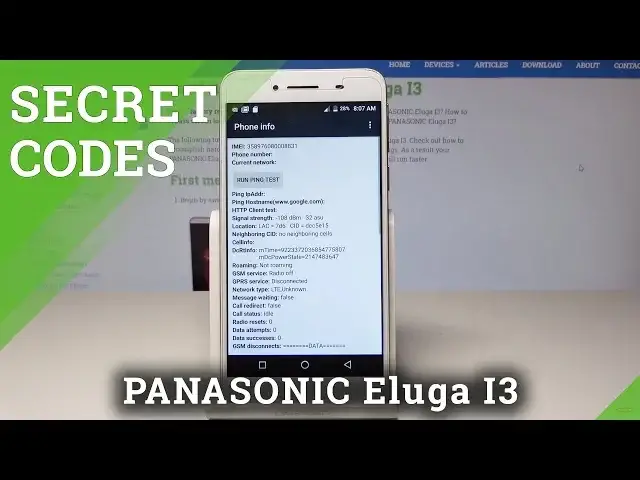
asterix pound, four six, three six, pound asterix, pound asterix. As you can see Android testing menu just pops up, here you can navigate by tapping appropriate
1:17
options, let's choose phone information. Here you've got access to IMAI, phone number, current network, signal strength, location
1:25
You can also use more key to select radio band, VLC address book, get PDPDs or enable
1:31
data connection, here you can also run a ping test. You can also tap usage statistics and here you can use the following list and read the
1:38
last time used and usage time. You may also tap WiFi information and select WiFi IP to disable network, disconnect network
1:47
enable network, get configure networks or get connection info. You may also tap WiFi config and here you can configure some information about your WiFi
1:58
This is the WiFi config, you can read the information and you can select WiFi status
2:04
to see statistics with your WiFi. Alright let's go back to quit the Android testing menu and it's time to open calendar info
2:12
So let's use this code, asterix pound, asterix pound, two two five, pound asterix, pound asterix
2:20
As you can see calendar info just pops up, so here you can read a few information from
2:24
your calendar. Use back key again and it's time to open now the Google Play service, so let's use asterix
2:31
pound, asterix pound, four two six, pound asterix, pound asterix. And the Google Play service just pops up, here you can read such stuff as the ping
2:43
connect, disconnect or events. Use back key one more time and it's time to open right now the debug UI, so let's use
2:51
asterix pound, asterix pound, seven five nine, pound asterix, pound asterix. And debug UI just pops up, here you can view client ID, change OEM mode or for example
3:05
read the next alarm. Let's go back and it's time to open the last code, so the hidden IMEI mode, let's use asterix
3:14
pound, zero six, pound. And IMEI just pops up. So that's it, everything went well, thank you for watching
3:24
Please subscribe our channel, leave thumbs up under the video