0:00
Hi everyone, in front of me I've got Samsung Galaxy Tab A8 from 2021 and let me share with
0:13
you how to change this navigation type with the buttons to the gestures
0:18
So first of all we have to find and open the settings and in this left section let's enter
0:22
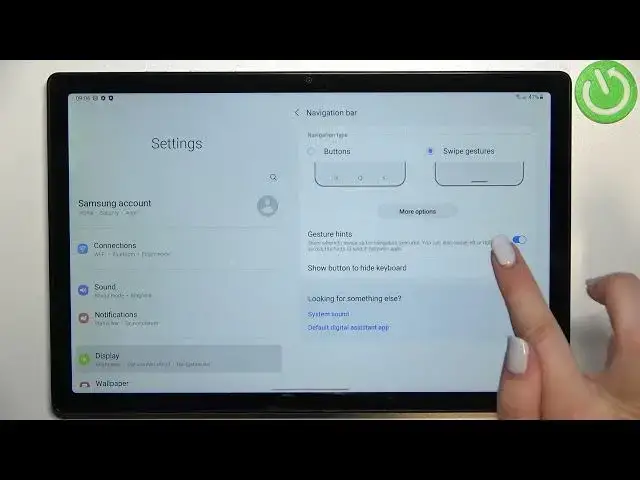
the display. Now we have to scroll down in order to find the navigation bar, let's tap, and as you
0:29
can see here we've got two different options from which we can choose. Right now obviously we've got the buttons option applied and if you will decide that
0:36
you want to keep the buttons then you can customize it here
0:41
So you can change the button order, you can maybe not replace but switch the position
0:47
of the back button and the resets, it's up to you which option you'd like to use
0:50
And here you can also change the button position from the center to left or right depending
0:55
on which option is more comfortable for you. But let me actually change it to the gestures, so all we have to do is to simply tap on this
1:04
option and as you can see we've got more options activated. So let's tap on it and as you can see here we've got let's say two different modes from
1:14
which we can choose. So currently we've got this one applied, so we've got only one line which is in the center
1:21
of our device, of the screen actually, and this line is responsible for almost every action
1:28
And if we want to you can pick this option and we will have three different lines which
1:33
are responsible for let's say three different buttons. So they are compatible with the buttons we had previously set
1:44
It's of course up to you which option you'd like to use, I personally prefer to use this one
1:50
What's more here we've got the gesture sensitivity if we will of course pick this option
1:54
So it means that we can set it lower or higher and as you can see on the sides of the screen
2:00
we've got this blue area which is responsible for our touches, for catching our touches
2:07
So depending on how big this area you want to be you can set it higher or lower, I will
2:14
just leave it like this. So let me get back and as you can see we've got also two different options connected to
2:20
the swipe gesture so we've got the gesture hands and show button to hide keyboard
2:25
It's up to you if you'd like to keep them turned on or off, I will just leave it like this
2:30
So let me show you how the gestures work. So if you'd like to get back to previous page you will have to swipe your finger from the
2:38
side of the screen to the center and it doesn't really matter if you will do it from the right
2:43
or left side, it will work the same. As you can see we've got this arrow and from the left the same situation, we've got the
2:50
arrow here. So if you'd like to get back directly to the homepage all you have to do is to simply swipe
2:56
your finger up fastly, just like that and as you can see we are on the homepage and
3:02
if you'd like to enter the reasons you will have to again swipe your finger up but this
3:06
time you will have to do it gently and hold it right in the center, just like that
3:11
And as you can see we've got the reasons. So basically this is it, this is how to change the three buttons navigation type to the gestures
3:19
in your Samsung Galaxy Tab A8 from 2021. Thank you so much for watching, I hope that this video was helpful and if it was please
3:28
hit the subscribe button and leave the thumbs up