Up next in 10


We invite you to visit our website and find out more about SAMSUNG Galaxy S24: https://www.hardreset.info/devices/samsung/samsung-galaxy-s24/tutorials/
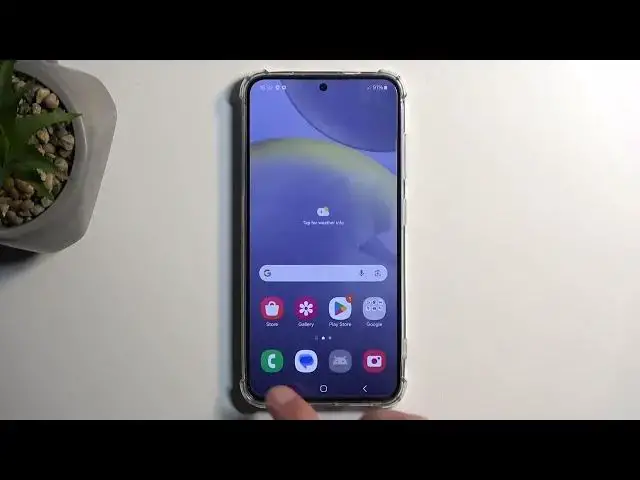
Explore a treasure trove of tips, tricks, and settings to maximize your SAMSUNG Galaxy S24 experience in this comprehensive video guide. From productivity hacks to customization tips, we cover everything you need to know to unlock the full potential of your device. Whether you're a seasoned user or just getting started, this video is your ultimate resource for mastering the SAMSUNG Galaxy S24.
How to use new AI features on SAMSUNG Galaxy S24? How to use the Note Assist feature on SAMSUNG Galaxy S24? How to use the generate AI function on SAMSUNG Galaxy S24? How to change the system navigation type on SAMSUNG Galaxy S24?
#SAMSUNGGalaxyS24 #GalaxyAI #SAMSUNGAI
Follow us on Instagram ► https://www.instagram.com/hardreset.info
Like us on Facebook ► https://www.facebook.com/hardresetinfo/
Tweet us on Twitter ► https://twitter.com/HardResetI
Support us on TikTok ► https://www.tiktok.com/@hardreset.info
Use Reset Guides for many popular Apps ► https://www.hardreset.info/apps/apps/
Show More Show Less View Video Transcript
0:00
Welcome. And follow me is a brand new Samsung Galaxy S24, and today I'll show you a couple
0:06
tweaks and tricks you can do on this device. So to get started, this will be fairly simple
0:13
ones that I technically, or tends to use quite often myself. So let's just get straight into it
0:19
by going into these settings, and here we can start off with the sound and vibration. This will be
0:25
an amazing feature for anyone who's using any kind of earbuds. or headphones. Wired or wireless, it doesn't really matter, though
0:33
probably most of you are using wireless as wired would require the Type C dongle
0:39
It�. It's just a pain. So anything like the typical Samsung Buds or stuff like that
0:44
will work. And just to explain what this is that I'm going to show you, it's the separate
0:49
app, not separate up sound, what am I saying, the sound quality and effects, and here we
0:53
have the adapt sound. And you can enable this, we're going to select allow because it will
0:59
will need to play sound through the headphones or earbuds, whatever you're going to be using for this
1:04
Keep in mind that this works only with headphones or earbuds. It will not work with the actual
1:09
phone speaker if that is something that you want to try. Now I don't have any connected
1:14
earbuds or headphones to this device right now, so I won't be able to set it up, but you can just
1:21
enable it. And you have a couple of presets. We have that 30, 30 to 60 and 60 and over. Obviously
1:26
the age ranges. And you can choose either one of those. whatever category you fall under but what I recommend doing is actually selecting the last
1:35
option just add personalized sound profile and what this will do is once you have your
1:40
sound periphery and inserted let's call it that way you can go through this and it will
1:48
start playing a series of different sounds either through left or right ear and all you need to
1:53
do is just honestly selected if you can hear it or not and this therefore once you go
1:59
through it will create a custom tailored equalizer specifically to your hearing
2:05
This is supposedly designed for hearing, but a kind of effect that it also will have is
2:11
if you have some kind of cheap earbuds that don't really give you a super wide range of sounds
2:18
so they might sound very flat as an example, not much base
2:23
You could go through this, set it up, and it could increase the base of those earbuds
2:29
assuming this kind of tones that this earbud supposed to produce you didn't hear
2:34
the phone will then crank it up hopefully making up some of the like lower performance of the
2:41
earbud itself by just cranking up that specific sound and furthermore if you want to once you
2:48
set that up you can also go into EQilizer and create a custom etuilizer past the actual like
2:54
adopting sound so pretty good option right here and this as far as I know is just a Samsung exclusive option Now anyway moving on we going to go to the display section and here we have a bunch of different things as you will spend
3:09
most of your time staring at the display you might as well make the display experience as good as you
3:14
can now i'll be honest most of these things right here are subjective so you might not like
3:21
some of the things that i will be showing but like i said it's completely up to you so number one we
3:26
have the light and dark mode now I believe this is actually shown as an option
3:30
throughout the setup process but what isn't shown is the dark mode settings below
3:34
that which allows you to set it up on a schedule basis so it will turn on and off
3:38
at either sunset to sunrise or on a custom schedule utilizing basically both
3:44
light and dark modes at the same net at the same time but throughout the day
3:48
alternatively you can just enable it permanently but I think the latter
3:56
is better, I mean the one that allows you to make it on the schedule. Now
4:02
moving a little bit further down, we have motion smoothness. This is set
4:06
to adaptive, which is pretty good already. This display does drop down
4:10
to I believe like 1 hertz to preserve battery life, so it is pretty good
4:14
But you do have the standard option, which just reduces the refresh rate to 60
4:18
Makes things look a little bit more choppy, but for instance, if you're using
4:22
this device to read books, you might find that you get a better battery life with the standard option compared to the adaptive
4:32
Now when it comes down to battery life and the refresh rate it has no effect when the screen
4:37
is off. Just want to point that out. Moving a little bit further down we have the adaptive color
4:44
tone and this is as far as I could basically explain this a true tone ripped from Apple
4:51
It just makes the display look a little bit more yellowish or bluish depending on the
4:56
environment that you are in it will try to match the color temperature of
5:00
whatever it's around you so this example I have two lights and if I were to
5:05
turn off the main one which is colder one it will only give me warm and this
5:09
device should in theory get a little bit warmer so you can see the change
5:18
when I enable it and disable it it stopped doing any kind of change okay
5:26
So I think I just kind of messed it up a little bit. But whatever. You get the point
5:30
It basically tries to mimic the environment. And the effect of this, apart from initially like enabling it and making it seem like the display just get really yellow
5:43
It will have this effect sometimes where you will look at something and it will look just like a literal page
5:51
Obviously vibrant and colorful or whatever. But it might look like just little, for instance, comic
5:56
page if it adopts very well to the environment and obviously in certain cases like during night time I believe it does tend to cater more towards the warmer tones which are less hoarse to the eye and obviously make you hopefully fall easier to sleep
6:18
Now, continuing a little bit further down, we have the screen mode
6:22
This is color mode, I think they should add it. And by default, Samsung always picks vivid
6:27
Now, Samsung, in my opinion, has the colors. way overtuned. So when it comes onto pictures like this, they just look egregious to me
6:37
I cannot stand the vivid mode on Samsung, so I do tend to switch to natural, which makes it
6:43
a little bit less saturated, which is what I prefer myself. Now, it would be told, some images
6:49
will look worse. For instance, the last example right here obviously looks significantly better
6:55
when their saturation is cranked up to unreasonable levels. But when it comes onto like this one
7:01
right here specifically, natural just hands down better. And I obviously understand why Samsung enables Vivid
7:10
It's because, for people that might not be aware, if you go to the store and look at the entire shelf full of phones
7:17
the one that you will probably be interested the most, the one that will catch your eye, is the one that produces the most vibrant colors
7:25
Now, moving further on, we have the... sidebar it is enabled by default and I believe it actually is also under the display section
7:40
yep so there it is it's the edge panel so you can pull that out and it will give you a bunch of
7:47
applications which you can enable disable open I can click on the pencil to add more or remove them
7:55
now contrary to the actual size of this you can add stupid amount of applications basically all of
8:00
them if you really wanted to and just to demonstrate this I'm really going to do
8:04
just that now this is a good thing to have more reasonable amount of
8:10
applications that you want to maybe split screen with quickly open or anything
8:15
along those lines so now you can see it becomes scrollable now the way it
8:19
works is at the top above that line you'll have four applications that will
8:25
cycle through to to pick the four most recent applications and below that are the static apps that you have added that won't change now there's a couple
8:35
neat use cases and here so as an example if i have something open like an application i can also
8:42
bring out the panel and then for instance bring up an application by holding it dragging it over
8:47
to the top and before i drop it you can see that it separates the screen so if i drop it right here
8:52
it will split it and give me i think contacts that i'm holding on the top can also drag it to the bottom
8:59
this will also split it then to the bottom or i can put it in the middle and open it up in a pop-up view
9:04
which i can then just drag around hide and all that stuff now going into split screen another interesting option that I can do is
9:15
as you can see, there's nothing visible just yet, but we have a split screen. Now, if I close it, go back
9:22
You can see it shows up right here as a split screen application. So contact and photos, and then I can grab it from here
9:29
drag it a little bit lower. Hello, come on. Why don't you want to get out it
9:35
Let's try to maybe remove something. Get rid of photos and contacts
9:42
Maybe that's what's affecting it. There we go. So it looks like that was the problem
9:49
So once you add the application, you can then quickly launch it from here
9:53
and it will automatically open that split screen combination of applications. On the bigger devices like the folder, for instance, you can have, I believe, up to four applications in a split screen
10:03
So that is even better. Here I believe we're only limited to..
10:09
Yeah, we're only limited to two applications along with the pop-up, but that won't count
10:15
And anyway, last thing that I wanted to show you is the gesture navigation
10:20
which removes the buttons from the bottom. So let's go into the settings
10:26
And then I think it's still under the display. Yep, navigation bar
10:32
And here we can select swipe gesture. it removes the buttons and substitutes it for this little tiny little bar right here
10:40
that you swipe up to go home swipe up and hold to go to recent applications and swipe
10:45
from either side to go back now one more thing that I can find in here is the
10:50
I guess it's under more options did they remove it yep it looks like they removed it so never mind I can't find it
11:04
Samsung for you. So what I was going to show you, just for people that might be curious
11:09
typically you can hide this little bar from the bottom on other devices
11:13
to give even cleaner look, but Samsung's approach to this was so absolutely abhorrent
11:18
dog shit garbage execution of this that instead of fixing it, like probably a trillion-dollar company
11:25
that they are should have done as they just decided to remove it, as they always do with anything else
11:30
because it would actually make the experience of using third-party lunches, it's better. But now, removing it is a better option. I just can't with this company
11:41
Anyway, so I guess I'm going to just keep it out the gesture navigation and you no longer have the
11:46
option to... Yeah, you no longer have the option to actually hide the bar, unfortunately. So
11:56
in any case, this will conclude the tweaks and tricks around to show you. So if you found this
12:00
very helpful, don't forget to hit like, subscribe, and thanks for watching. Thank you
#Consumer Electronics