0:00
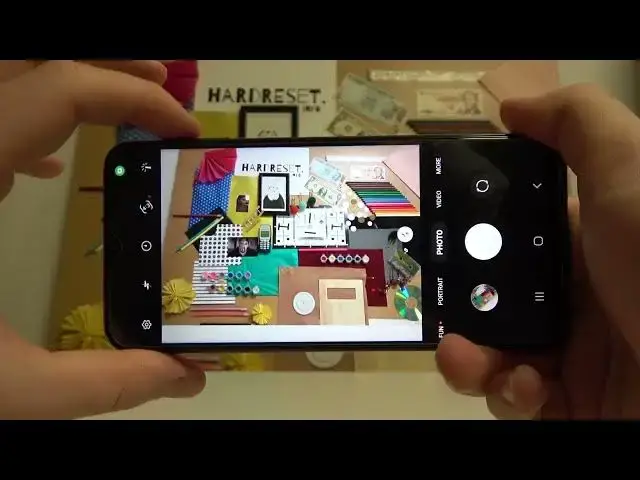
Hello, today I am with Samsung Galaxy M23 5G and I want to show you a couple camera tricks
0:13
So take a look. All of the settings that I have right here is just set up as default
0:19
Take a look. I just reset and all of this stuff you will find in this camera application as default
0:28
So, the first option, you can take photo by simply tapping on this shutter, right
0:36
But if you have a problem and you cannot reach this shutter, for example, when you hold your phone like that
0:43
and you are not able to tap it right here, you can just drag this shutter
0:49
and then put it wherever you want on the screen. If you want to hide this shutter, just grab it right here to this bottom shutter
1:04
Another method to take photo. You can use volume buttons, volume up and down
1:11
Take a look. When you press once, you can take photos. When you want to take the burst shot, you have to click and hold your shutter
1:26
Oh, sorry guys, that's my reference. we have to make it with the volume buttons so click and hold the volume
1:32
button and as you can see we can take the series of the photo it works the same
1:36
for the volume up and volume down and we can take to the 30 photos so right
1:45
now when we open the gallery I will find this little mark right here so when you
1:52
top on it now we can just store all of these photos as you can see right now
1:56
it looks like some kind of the short video and we can pick which photo we want to save like for example this one this one and maybe this one to save we have to click right here and then tap to save and delete the rest of the photos if you don need them
2:16
Okay, as you can see we have here these three photos from the series
2:22
When you want to quickly record the short video, you have to click and hold this shutter button. button
2:30
When you lock like that, you don't have to holding this shutter button anymore
2:36
It's locked and it's switched the video mode. So when you want to quickly record the video, you don't have to tap right here and switch
2:44
Just click and hold this shutter. As you can see, that's very, very simple. Okay
2:51
And right now I want to show you how we can change function of this volume buttons
2:55
As you know, we can take photos like that, but we can adjust them
2:59
So we have to open the settings. And you will find this option right here below
3:07
It's on the shutting methods. Yeah. So here we got the press volume keys to take picture or record video
3:15
We can switch to zoom in or out. And take a look right now
3:19
When you press volume up button, you can smoothly zoom in. and also smoothly zoom out by pressing volume down bottom
3:33
As you can see, we can also switch between lenses so we can go for the ultra wide lens
3:40
Okay, and right now, we can also adjust this shutter feature. So we have to go back for the settings
3:51
And when we just swipe shutter button to take the bear shot, we can switch to create a GIF
4:00
So right now when you make the same thing just like that Right now it works like the BIR shot so can call it a GIF As you can see right now but we are unable to change to pick exact photos like it was right here with this series of the photos
4:30
So that's why it's called the GIF because you cannot edit this one
4:36
Okay, and what if you want to change the color and the temperature
4:40
You have the top right here and after a few moments we'll get the presets of the different filters as you can see
4:50
So if you want to pick this one, you can also enable, I mean adjust the strength of the filter
4:57
And if you want to take photo with this one, just click on the screen on the shutter and as can see the photo was taken and it looks a little bit different
5:06
from this one. Okay, right now I'm gonna turn it off. And you can also pick my filters from this
5:15
from this many. They looks a little bit different. But I'm gonna switch to the normal one
5:26
You can also enable the shutter delay if you want to take photos on the tripod by tapping right here
5:32
You can pick two seconds, five or ten. or 10. Let's pick two seconds, click on the shutter, and after this time the photo will be taken
5:46
Okay, you can also try to take photos with more details. So normally when you set up the 4x3
5:55
like this and aspect ratio, you can just take photo and right now we can switch to the 4x3 but with the 50 megapixel mouth
6:05
So we can see we are taking the same photos. And right now we can take a look on the difference, how it looks
6:13
So this photo was taken with the 50 megapixel mode So when you zoom in like that you can take a look on the details for example on this phone keyboard
6:24
It looks like that. And this can see we can also zoom in very, very close
6:28
So let's take a look how it looks with the normal mode
6:32
Looks like that. And you can zoom that close. But to be honest, there is not that much..
6:43
much details maybe are these numbers on the keyboard you can see a little bit clearly but
6:53
it's not like big deal um this modes works definitely better when you have the phone with the
6:59
108 megapixel mode so for example in the s 22 ultra s 21 ultra or s20 ultra but also with
7:07
the other smartphones like show me already me note 10 pro show me show me
7:13
Node 10 Pro, Mi Note 10 Pro, the old one, and with the latest Mi 11 and Mi 10
7:22
And right now we can go for the settings. And in the settings, we can also find an interesting option
7:30
It's called the grid lines. So when you enable this option, right now the help grid lines will appear on your display
7:36
As you can see, and they help us to take better composition on the photos. I'm going to switch to the full aspect ratio
7:42
It looks a little bit better. And if you want to get any object in the middle on your photo, like for example this, this part
7:53
you can make it definitely easier with the lines on the screen
7:59
As you can see it looks like that. So yeah, I think that's all the best tricks that you can find in the Samsung Galaxy M23
8:10
If you find this video helpful, remember to love a like, comment and subscribe