Up next in 10


Read more tutorials with SAMSUNG Galaxy A31:
https://www.hardreset.info/devices/samsung/samsung-galaxy-a31/
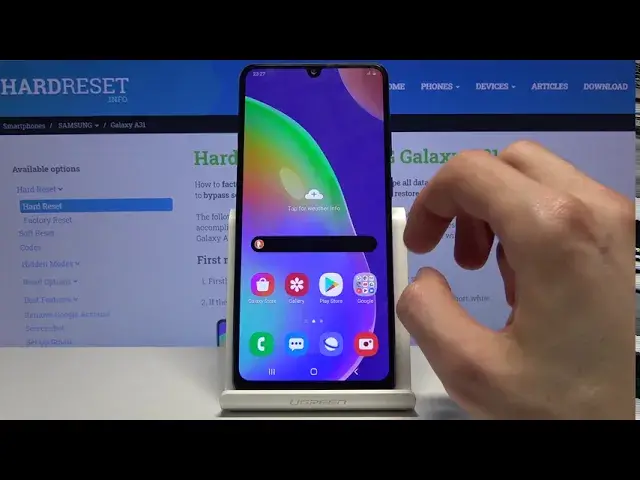
Discover some invaluable tips for using the popular features of SAMSUNG Galaxy A31. Watch the video to become a pro user of Galaxy smarthpnes. Top Tips for SAMSUNG Galaxy A31.
#toptricks #galaxyfeatures #hiddenoptions
Follow us on Instagram ► https://www.instagram.com/hardreset.info
Like us on Facebook ► https://www.facebook.com/hardresetinfo/
Tweet us on Twitter ► https://twitter.com/HardResetI
Support us on TikTok ► https://www.tiktok.com/@hardreset.info
Use Reset Guides for many popular Apps ► https://www.hardreset.info/apps/apps/
Show More Show Less View Video Transcript
0:00
Welcome. Welcome
0:06
I'm from here on is a Samsung Galaxy A-31, and today I'll show a couple tweaks and tricks that you can do on this device
0:14
So starting off, we're going to begin with the dark mode, which simply turns the display, or well the theme of the device, into a dark one
0:22
And you achieve it by going into the settings and display, and here at the top you have the light and dark
0:28
So choose your side right here and as you can see we're now on the dark side
0:33
So in this mode I think these are Amulet displays considering it's Samsung so they will also use less battery in dark mode
0:45
that's due to the fact that the dark areas don't need to be lit up as for instance something that is like white
0:52
where you do need lighting up behind those pixels. Now moving on, we're going to go into the gesture navigation, which is just a more common
1:03
way of using the device nowadays instead of the outdated buttons on the bottom
1:10
Now to get started again, go into the settings and again under the display, scroll down and
1:17
we have the navigation bar, top on it, and here have full screen gestures
1:21
Select as that, and you can see it out, change this after a second, and from here you
1:26
you slide up to go home, slide up and hold to go to recent, and also slide from the sides
1:33
to go back. As you can see, when you slide from the sides, it shows up an arrow. So, as you can see
1:40
there is the arrow, also from the other side as well. So, that is the gesture navigation. Now I'm
1:48
going to bring it back because for me on the tray, it's easier to use the buttons rather than
1:52
the gestures. But when you're holding the device, it is way better to use
1:56
the gestures in my opinion. Now also I will mention with the gestures when you're
2:01
using them and you're struggling to go home or to recent, an easy way to do
2:08
it is just start sliding from off the display. So for instance as you can see
2:13
the display starts somewhere around here but you can start sliding all the way off of it so let me just enable it As you can see this will then ensure that you always get that gesture correct
2:26
That is assuming you have a problem. If you don't, you can, if you're more comfortable with it, you can just normally do it whenever
2:33
So, moving on, we're going to go into the side panel, which you can achieve by sliding where you can see this tiny little
2:47
bezel I guess I'm not sure how to call it but it's visible right over here for me
2:51
I assume this is where it is by default hopefully you can see this little tiny protrusion from the side
2:57
so what you do is just slide on it this will bring up the panel
3:01
and from here you have a couple different things so number one you can have just some default apps in here that you can access
3:08
As you can also add them if you want to. So apps that you want
3:13
From there you can go back and there should be there. There we go
3:17
But you can also have something like widgets and for here, at least in here we have some smart select
3:24
This is for screenshots going on. We got tools, so this is compass and now it cycles through
3:30
I can also go to the settings right here and you can add different pages
3:36
So you have people, tasks, Samsung member, not sure what that is
3:42
whether Samsung other apps and reminders, clipboards, you can also go to the Play Store or Play Store Galaxy Store
3:50
assuming how we're connected to internet. And in there you can find even more that you can download and add on
3:57
And also, the amount of them that you have is not limited so you can enable basically all of them
4:02
actually let's just go back so you can enable all of them if you want to as you can see now we
4:12
already have more there's compass there's some Samsung members people you can see you
4:19
can keep on adding them and the panel is accessible basically whatever you are you can see
4:24
right now we're on our browser and you can still slide on it as you grab it
4:32
Now moving on we gonna go next one to the pop view which is just a way for you to have a window and also make it an uphead So when you go into the recent as you can see I just did so let just choose the browser
4:49
Top on the icon itself and you don't get the expanded list here, and you can then choose open and pop-up view
4:55
And this will bring up this tiny little window that you can move around. You can also resize it if you want to, and you're not only limited to one, you can open a little
5:04
multiple so let's just go next to the settings open and pop up view that's another one
5:11
see what else we can do I'm not sure if this is viable and looks like it is and as you can see
5:17
you have multiple different apps and when you close them they will close into this uphead which you
5:22
can tap on and choose which one you want as you can see you can bring them all up if you want
5:29
resize them to fit the screen a little bit better if you need to and apart
5:34
from that being open you can still if I can actually find other apps to open
5:40
let's see we could open different apps like for instance let's go to Google and
5:49
what else we can open let's go with YouTube so as you can see the apps are up heads
6:01
are still there and you can still open them up And now we can choose whatever the browser was, which looks like it closed for some reason
6:15
There we go. So let's stop on this and then we should have an option to open and split screen view
6:23
This will bring up the first app to the top and then the second app once you choose it will go below
6:29
As you can see we're now using two apps already on the screen divided
6:33
it into two sections but you can still interact with the other ones as you can see
6:39
and everything is fully usable in the background as long as you're not touching the other
6:43
app. So just a nice way to take multitasking to a whole new level. Now when you're
6:53
trying to close it you can go home and then click on the x and this will quit the split screen And the last thing that I wanted to show is the window pinning It more of a security option
7:04
So if you're lending someone your device and you want them to stay in whatever section of the device
7:10
well, they said that they need access to. What you can do is go into the settings
7:16
This is just for the one time. You need to go to the settings to enable this option. So you go into the settings, then security
7:23
or biometrics and security, scroll down and we should see other security settings
7:30
And then we have pin windows enable this and the top on it
7:34
And you want to also enable this, so you screen like type to unpin
7:38
And when you enable this, you can choose one from here. This is just to set it up because I don't have any kind of protection
7:46
So I'm just going to choose pin for now. Draw it, redraw it
7:50
This is just for the setting up process. if you already have a pin pattern password whatever it is you will just need to
7:56
confirm it I think or it won't even ask you anything to confirm it will just
8:00
check on and that's it and from here we can now pin a window so this is the
8:07
case that I'll be saying so for instance you tap on the app that you want to pin
8:11
pin this up it gives you a message when you first time do it to hold the
8:16
recent and back button to unpin so confirm that and from here you can see that
8:20
You can use the app however you like. It's not limited and the app isn't limited but if you try to go back it won't go home
8:28
if you try to go to recent won't show recent and if you try to go home it also won't
8:32
go home. So this will prevent anybody from wandering off to a on your device and just checking stuff
8:41
that they shouldn't. And also if you want to unpin it you will have to hold those two buttons like we've seen before
8:48
It will unpin and then automatically lacks device with the pattern that we have set. So I now need to basically unlock the device
8:56
to leave it. So that would conclude all the tweaks and tricks that on this here and if
9:03
you found this very helpful don't forget to add like, subscribe and thanks for watching
#Online Media
#Other