0:00
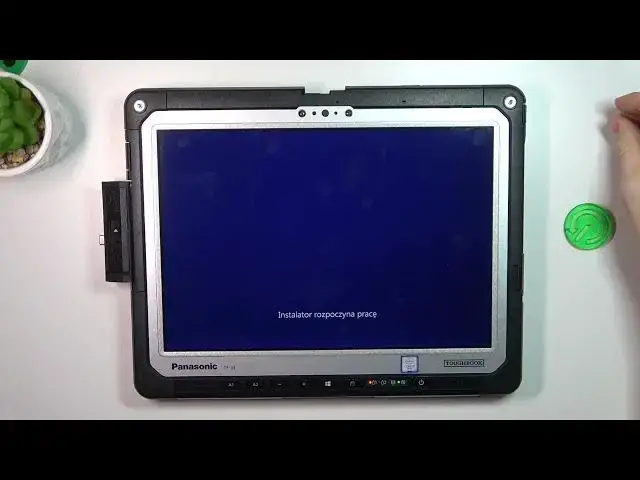
Hi, welcome to Hardridge, visiting for channel, the viewers in front of me, Panasonic CF-33
0:05
and now I'm going to show you how to reinstall Windows on this device
0:13
First, I suggest you to connect to the charging, I will connect later
0:19
So I have, I have 40 minutes to do it. But firstly, you need to create the bootable flash drive with
0:30
Windows so if you don't know how to create the flash drive with Windows just watch
0:36
any other video on YouTube of how to do it then then just open the USB flash drive
0:48
cover in this way you will open it and insert the CD card CD card
0:59
drive into your advice then press and hold a 2 present hold power button hold
1:09
until lights will disable then release power button but not don't release the
1:15
82 button wait for about 5 seconds then press and hold power button again and
1:24
still hold 82 Great we have entered BIOS Now just choose boot choose UFI Properties click twice Here as you can see we have Windows Boot Manager as first so we need to click on Windows Boot Manager twice
1:55
Then choose your generic SD card or your name of your card, of your USB flash drive
2:04
And now as you can see my UFE Generic CD. UE Generic CD on the first place. So now, now we need to save it. Save and reboot. So we need to press F10
2:20
To do it, click on the keyboard button on the right corner of your screen, click System and click F10
2:27
Save configuration reset, so click yes. Click yes and wait a while
2:36
Okay and as you can see here we have the system and I have the system in Polish
2:45
language so I can change it but but the process is normal so process will not
2:57
different so just click install install system wait a while
3:06
Click Icapped, click next
3:18
And here you need to choose second item And here if you want to create the clean install of your system so you need to choose all your disk and format all your disk And I suggest to click on the delete
3:37
disks to remove all your discs. Of course if you have the disk with important information
3:50
you can save this disk but you can't install the system on the old disk not formatted
4:00
So now just click one new petition, click set, click okay. In this way you will have only one disk C on your device without disk D, drive D, drive D, I don't know
4:18
Here on this adapt you can create several drives so drive D drive C drive E FG
4:27
if you want to do it you can do it right now but I suggest to use just only drive C to be fast
4:36
and if you want to connect external HD drive so you can do it
4:43
very easy if you will connect the keyboard from this Panasonic PC with SSD drives so it will be visible on the Explorer so
4:59
here I want to just install system now choose the disk with the more space for system and click next And now just wait for about 10 I don know 15 minutes to install system
5:23
So wait a while. So to prevent problems in installation time I will connect the charger
5:44
So still wait. Your PC will reload several times
6:02
So here we need to choose your region and perform the first setup of your device
6:11
So okay, go next, next, next, next, next. You can connect to the Wi-Fi network or don't connect
6:21
So I will click Don't connect and next to just choose next, next, next, connect to the Wi-Fi network
6:31
login into your Microsoft account and that's it. Thanks for watching. Like this video, subscribe to the channel and bye