0:00
Welcome and follow me using NothingPhone1 and today I'll show you a
0:04
couple tweaks and tricks you can do on this phone. So to get started I'm gonna
0:15
begin with the glyphs which is basically the main I guess selling point of this
0:20
device which is the back lighting of the phone. And there's a couple things you
0:25
can change here or just enable. So let's navigate into the settings and in here
0:31
you will find a glyph interface and apart from you being able to enable it
0:37
from here and change the brightness of it, you can also enable different
0:42
aspects of it. So we have some ringtone effects, we have notifications, charging
0:48
meters and so on. So you can see that there is couple of them that are turned
0:53
off, couple of them are turned on. So you can pick and choose which ones you want
0:57
You can enable obviously all of them if you want to but just so you know the
1:01
settings are right here. Now moving on to the less interesting things we can move
1:07
into the display section and start off with what personally I would like to
1:16
change on this phone which is the turning off the dark theme which comes
1:20
enabled by default. Now the reason why I do prefer to turn it off on here is
1:25
just because it fits so much better with a light white theme of this entire
1:30
device. The back is white, almost everything else. So having a light theme I think
1:38
fits just a little bit better with this device than the normal dark one
1:43
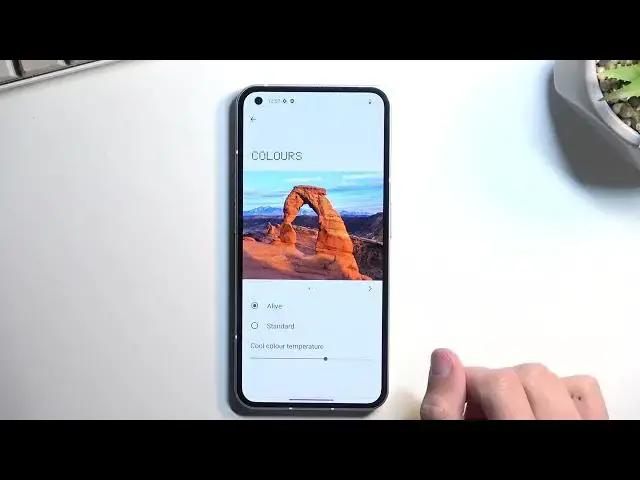
And also below here we have couple additional things like color. As an
1:50
example so here you can select which one you prefer more. Now we have the
1:55
alive and standard options and they do have just a slight difference between
2:00
them. Not as drastic as some other manufacturers like Samsung that have
2:06
their vivid and standard which are just vastly different. But still some people
2:12
might prefer just a little bit more subtle image. And also if we scroll down
2:17
we also have things like the display refresh rate which is set to high. Now on
2:23
here we do have a actually nice thing with the high refresh rate where it drops
2:28
the the refresh rate of the device a little bit lower when it's on high when
2:35
the device is not being used or displayed. So as an example on a high
2:40
technically whenever you're doing something like me scrolling up and down right now it would use a hundred and twenty but if I open up something like
2:48
this where image is just stationary there's nothing moving on here it drops
2:54
to I don't know like one or ten frames. So it does this to preserve battery when
3:00
it doesn't need to render the display and so many refresh rates per second. So
3:06
just a nice thing to preserve the battery in general. Obviously you can also change
3:10
it to 60 if you want to for some reason. And below that actually not below that
3:20
moving on to the different one we do have a pop-up view in here what you
3:26
access by going into the recent and just tapping or holding this circle icon and
3:33
it gives you the option to open up application and pop-up view. Now it does
3:39
open up the first time around or whenever you open it up like this in
3:42
this minimized view. So you have to tap on it to interact with it and then when
3:47
you're trying to get rid of it but you want to keep it open make sure you grab
3:51
it and drag it down by this bar that is located at the bottom right here. If you
3:58
tap somewhere else on the screen it just closes it off. So that's
4:03
one way you can interact with applications here and another one would be the split screen. For some reason every time I open it up it opens it up in
4:15
landscape mode. So there we go. So let's open something else and as you can see
4:24
you can use two different apps at the same time. So there we go. So those were
4:32
the couple fairly simple tweaks tricks that I wanted to show you and if you
4:36
found this video helpful don't forget to hit like, subscribe and thanks for watching