Up next in 10


More Tutorials with NOKIA 5.3:
https://www.hardreset.info/devices/nokia/nokia-53/
Find the best tricks for NOKIA 5.3. Let's check out hidden options, secret information and cool features for NOKIA 5.3. Let's use NOKIA 5.3 in pro way. What cool things can NOKIA 5.3 do? Find out with our video.
#tricks #tips #NokiaTricks
Follow us on Instagram ► https://www.instagram.com/hardreset.info
Like us on Facebook ► https://www.facebook.com/hardresetinfo/
Tweet us on Twitter ► https://twitter.com/HardResetI
Support us on TikTok ► https://www.tiktok.com/@hardreset.info
Use Reset Guides for many popular Apps ► https://www.hardreset.info/apps/apps/
Show More Show Less View Video Transcript
0:00
Welcome, I'm from the museum Nokia 5.3 and today I will show you a couple tweaks and
0:10
tricks you can do on this device. Now starting off we're going to begin with the dark theme which simply allows you to
0:16
turn most of the pre-installed apps into this dark mode. So to get this enabled all you need to do is go into the settings, display, tap on advanced
0:27
and in here you'll have the checkbox for the dark theme. Once you enable it as you can see it turns settings dark mode, if you pull down the notification
0:34
panel it's also in dark mode and some of the apps will be in this mode as well
0:42
Now I will mention right now that not every app will be supported by this so probably
0:46
majority of the apps that you download from Play Store won't be affected by this
0:53
Most likely even apps that are already installed here might not work so if I open YouTube it
1:00
looked like it tried to be in dark mode but then it just kind of didn't
1:04
Maybe it's just the fault that I don't have internet right now. Let's see what else is there to test
1:11
Well this obviously is not in dark mode as you can see so not everything will be supported in here
1:16
But still it does add a little bit of a customization to your device if you wish to change it just
1:22
so it's not purely white all the time. Now moving on to the next option, this one will be a little bit more in depth so I'll
1:32
also mention that this is probably for people that value their privacy because the option
1:37
is called sensors off and it's a fairly well hidden option accessible I believe from like
1:43
Android 10 and up. I believe it wasn't in like Android 9 so if you have an older phone you probably won't
1:52
see this. And also to get it enabled you do need to enable the developer options so if you know
2:00
how to do it then you can I guess skip by a couple seconds and if you are a person that
2:05
doesn't actually know how to do it I'll quickly show you. So all you need to do is go into the about phone, scroll all the way down, once you find
2:13
the build number tap on that 7 times and this will basically bring you a message that developer
2:18
mode has been enabled and from there once you go back you can go then to system, tap
2:23
on advanced and you will see developer options right here. If you don't enable the developer options to the about phone by tapping on the build
2:31
number this will not be here at all. Now once you have enabled it you can simply tap on it and scroll down a little bit while
2:40
you're still in the basically the first category I believe, yep there it is, just a tiny bit
2:45
lower, quick settings developer titles. Once you tap on it you will have a bunch of different things that you can turn on here
2:53
Some things you might be interested in so we do have like for instance performance test
2:58
where it just shows you graphs on the screen if you wanted to and some just general settings
3:07
that are usually hidden but the one that I kind of wanted to go over is the sensors off
3:12
Now before I enable this I will pull down the notification panel just so you can see
3:16
that in the notifications and all the toggles. The first toggle that I have right now is the wifi toggle
3:24
So without any changes, bam enable this and now once I pull it down you can see that sensors
3:30
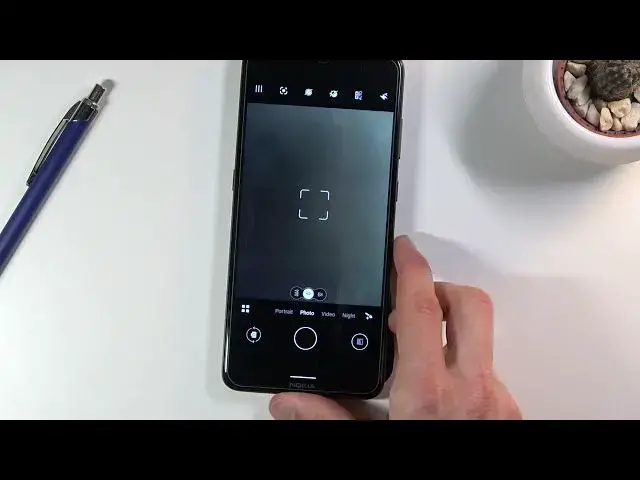
off is right at the first place. And before I actually tap on that toggle to turn it on I'm gonna quickly open up the camera
3:42
So obviously you can see that the camera is working right, you can see my hand right
3:48
So let me just quickly pull down the notification panel and again you can barely see it in the
3:54
back, it's still moving. Once I tap on this toggle the camera will just simply stop working
4:03
So you can see just and here it completely froze. Now different phones have different effects when you enable it, some of them just close
4:10
off the camera, some of them crash. It looks like here it just completely freezes
4:17
So I'm gonna close it off like I just did and go back to the camera which as you can
4:21
see just now makes it close. It doesn't show anything anymore, as you can see there's nothing showing up it just closes
4:29
after trying to launch. So yeah, so camera is one of those things that won't work front and the back
4:36
Another thing that won't work is microphones. So if someone calls you right now and you pick up your phone, assuming someone can call
4:44
you, I haven't actually tested if people can call you right now, but assuming they can
4:48
if someone calls you, microphone is disabled so if you try to talk to them they won't be
4:53
able to hear you till you disable this option which in turn will turn on all the sensors
5:00
including microphone and camera which now should work and there it is
5:06
So like I said, a decent option for people that like their privacy, you can just quickly
5:11
toggle on it, turn off the sensors and have complete security and privacy
5:17
Maybe not security but at least privacy. So moving on to the next one, it's also gonna be in the developer options, it's gonna be
5:27
the animation speed and this will simply allow you to increase the animation speed of the animation
5:35
So as you can see, these kind of animations like the zooming in is out of apps, if you
5:40
close them they can like shrink down, if you bring the recent they slide from the side
5:47
So yeah, there's a lot of animations obviously. So we can actually reduce them or completely remove them if we don't want them or also
5:56
we can increase them if that is something that you want but that will just make the animations longer which will waste more time I would say
6:04
But anyway, again in the developer options, what you wanna do is then scroll down, I believe
6:10
it's like past halfway, so let me quickly see. There we go, so you can see the bar is somewhere like around here
6:22
So we have these three different options, so we have window animation scale, transition
6:27
animation scale and animation duration scale. Now each one of them corresponds to a different set of animations, so as an example, the first
6:35
one, the window animation scale will basically change the speed of all the windows that open
6:40
Now if you're wondering what the hell is a window, it's basically the tiny little popup
6:45
that shows up on the screen when you have multiple choices of something
6:49
So if I actually tap on this, this will bring up a window
6:53
So this is a window right here. So as an example here, a drastic one, I'm gonna set it to times 10 and now once I tap
7:02
on it, you can see how super slow this is and well, boring
7:09
But you could then also from here set it to 0.5 which will basically reduce the animation
7:14
speed of it by half, making it twice as fast and it's already way better
7:19
So I'm gonna set it to be for everything. Or you could also take it a little bit further and just completely remove the animations
7:27
altogether by setting it to animations off. So then things won't be animated at all
7:33
They will just instantaneously pop up on your screen. Now this is gonna be the fastest way but might not be the best looking way, if you know what
7:43
I mean. Some things, for instance, like if you go into recent, so as you can see, this is not
7:49
really an animation, just to let you know. So this is just based on your hand movement but once you let it go, it then takes over
7:58
animation so it then kind of like snaps into a position that it's right now in, right
8:04
So without the animations, when you let it go, it just kind of glitches into this position
8:09
that it's right now from whatever it was like when you were holding it. So if you, for instance, hold it like right now, you let it go, it just kind of poof
8:17
pops into this position. It looks really weird. So just keep that in mind
8:24
So moving on to the next option, it's gonna be screen pinning
8:29
Now this is for people that just, I guess, would probably lend advice to someone that
8:34
just make a hypothetical situation. Someone wants to use your phone, you don't really know them or you don't really trust
8:39
them with your phone. What you can do is enable the screen pinning which will allow you to pin a specific window
8:45
to a screen and without the passcode, they won't be able to unpin it
8:50
To actually get it set up, because we do need to first enable it, what you want to do is
8:55
go into the security and settings. And from here, right at the bottom, once you tap on advanced, you have last option, screen pinning
9:04
So tap on it. Tap on the check mark right here. And this already will enable the screen pinning, but it could take it a little bit further
9:12
with the lock device when unpinning. So if someone knows how to unpin some kind of application, without this option, they
9:21
are able to just unpin it and keep on using the device, which kind of would defeat the
9:26
purpose of this. But once you enable this option, it will basically lock the device and force you to put in a
9:34
pin pattern password to unlock it before you can start using it again after unpinning that window
9:40
So I'm going to go with the pattern just for a showcase right here
9:48
And I'm not going to be setting up a fingerprint, I don't really care
9:52
So let's go back. OK, so it is enabled. So now, let's see
9:56
So as you can see, you go into the recent, so just swipe up like this
10:03
And whatever app is open, the app that you want to pin, you tap on that little icon right
10:07
there, choose pin, and it gives you a screen as pinned. It keeps it until you unpin
10:15
Swipe up and hold to unpin. So here to unpin it, we just kind of try to go into recent basically
10:21
So let's tap on got it. And as an example right now, it is pinned
10:25
So if I try to go home, as you can see, just..
10:29
And this is nah, nothing really happens. If I try to go back, as you can see, there is an arrow appearing, but it's not going
10:38
anywhere further, right? It gives me this message to unpin, hold on the screen, swipe up and hold
10:46
So if I do that right now, bam, it goes straight to being locked
10:52
And from there, I do need to confirm the pin to get back to the phone
10:59
And now this is done, let's move to that last option, which is something that you might
11:04
not be aware, which is the usability of a fingerprint sensor. So you can swipe down on it to gain a notification panel, which will basically allow you to..
11:17
Let me just grab it. So you swipe down on it. Let me just kind of try to show you the screen while I'm swiping down
11:26
So you can quickly access it without actually trying to swipe it down on the screen
11:33
Let's see. Now sometimes it just kind of works wonkily. You do need to be, in a way, touching the majority of the sensor
11:48
So let me just kind of show you what I mean. So when you..
11:53
You don't want to kind of swipe like this. As you can see, doing this doesn't really do much
11:57
It does sometimes work, but barely. So what you want to do is put your finger on it and swipe down on it
12:04
In a way, slowly, and this will bring up the notifications. So that's a fairly simple thing, but not everybody knows about it
12:13
And sometimes it's just kind of nice to have such an option
12:18
Now also, if you don't really like it, maybe your finger just swipes on the sensor sometimes
12:24
just normally, without you wanting to pull down the notification panel, you could disable this if you're not a fan of this option, and it just kind of annoys you
12:32
And to do so, all you need to do is go into the settings from here
12:36
scroll down to System, Gestures, and Swipe Fingerprint for Notification. Then disable it
12:45
And now if you try to swipe down on it, you can see that nothing is happening
12:53
There we go. So, there we go. This will conclude all the tweaks and tricks that I wanted to share with you
13:00
but if you found this video helpful, don't forget to hit like, subscribe, and thanks for watching
#Computer Hardware
#Consumer Electronics
#Hobbies & Leisure
#Mobile Apps & Add-Ons
#Skins, Themes & Wallpapers
#Engineering & Technology