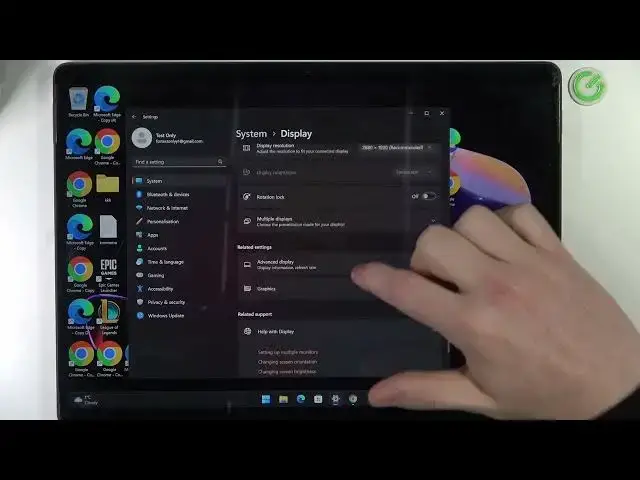

Microsoft Surface 8 Pro - How To Enable & Disable Night Light
Mar 26, 2024

Check more info about Microsoft Surface Pro 8 :
https://www.hardreset.info/devices/microsoft/microsoft-surface-pro-8/tutorials/
To enable and disable the night light on the Microsoft Surface Pro 8, follow these steps:
Open the "Start" menu on your Surface Pro 8 and type "Night light" in the search bar.
Click on the "Night light settings" app to open the Night light settings.
In the Night light settings, you will see the current status of the night light and the available options.
To enable the night light, click on the "Turn on now" button and the night light will be activated immediately. The night light uses a warm color temperature to reduce the blue light emission from the screen and prevent strain on the eyes.
To customize the settings of the night light, click on the "Advanced options" link and you will see different options for the schedule, the color temperature, and the intensity.
To change the schedule of the night light, click on the "Schedule" toggle and select a different option from the list. You can choose between "Sunset to sunrise" to automatically enable the night light at sunset and disable it at sunrise, or "Custom" to set a custom schedule for the night light.
To change the color temperature of the night light, move the "Color temperature" slider to select a different temperature. You can choose a warmer temperature to reduce the blue light emission and improve the comfort, or a cooler temperature to maintain the color accuracy and the visibility.
To change the intensity of the night light, move the "Intensity" slider to select a different intensity. You can choose a higher intensity to reduce the blue light emission and improve the comfort, or a lower intensity to maintain the visibility and the color accuracy.
Show More Show Less