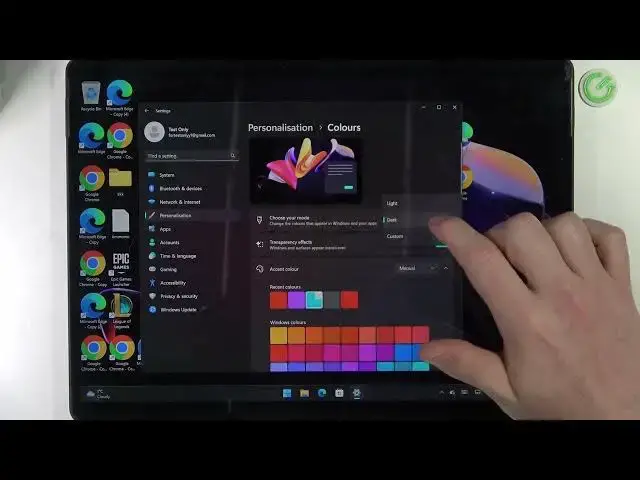

Microsoft Surface 8 Pro - How To Customize Style
Mar 26, 2024

Check more info about Microsoft Surface Pro 8 :
https://www.hardreset.info/devices/microsoft/microsoft-surface-pro-8/tutorials/
To customize the style on the Microsoft Surface Pro 8, follow these steps:
Open the "Start" menu on your Surface Pro 8 and type "Personalization" in the search bar.
Click on the "Personalization" app to open the Personalization settings.
In the "Personalization" settings, you will see different options for customizing the style and appearance of your Surface Pro 8.
To customize the style, go to the "Colors" section and you will see different options for the accent color, the background color, and the app mode.
To change the accent color, click on the "Accent color" button and select a different color from the color palette. The accent color is used for the title bars, the buttons, and other elements on your Surface Pro 8.
To change the background color, click on the "Background color" button and select a different color from the color palette. The background color is used for the desktop background and the lock screen background on your Surface Pro 8.
To change the app mode, click on the "App mode" button and select a different mode from the list. The app mode determines the default color scheme used for the apps on your Surface Pro 8. You can choose between "Light" mode, which uses light colors for the app backgrounds, or "Dark" mode, which uses dark colors for the app backgrounds.
Once you have selected the accent color, the background color, and the app mode, the changes will be applied immediately and the style on your Surface Pro 8 will be customized according to your preferences.
Show More Show Less #Consumer Electronics
#Operating Systems
#Online Goodies
#Skins, Themes & Wallpapers