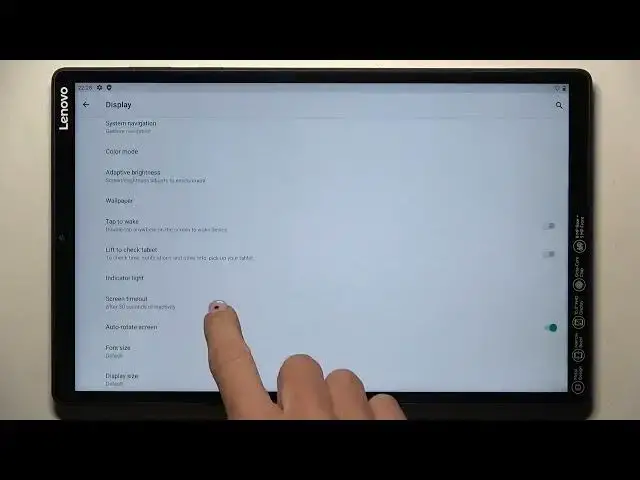

LENOVO TAB M10+ How To Change Screen Timeout
Mar 26, 2024

Visit Our Website And Learn About LENOVO TAB M10+ :
https://www.hardreset.info/devices/lenovo/lenovo-tab-m10-plus/tutorials/
You can change the screen timeout setting on a Lenovo Tab M10+ to adjust how long the device's screen stays on when you're not using it.
To change the screen timeout setting on a Lenovo Tab M10+:
Go to "Settings" "Display."
Tap on "Screen timeout."
Choose a screen timeout setting from the list. The available options may vary depending on the device's software version and settings.
This will change the screen timeout setting on your Lenovo Tab M10+. Keep in mind that the exact steps and options may vary depending on the device's software version and settings.
If you're having trouble changing the screen timeout setting on your Lenovo Tab M10+, you can try looking for a tutorial online or contacting Lenovo customer support for assistance.
You can also try using a third-party app or service to adjust the screen timeout setting. Some apps and services may offer additional options or features for managing the device's screen timeout, such as the ability to schedule the screen timeout or to turn off the screen automatically when you're not using the device. You can try installing and using a different screen timeout app or service to see if it works on your Lenovo Tab M10+.
Keep in mind that changing the screen timeout setting may affect the way the device works and the way certain apps and features are displayed, and you may need to adjust the device's settings or the app settings after changing the screen timeout. You should also make sure that the device's battery is charged and that you're using the device in a well-lit environment to avoid straining your eyes.
Show More Show Less