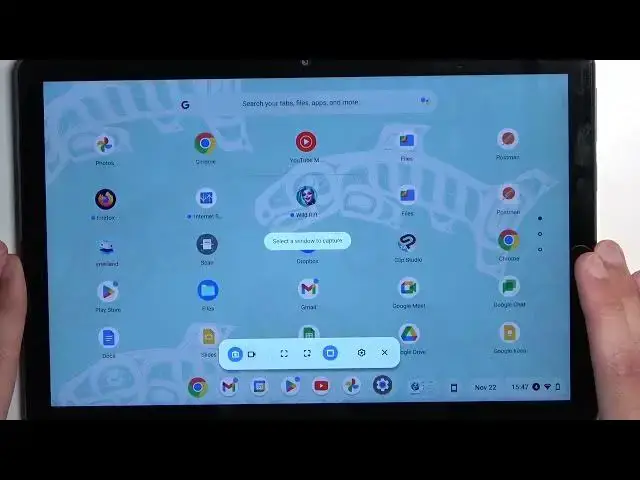

Lenovo IdeaPad Duet Chromebook - How To Make Screenshot
Mar 26, 2024

Visit Our Website For More Information : https://www.hardreset.info
To make a screenshot on a Lenovo Ideapad Duet Chromebook, you will need to press the "Power Key" and "Volume Down" keys at the same time. This will capture a screenshot of your entire screen and save it to your Chromebook's local storage.
To access the screenshot, you will need to open the Files app on your Chromebook. You can do this by clicking on the "Quick Settings" menu in the bottom right corner of the screen, and then selecting the "Files" option. In the Files app, you should see a folder called "Downloads", which is where the screenshot will be saved. To open the screenshot, simply click on it in the list of files.
Once you have opened the screenshot, you can view it, edit it, or share it with others. If you want to edit the screenshot, you can use the built-in image editor on your Chromebook, or you can use a third-party image editor app or extension. To share the screenshot, you can use the built-in sharing tools on your Chromebook, or you can save the screenshot to an external storage device and share it from there.
I hope this information is helpful. If you have any other questions, feel free to ask.
How to make screenshot on Lenovo IdeaPad Duet Chromebook ?
Can i capture screenshots on Lenovo IdeaPad Duet Chromebook ?
Screenshot key combination on Lenovo IdeaPad Duet Chromebook ?
Taking Screenshot on Lenovo IdeaPad Duet Chromebook ?
#LENOVOIDEAPADDUETCHROMEBOOK #Make #Screenshot
Follow us on Instagram ► https://www.instagram.com/hardreset.info
Like us on Facebook ► https://www.facebook.com/hardresetinfo/
Tweet us on Twitter ► https://twitter.com/HardResetI
Support us on TikTok ► https://www.tiktok.com/@hardreset.info
Use Reset Guides for many popular Apps ► https://www.hardreset.info/apps/apps/
Show More Show Less #Laptops & Notebooks