0:00
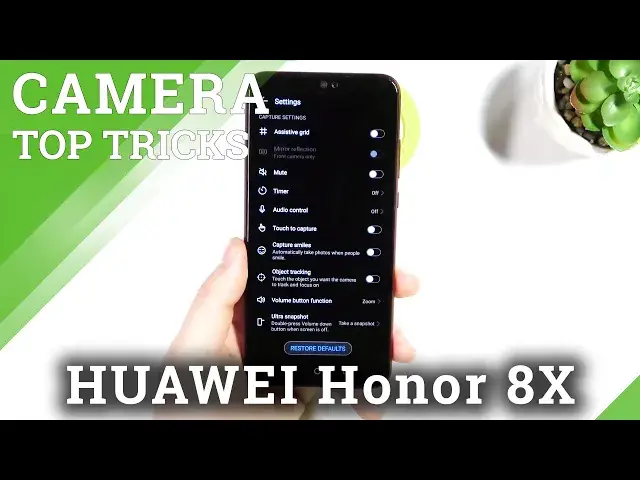
Welcome, today I'm with Honor 8X and I'll show you couple camera tricks
0:11
So at the first I'm gonna talk about these basic modes, also I'll show you one of the
0:17
more modes and after that I'm gonna smoothly move to the settings
0:22
Okay so when we are under photo mode we can quickly increase and decrease brightness level
0:28
You have to tap on the screen and then you can just move the sun icon like that to change
0:35
currently brightness level. The same you can make in the video mode
0:41
Take a look. It works in the same way. You can also make it automatically by tapping on the screen
0:54
When you tap in the space you are able to quickly change color and the temperature on
0:58
the photos by using these filters
1:07
If you want to turn it off just go for the none
1:13
Right now let's go for the more modes where we can find stickers
1:19
When you slide to the right or the left you can pick one of the stickers, place it wherever
1:26
you want and then just take photo. And as you can see the sticker will appears on the screen
1:38
Right now I'm gonna show you AR lens where we can find few ready themes
1:52
So you can take photo, you can also record a video, you can enable or disable sound
1:58
It also change color and the temperature as you can see. When you switch to the background we will be on the front camera and just take a look
2:15
Pretty awesome right? We can take photo like that. So as you can see there is a lot of different themes
2:27
Ok let's turn it off. And right now I'm gonna smoothly move to the settings
2:32
So in this place we can quickly add the timer so we can choose between 2, 5 or 10 seconds
2:40
We can pick 2 seconds and after this time when you tap on the shutter the photo will
2:44
be taken. Ok and right now let's turn it off. We can also use audio control
2:52
When you enable this switcher you can say cheese to take photo or just simply speak loudly
2:57
I will test this first option. Cheese. As you can see the photo was taken so it's working
3:07
Not that bad. Let's turn it off. And last option that is very useful it's the volume button function
3:15
So currently the volume buttons that you can find right here on the right edge you
3:20
can use as a shutter, zoom or focus. So basically when you press right now you will take photo
3:26
But let's take a look how zoom works. So just press volume up button to zoom in and volume down to zoom out
3:37
As you can see it works very smooth. And I just find out that right here you can find another option and it's the touch capture
3:48
So right now when you enable this option you don't have to reach this shutter, you can just tap on the screen and then your smartphone will also take photo
3:57
So it's useful when you hold your phone like that in the one hand and for example you cannot
4:02
use your left hand so you can just tap like that. It's definitely easier than reaching this bottom shutter because when I try to make
4:11
it I just switch mode. OK so I'm gonna turn off this option and honestly that's all
4:18
If you find this video helpful remember to leave a like, comment and subscribe