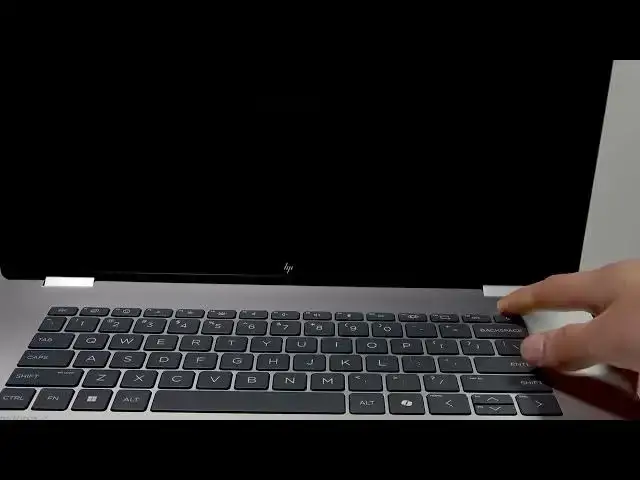

HP OmniBook 7 Flip – How to Boot from USB
Jun 17, 2026

Learn how to boot your HP OmniBook 7 Flip from a USB flash drive in a few simple steps. This video shows how to fully shut down the laptop, insert a bootable USB, power it on and press F9 to open the one-time boot menu. You’ll learn how to select your USB drive and start the installer (example: Windows 11). These steps work for installing an OS, running recovery or diagnostic tools, or booting a live USB on the HP OmniBook 7 Flip. The instructions are clear and suitable for non-technical users who need a fast way to boot from external media.
How to boot HP OmniBook 7 Flip from USB?
How to access the one-time boot menu on HP OmniBook 7 Flip?
How to install Windows 11 from USB on HP OmniBook 7 Flip?
0:00 Intro
0:09 Shut down the HP OmniBook 7 Flip completely
0:28 Insert the bootable USB and power on
0:43 Press F9 repeatedly to open the one-time boot menu
0:56 Use arrow keys to select your USB drive and press Enter
1:09 Example: Windows 11 installation screen appears
1:16 How to cancel (press Esc) and restart if needed
1:43 Outro — like, comment and subscribe
#HP #OmniBook7Flip #BootFromUSB #Windows11
Find out more:
https://www.hardreset.info/devices/hp/hp-omnibook-7-flip/boot-from-usb/
Show More Show Less #Science