0:00
Welcome. InfiniMi is an Honor Magic 5 Lite and today I will show you how we can record a screen on this phone
0:10
So to get started, we want to pull down our toggles by swiping down from the top of our screen, like so
0:17
Now when you swipe down once more, it will reveal more toggles
0:21
I'm just gonna quickly check something. And it looks like this also includes notifications, so it won't really depend on which side you're sliding down from
0:31
So anyway, from here, obviously we're looking for Screen Recorder. For me, it is right over here
0:37
Once you see it, you can tap on it. Now if you're doing this the first time around, it brings up this page to allow Screen Recorder to access your audio, so it can record your microphone
0:49
Sorry for that. So yeah, microphone, then I'm gonna select while using the app
0:58
Next thing, it asks me Screen Recording. So during Screen Recording, all operations on the screen will be recorded
1:04
This feature requires access to the microphone. We already gave it, so I'm gonna select OK
1:09
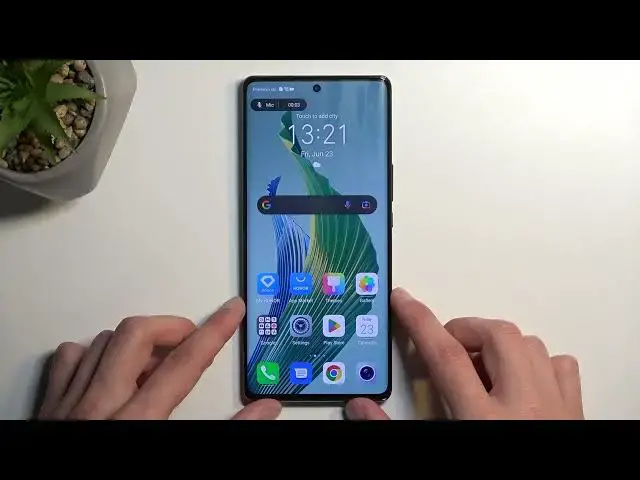
And it gives us an overlay, so we have the microphone, which you can..
1:14
I'm not sure why that gave me so much difficulty to say
1:18
But anyway, we have the microphone, you can toggle it on or off, and also the counter for the Screen Recorder
1:24
Now with that being said, the message there that we got before was a little bit incorrect
1:29
There are certain applications which will completely block Screen Recorders. And just to name one from the top of my head that I know for certain, that will be Netflix
1:39
If you try to record screen from Netflix, all you will get is black screen
1:43
You will get the sound, but not the image. Kind of making it useless
1:48
So that was kind of incorrect. Also, bank applications tend to do the same thing
1:53
Anyway, I'm gonna select Got It. This will automatically begin recording. I will turn down or turn off the microphone
2:00
And from there, you can just open up different things. Now, Netflix will be recorded at least at this page
2:06
Only when you try to record a show being played back, it will not record it
2:12
Now anyway, once you're done recording, you can click right here on this red blinking square
2:17
And this will, as you can see, save the screen recording. Give it a moment, it just disappears
2:23
There we go. Once it does so, you can find the screen recording in your gallery application
2:28
So I'll open that up. Okay, agree, get started. And you can see it right at the front, right here
2:37
Or you can navigate to Albums. And it will be also saved in the Screenshots album for some reason
2:43
And you can obviously press on it to play it. I'm gonna mute it because I was talking in there
2:59
Oh, actually, interestingly enough, it's already blocking it. So as you can see, it was fully blocked right here
3:06
So that's basically what you will get when trying to record applications that, for some stupid reason, can block core functionality of your device
3:14
Which is a little bit sketch, to be honest. But anyway, that's basically it
3:20
So hopefully you found this video helpful. And if you did, don't forget to hit like, subscribe, and thanks for watching