Up next in 10


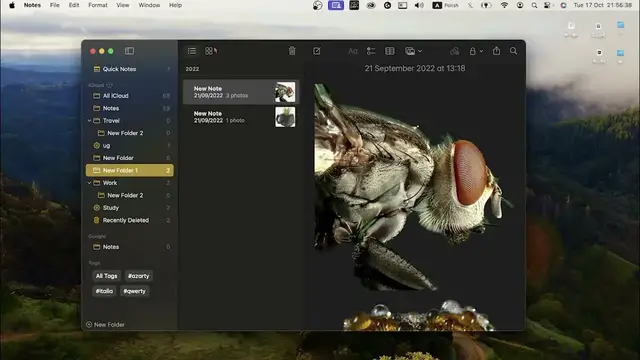
Discover the power of the Notes app in Mac OS Sonoma with our in-depth tutorial! Take your note-taking and organization skills to the next level as we walk you through the ins and outs of this handy app. From creating and formatting notes to using advanced features like attachments, checklists, and collaboration, we've got you covered. Learn how to seamlessly sync your notes across all your Apple devices and boost your productivity. Don't miss out – watch our video and become a Notes app pro on Mac OS Sonoma!
"Mac OS Sonoma Notes app tutorial"
"Organize notes on Mac Sonoma with Notes app"
"Collaborate on notes in Mac OS Sonoma"
"Attachments and checklists in Mac OS Sonoma Notes"
"Sync notes across Apple devices on Mac Sonoma"
Find out more: https://www.hardreset.info
#macos #apple #macossonoma
Follow us on Instagram ► https://www.instagram.com/hardreset.info
Like us on Facebook ► https://www.facebook.com/hardresetinfo/
Tweet us on Twitter ► https://twitter.com/HardResetI
Support us on TikTok ► https://www.tiktok.com/@hardreset.info
Use Reset Guides for many popular Apps ► https://www.hardreset.info/apps/apps/
Show More Show Less View Video Transcript
0:00
Welcome to Hardware's DINFO channel, dear viewers. In front of me is macOS Sonoma and now I can show you how to use
0:06
Notes application on this device. Anybody knows that macOS Apple Notes
0:16
is very very very powerful and note-taking application and if you have
0:23
Apple devices you don't need to to buy any other note-taking apps. You just can use standard
0:30
Apple Note. Of course, it's not free, so it's free but Apple Note is binded to your iCloud and when you're taking a lot of notes
0:45
it's just consuming a space in your iCloud and from there for the time during the years
0:53
you can create thousands of notes and that will consume gigabytes of your storage and you will need to pay for it every month
1:03
After years it will be like a normal subscription to the Notes application
1:11
Okay, so firstly let's open Notes. And what we have here. So here on the left panel
1:20
we have Quick Notes. To create the Quick Notes if you have device with the Globe button, so you need to click Globe plus
1:29
Q button or if you have device without Globe click F and Q and
1:41
you will open Quick Notes and here as you can see here we have a quick command Q. So command Q F and Q
1:52
create fast note and it will appear here in a Quick Notes and
2:02
then you will need to make something with it. For example move to normal notes or
2:08
or I don't know, remove it. iCloud. iCloud all notes, all your notes
2:18
will be saved in the iCloud. So in the iCloud we have all our notes
2:27
To create the tag you need to just enter this tag in any note. For example, I will create tag 1 to 3 and
2:38
create as you can see this tag this tag. Okay, maybe I can't create tag with
2:51
numbers. So let me tag Italia And as you can see tag Italia was created successfully
3:05
We can we can create the folders. To create the folder just click New Folder and for example
3:17
create name for the folder. You can create folder inside the folder. To do it just
3:23
create folder and move it to the folder using your trackpad. In this way you can move folder to the folder
3:31
Inside the folder you can change the folder, you can rename it. You can create new folder inside the folder. You can change the
3:42
sorting inside this folder and grouping too. Or you can create the smart folder
3:51
Smart folder is the folder that automatically adding notes inside of it. For example, I have created the study folder and
4:03
here this is the smart folder. Why? Because as you can see we can check the settings of the folder
4:18
All notes when I will add other tag will be automatically added to this folder
4:27
But I can create several tags. So when I, for example, Azerti, Querti, Italia and
4:36
when all of three tags will be in one note so in one note, yep, so
4:45
this note will be automatically moved to the study folder. Or you can create the smart folder by the date
4:54
For example all notes from 1st March to 31 March, for example. I have created March
5:05
folder attachments. So if you have attachment, if you have no attachment, for example, you can create smart folder
5:12
with all notes that include scans, for example. So it's very, very, very powerful instrument and I suggest you to try it
5:24
Cool. So here we have left panel. We can close it. Here we have the view of our notes inside the folder
5:33
For example, I can enable the tiles mode or just normal list mode
5:42
When you have enabled the list mode, here you have notes. Here you have the preview of the note. To open several notes at the same time, you just need to click on this note twice
5:56
and click on the another twice. And as you can see several notes are
6:05
opened simultaneously. Cool. What next? Next, what we can do in the notes? Of course we can create the title
6:21
of the note. We can change the type of the text, we can create the presets, the settings
6:35
We can create the task list. So task 1, 2, 3, 4, 5, 6, 7
6:45
We can create the sheets. So 1, 2, 3, 4 and we can change it, we can move it. It works smooth. Of course, it's not powerful
7:02
tiles editor, but it's not bad. It's not bad for primary tasks
7:18
If you have the photo inside, you can, oh not if you have the photo, but if you have the
7:28
iPhone that connected to the same Apple ID, you can click on this button
7:36
and click take a photo and your iPhone will open the camera application and you can take a photo and this photo will automatically
7:45
add to this note. If you will click scan document, it will automatically
7:53
open scan document future sketch and you will be able to to draw a sketch on your iPhone screen or iPad screen
8:04
and it will be automatically added to the note. So it works cool
8:11
Here we have log note future, click on it. You can create
8:18
the password for the for the note. So click go to system settings and set up the password. So first, of course, wait a while
8:34
Oh no, I need to I need to free up the space in my cloud drive, but you can check
8:42
change this password in the note settings, but I'll show you how to do it later
8:48
So by clicking on this button, of course, we can create a new note
8:53
Unfortunately, we can't drag notes and maybe drag note from one place to the different note and merge it in this
9:12
in this way. No, unfortunately we can't but we can duplicate notes clicking command D or clicking with two fingers on the
9:23
on the note and here we have duplicate note. Cool, we can pin note. To pin note, you need to swipe with two fingers right or click with two fingers on this
9:34
note you want to pin and click pin note in this way. This note will be always in pinned
9:43
So on the top, as you can see, if I will pin this note, this note will be in top, on the top always. Cool
9:51
What the next? What the next? What the next? So maybe we need to follow settings. So open notes and open settings
10:04
and in the settings we can change the sort type. For example, you can sort by date. You can sort by date created or edited or
10:14
sort by title. Default account iCloud or Google. No new notes start with title heading subheading
10:24
Automatically sort ticket times. Allow mention notification enable on the my mac account or disable
10:34
Use custom password. So locked notes. I suggest to click change password
10:42
and and create the password for your note. I need to reset this password because I forgot my old password
10:54
and I need to enter password from the from the my Apple ID account
11:03
For example, in my case I need to enter my password. You need to enter your password
11:18
So Okay, then click reset password then click
11:28
use login password, go to system settings. It will open this window again, unfortunately because I have no space on my device
11:41
So the first tag can help you how to create a new password for the
11:48
notes. But if you have space, I think it will very very easy to do because now you know when you
11:55
when you can find this feature. And that's it. So in the format you can change the type of text. For example bold, italy
12:06
dashed, quote, numbered list, dashed list, palette list. For example
12:16
here we have the note with the text. Just click format and for example dashed list
12:23
Cool. In this way you can provide this text. In the view you can change the sorting, attachment view
12:34
set all to small or set all to large. For example, if you have had several attachments
12:41
you can click on the attachment and click set all to small and all attachment will be small and to open it
12:53
you need to click on it twice to see full size of the image of the attachment
13:00
So zoom in zoom out so everybody everybody knows about this feature. Previews
13:06
note, hide bar, customize toolbar. So I think I showed you everything
13:13
what you need to know about the Apple Notes application. I hope this video was helpful for you
13:20
So thank you for watching, like this video, subscribe to our channel and bye. See you
13:29
Bye
#Science