0:07
I'm Ferdinand and I'm going to use a TCL 20 5G and today I will show you how to move over
0:11
files from, well, for instance, your phone to an SD card or vice versa
0:16
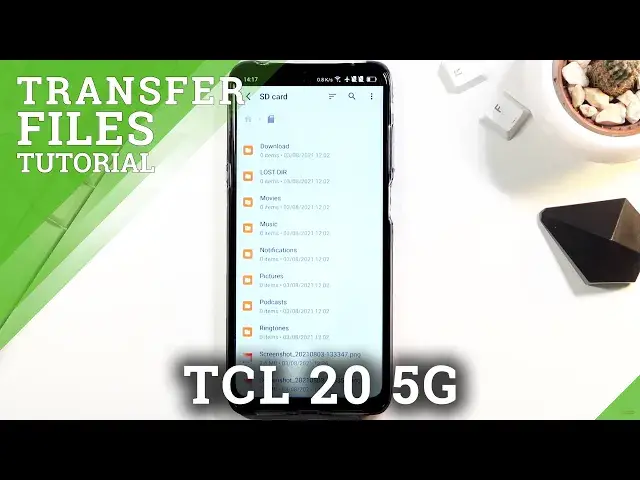
And to get started, you want to open up either the file manager or files application, which
0:20
can both find them right here. So we have two different ones
0:24
Choose whichever one you want. I'm going to choose files. Now the process for them is almost the same, so you don't have to worry about that one
0:34
I believe the difference will be how you access the two different storages
0:37
As you can see on files, it is, I believe, right here. Yep, we have the phone and the SD card
0:44
While if we go into the file right here, the file manager, you have both of them at the bottom
0:52
So select whichever one works better for you. I'm going to stick with this one
0:58
So let's go back to the SD card right here. Now that's where I'm going to be starting
1:02
Both of them have basically virtually the same files in them or folders, I should say
1:08
The difference is on your phone, you will probably, on the phone storage, you will have
1:12
things like pictures and stuff like that saved on there. Now to find those photos, you will navigate to the DCIM folder
1:19
That is generally where devices save their pictures. So DCIM will contain pictures, videos captured with the device itself
1:27
Then under the downloads folder, you'll find anything that you have downloaded, either using the web browser, email, whatever you have selected to download it, it's going to
1:35
get saved into that folder. And then going down, we have pictures folder, which contains screenshots
1:42
Now contrary to what I just said, my screenshots that I'll be using as an example are right
1:49
here and well, not in any folder, just straight smack in the middle of the SD card
1:54
But that is only because I moved them here prior to recording this video
1:59
So anyway, once you find your files that you want to move or copy, you will want to number
2:03
one, select them and you do so by simply holding them. As you can see, once you hold it, it gets checked and this can be done anywhere
2:10
It can be in the folder and can also select folders if you want to
2:14
So right now it's one selected and you select the first one by holding it and then the rest
2:18
of them can be just like quickly checked on like this. So that is how you select it
2:26
And from there you will select from two different options, either copy them or move them
2:31
Now both of them are under the three dots, so you have move and copy, select which ones
2:36
you want. I'll go with the copy option this time around. And from here, once you select one of those, it will give you the option of where you can
2:44
copy or move those files to. Now in here, quick access between those two storages, so we can switch between phone and
2:50
SD card. And they're basically all the same. As you can see, there's a couple of differences how the folders are placed, but generally
2:59
it's just exactly the same. So I'm going to go to the phone and I can drop it wherever I want
3:05
So if I wanted to drop them right here in the middle of a phone, I could just press
3:09
this button right here. But if I want to keep it organized, I could, for instance, go into the DCIM folder and
3:15
as you can see, there is camera folder, but it has 23 items
3:19
I'm just going to back out and drop it right here. And voila, as you can see, we're still on the phone
3:26
Right below the camera, we have now the two screenshots that I have selected, pasted in
3:32
And because I selected copy, those are duplicated files, so the original ones are still on the
3:38
SD card, as you can see right at the bottom. So anyway, this is how you could copy or move your files from one location to another
3:47
And if you found this video helpful, don't forget to hit like, subscribe, and thanks