0:00
Welcome! In front of me is a Motorola One Action and today I will show you how to transfer
0:10
files from your phone to an SD card or vice versa. To get started we will need to open
0:16
up the files app. So we have two of them as you can see. You can choose whichever one
0:20
you want. If you choose this one, you will need to tap right over here and then tap on
0:26
show internal storage. So it shows up right here. And same thing I believe is in the files
0:32
app by Google. Let's see. So it's right at the bottom right here. And if you don't see
0:43
one of the storages, tap on here and for me it shows hide storage device. So for you it
0:49
will be the exact opposite which would be this. Whichever way you go about it, it doesn't
0:55
really matter. The apps are basically the same. From there choose internal storage or
0:59
SD card. And you will have the folders right here. And probably the most important folders
1:08
are things like the DCIM which will contain photos, videos captured with the phone itself
1:14
Then you have the downloads folder which will contain anything that you have downloaded to a web browser, email, stuff like that. It's all saved in here. Then we have pictures
1:24
which will contain screenshots. And that's about it for the important folders. The rest
1:31
of them, things like the alarm, movies, music, notifications, podcasts, ringtones, those
1:37
folders will be primarily empty assuming you haven't downloaded some kind of application
1:43
from Play Store that will save to them. But for the most part if you have some kind of
1:47
app that's saved somewhere, majority of the time it will create its own folder. Okay
1:53
So once we got that out of the way, find your files. For me it's going to be in the
1:57
DCIM under the camera. That's what I'm going to use as an example. And what you want to
2:01
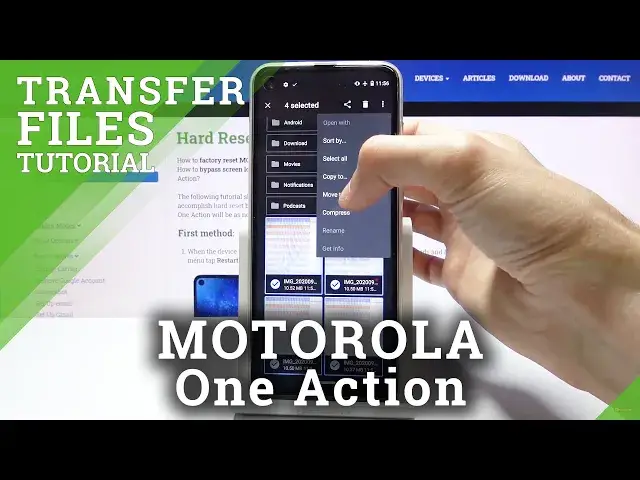
do is select them. And you do it by simply holding it in both of the apps. And from there
2:07
you can tap on additional ones like so. Once you have selected your files, you want to
2:14
tap on three dots and you will have the move or copy. I believe in the other app it's visible
2:19
at the bottom, the options. So you want to choose whichever one you want. I'm going to
2:26
go with move. And from here choose the storage that you want to move it to. I'm going to
2:33
go with the SD card which is below because right now the photos are on the internal
2:39
Let's go to SD card. And from here you can see we're now on the SD card. And you can
2:44
simply move it wherever you want. I'm going to drop it right here. And let's allow access
2:52
And as you can see now the camera folder is empty because I moved the files. So let's
2:56
go to the SD card and there they are on the bottom. Now I'll quickly also go to the other
3:04
app. So try to see if the process is the same. So you hold, select, tap on three dots and
3:12
you have move or copy. I'm going to do the same thing, move. And from here you want to
3:21
navigate to the location that you want to move it to I believe. Or not. Let's see. Let's
3:27
try that again. Move to... There we go. So we select where we want to move it from here
3:42
And move. And there we go. So basically the same process. So that is how you remove or
3:51
copy files and if you found this very helpful, don't forget to hit like, subscribe and thanks