0:00
Welcome, my name is Eviko of EU3 and today I will show you how to transfer files from
0:12
your phone to an SD card and vice versa. To get started, you will want to open up the files application which for me is right over here
0:22
Once you open it up, continue right here, so once you open it up, make sure you're going
0:27
to browse category and scroll down where you will find your two storages
0:31
So the first one, internal storage, is the storage of the device itself and then below
0:36
that is the SD card which you can differentiate based on those icons
0:41
So I'm going to start off with the internal storage and in here we have several folders
0:45
which might be important to you. So number one is the DCIM folder which at this moment contains nothing but normally
0:54
it contains pictures and videos captured with the device. Then below that we have the Downloads folder which will contain anything that you have
1:01
downloaded from a web browser or email, anything, and everything that you have downloaded using
1:05
the device will be saved here. And lastly, we have the Pictures folder at the bottom which contains screenshots
1:14
And this is also what I'm going to be using as an example for moving the files
1:18
So once you find your files, it can be even a folder, it doesn't really matter, so I could
1:23
even use this folder along with all of the content that is inside of it
1:29
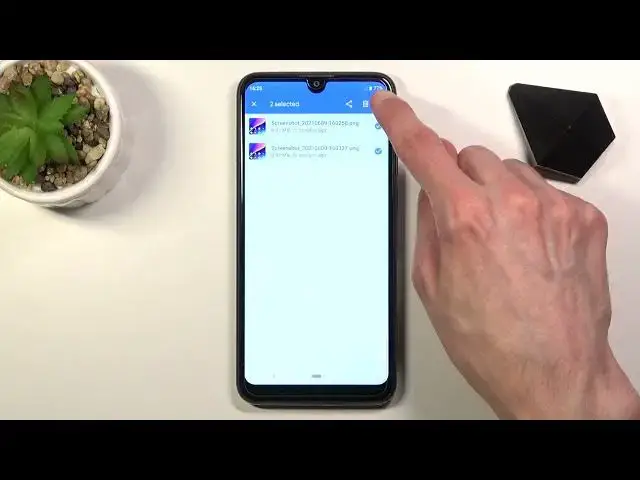
So once you find it, what you want to do is hold this, it will get selected as you can
1:33
see right here, and also additional files in this directory right now will have the
1:38
circle so you can tap on them quickly to select more if you want to move multiple files
1:44
Once you have those files selected, tap on the three dots and choose to either move them
1:48
or copy them. I'm going to go with the move option and once you select one of the two, you will always
1:54
get this window at the bottom and here you want to select where you want to move the files to, so either somewhere else on your phone or somewhere to the SD card, which is
2:03
what I'm going to select, the SD card. And in here, there's way less folders in here, normally if you use the SD card a little bit
2:11
more frequently on the phone, it should have basically the same folders as the phone does
2:18
but right here I only have the Android folder. But anyway, once you're on the SD card or your phone, you could tap on the three dots
2:25
and for instance create a new folder, no nevermind there it is, so you can add a new folder right
2:32
here if you want to, so you can name it whatever you want
2:42
There we go. And once you tap on move here, it will create that folder and automatically move it to that
2:47
folder, so if we go back now to the SD card, you should have a new folder, whatever, and
2:55
there it is, the files inside of it. Now you don't actually need to create a new folder, you can just tap at the bottom, hit
3:01
a button to move here and this will move it wherever you are located right now at the moment
3:07
But anyway, this is how you remove any kind of file and if you found this video helpful
3:11
don't forget to hit like, subscribe and thanks for watching