Up next in 10


Find out more about bypassing FRP on Oppo Find X2 Lite:
https://www.hardreset.info/devices/oppo/oppo-find-x2-lite/faq/bypass-google-verification/
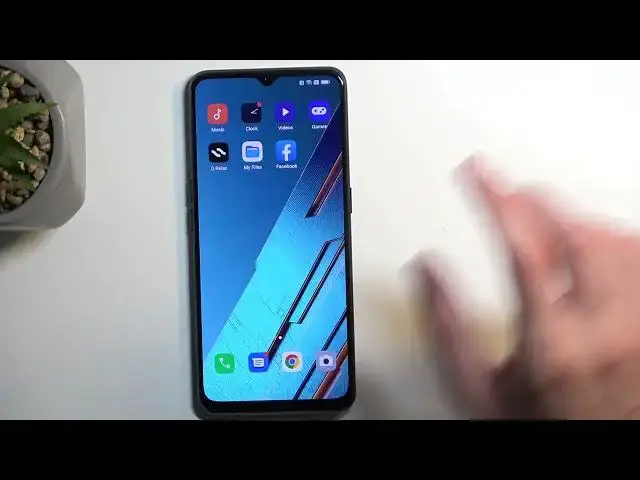
Good Day. Let us present how to bypass factory reset protection on your Oppo Find X2 Lite. We'll provide straightforward steps to assist you in getting past Google account verification on your device. Simply watch our movie, follow the instructions, and you'll successfully complete this procedure. Thank you for being with us, and we wish you the best of luck! If you want to know more about your Oppo Find X2 Lite, visit our YouTube channel.
How to skip FRP on Oppo Find X2 Lite? How to bypass Google account verification on Oppo Find X2 Lite? How to remove factory reset protection on Oppo Find X2 Lite?
#BypassGoogleVerification #SkipFRP #OppoFindX2Lite
Follow us on Instagram ► https://www.instagram.com/hardreset.info
Like us on Facebook ► https://www.facebook.com/hardresetinfo/
Tweet us on Twitter ► https://twitter.com/HardResetI
Support us on TikTok ► https://www.tiktok.com/@hardreset.info
Use Reset Guides for many popular Apps ► https://www.hardreset.info/apps/apps/
Show More Show Less View Video Transcript
0:00
Welcome, Anthony is a oppo find x to light. And today I'll show you how you can bypass the Google
0:07
verification on this device. And before we get started, you will need to grab a another phone
0:16
Now I'll be using some honor. I think it's under 90. The device that you will be using for this
0:22
will need to have access to Play Store. So as an example, something like
0:27
Huawei will not work. But basically any other Android device will work for this. Now
0:33
Additionally, you obviously need to have access to the secondary device that we will be using for
0:37
this. And you will also need internet connection. And that's about it. So to get started, I'm just
0:43
going to quickly touch upon the state of this device, you can see that it is locked, it's telling me to draw the pattern to unlock it. And if I close this, it should tell me that I should
0:50
provide my Google account to verify the old user, which should have been me. Now assuming I don't
0:57
know either of those, I'm going to show you how you can bypass this. And to get started, we will
1:04
back out a little bit to the Wi Fi page like this one. Now if you haven't connected to your network
1:13
just yet, do so right now, I am already connected to mine. And once you are connected to your
1:18
network, you will then select the eye icon. I'm gonna hover over my hand. No, it's fine still
1:39
It should be a share option. Where is it? I press this no network
1:57
Hmm, let me try to figure this out. Now I am missing the share icon should have a share
2:11
unless I'm just missing it in here, but I don't think I am. Now we do have Wi Fi QR code. So I'm
2:18
going to hover over my hand, click on that. Okay, there it is. So just to close this off. So right
2:25
here, it's not really share, but it's basically the same thing, or at least leads to the same
2:29
thing. So here we have Wi Fi QR code. Once you are connected to some network, you will have this
2:34
And from there, once you click on it, which I'm going to hover over my hand, it shows us the
2:38
obviously you can see part of the QR code. But below that we have the actual nearby option. So
2:45
I'm going to click on it, I'm going to make sure that it's not showing password and it's not
2:50
because sometimes it will actually show us the password for the Wi Fi. Now anyway, from here
2:55
we're going to select turn on. And there it was, there's the password. So I'm gonna can't
3:00
hover my hand over it. As you can see, it shows us right here. It's literally on my finger right
3:06
here, but I'm blocking it. So once you select that, you will have the option right here need
3:10
help sharing what you want to click. And this will open up a article. So in here, in the article
3:17
we're going to select the three dots and then select share article and then we will select
3:25
let me quickly make sure what I'm going to select messages, new message
3:32
to doesn't matter to who. So just type any kind of number in here
3:38
And from here, we're going to remove the actual article that is visible
3:43
So fully get rid of it. And then type in www.youtube.com. Now, the first portion this
3:52
this extension is actually important this time around. So without it, if you don't put the
3:59
extension like I just did, it will open up YouTube and like this tiny little window
4:04
and like a pop up view. And this won't give us the option that we need. So make sure you
4:09
make sure you add this extension. Once you actually add it, and you send it and then open this up
4:24
Come on. I hope it still opens it up in a pop up view. Well, that's fantastic. Let's try it again
4:39
So I'm just repeating the steps. Ah, there we go. That's what we were waiting for. As you can see, it now shows up with an
5:16
actual like image right here. Not sure why it didn't show up the first time around. Maybe I
5:20
misspelled something. Anyway, guys, I'm gonna tap on this. And as you can see, there we go
5:24
It opens it up in a full view, though, before did open YouTube and pop up view as you've seen
5:29
So that's what we didn't want. That's what we want. Now, in here, once we actually have
5:37
Now, in here, once we actually have YouTube open, we're going to navigate to
5:44
accounts right here in a corner. And we're going to select settings
5:51
About Google privacy policy, accept and continue. No thanks. And we have our browser open
6:00
Now in the browser, we're just going to navigate to how do we set that info slash bypass
6:06
So if you need a moment to write this down yourself
6:19
considering it's actually not correctly written. So
6:36
there we go. That's basically what I was looking for. So once it's written like this
6:41
can navigate to it. And so open up the hard reset and info website with a couple options that we can
6:51
now access. As you can see, now we are looking for just quickly actually check we're looking for
7:01
So we're looking for settings. So this one right here, click on it, this will open up the phone
7:06
settings. And here we're going to navigate to home screen and lock screen. So right over here
7:13
home screen layout. And it opens up home screen. So next thing we're gonna swipe right
7:27
I don't think that's actually correct. I think it's gonna be swipe left, actually
7:34
Tools, tools, tools, actually, we don't need to swipe anywhere. So in a guide, it says to swipe
7:42
right, which if anything, we should be swiping left, but the tools folder is on the first page
7:47
right here, open it up. And in here, we should have the rego clone a phone application, which
7:53
is what we're looking for. So you want to open that up. And then when it pops up with any kind
7:58
of requirements to allow access to something, just grant it all. There we go. And then here
8:10
we're going to select that this is the new device. So right over here. migrate data. So
8:17
we're going to be migrating data from another Android. So that's what I'm going to select
8:23
And it generates a QR code for us to scan. So now we can grab the other device
8:42
And here we're going to navigate to Play Store. And we're gonna search for clone a phone
8:54
Okay, there we go. It shows up with several different ones. As you can see
8:59
OnePlus, Oppo, and some other one, you can honestly download either the Apple one or
9:08
OnePlus, they are both the same, that's still basically the same company. So these both work
9:14
But for the purpose, I'm going to download the correct one, Apple, as this is the Apple device
9:19
And I'm going to select install. From here, we're going to open it up and agree. And again, we're going to have a bunch of
9:29
different permissions here that we need to agree to. So we're going to navigate to settings
9:32
toggle this on, go back, settings, toggle on, go back, start migrating settings
9:40
find the clone phone. So it's right over here. Toggle on, go back, go back
9:45
To ensure migrating will not be interrupted, do not switch network during data migration
9:50
Okay, cool. Again, settings, enable, go back. Oh, while using the app, allow, allow
9:59
And just continue spamming allow, turn on. So just toggle this on. Now, different devices, when you selecting the allow options and all
10:11
that stuff might have, it might look a little bit different in certain cases. So whatever it
10:18
opens up, just try to kind of figure out what it wants you to toggle on. For the most part
10:25
if you have a page full of applications, find the clone phone up and then toggle on whatever that is
10:30
there is. And in cases like you just seen right there, just toggle on whatever the heck was at
10:35
the top. Or if there is any kind of toggle, or multiple ones, just pick the main one. Let's call
10:41
it that way. And from there, we can select start migrating, clone phone requires a location
10:46
permission. Okay, cool. Again, while using the app, for some reason, it requires location
10:51
even though it's a camera. Go figure why. It's not like it shouldn't require this. But
10:57
I guess, you know, China wants your data. And now we're going to simply pair these two devices
11:02
together. So we're going to use this camera to scan the QR code. Oh, yeah, it's going to begin connecting. And you will see in a second, just a
11:13
bit of a change here on the other device. There we go. So it's right now pairing these two devices
11:21
I'm going to check out what we need to my unsupported data. Okay, cool. So it will select everything that it can. I don't think we want
11:31
everything. So I'm going to check. doesn't really specify if we need to migrate anything
11:46
For the sake of this, I'm going to deselect basically everything. And see, I'm going to select one application just for this
11:54
And I'm going to deselect this and this. I'm just trying to figure out and then guide it doesn't mention anything like that
12:10
But from past experience, if we need to migrate anything, it's just a single application
12:15
Just really want to make sure that I'm not missing something. But it looks like there is just missing step in here
12:28
Okay, now, so I was missing it. So yeah, we just need to select a single application
12:35
Now, what application you migrate doesn't really matter. As you can see
12:38
so just to show this again, you will navigate to the apps, top on the text, obviously
12:43
and this will display all the applications that are installed on your unlocked device
12:48
Here, select any kind of app that you want. You can choose whichever one you want. But what I
12:52
recommend doing is selecting one that takes the least amount of space. Because the bigger the
12:58
application, the longer the migration will take. I selected Netflix, it's only like five megabytes
13:05
And from there, I can select Start migration continue. As you can see, it's now sending
13:12
that application to this device. It finishes it up at least here it's done, it's still installing
13:17
it here and it just finished. So now we're going to select done. It, for some reason, skips over the
13:26
verification portion, as you can probably see. So it's now telling us to select our
13:31
navigation style, I'm going to select gestures just for this. And unlock method, we're going
13:36
to skip this, it doesn't really matter right now. And going to now finish up the setup and gain
13:42
access to the home screen. Now that being said, we do have, we did have access to the home screen
13:46
before. But if you were to reboot the device, you would lose that access. So right now, this is more
13:52
permanent access to the home screen, but we're still not done. There is one last thing that
13:56
we'll need to do, which is navigate into the settings and scroll all the way down to system
14:02
settings, I believe. Yep, system settings, and then select a backup and a reset, reset phone
14:09
erase all data, erase all data. And then you want to press on the erase all data once more to
14:15
initiate a factory reset of the device. That might seem counterintuitive considering we just
14:21
gain access to the home screen. But the reason you want to do this is because when performing a
14:26
factory reset of the phone, through settings, the phone is forced to remove all the protection from
14:32
it. That's kind of how it works when doing it to the settings. So even though this phone still
14:37
contains the screen locks and Google accounts that were previously blocking it, when we do
14:44
this reset through settings, those protections will be completely removed. Now downside is you
14:49
will need to wait a couple seconds or a couple minutes for this reset to finish. And number two
14:53
once it's completed, you will need to go through the setup of the device once more. But with that
14:58
being said, the setup the second time around after the reset, the device will be fully unlocked
15:04
you can go to the setup in whatever way you want. It's fully unlocked. So you would have the typical
15:10
kind of setup experience instead of what we have done, at least throughout the video
15:15
So just make sure you do this one, this option here to fully unlock your device. And with that
15:22
being said, I'm not going to go through this, just because it's a lot of black screen. And this
15:27
device takes a little bit long to reset. And there is really no point once you go through it, it's
15:33
fully automatic. So there is nothing to screw up there. So with that being said, if you found this
15:37
very helpful, don't forget to hit like, subscribe and thanks for watching
#Other