Up next in 10


Learn more info about ZTE Axon 9 Pro: https://www.hardreset.info/devices/zte/zte-axon-9-pro/
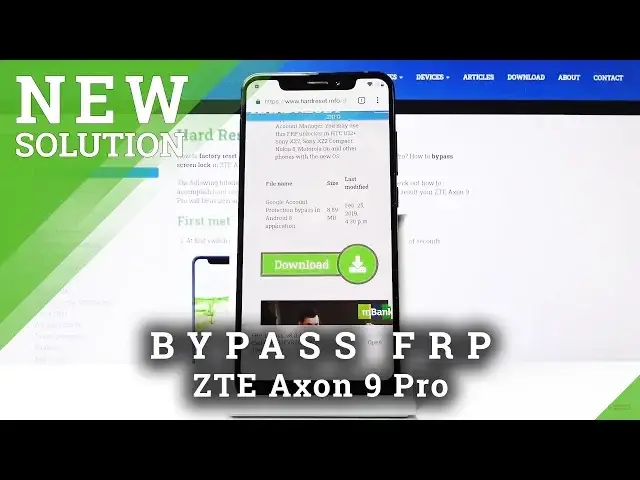
Here we are coming with a tutorial, which will show you how to bypass Google verification in ZTE Axon 9 Pro. If you’re wondering how to skip FRP and activate your smartphone without Google credentials, then simply watch our video. Prepared tutorial will show you how to smoothly bypass this verification.
How to unlock FRP in ZTE Axon 9 Pro? How to bypass Google Verification in ZTE Axon 9 Pro? How to remove Google protection in ZTE Axon 9 Pro? How to remove Factory Reset Protection in ZTE Axon 9 Pro? How to bypass Factory Reset Protection in ZTE Axon 9 Pro? How to unlock Factory Reset Protection in ZTE Axon 9 Pro?
Follow us on Instagram ► https://www.instagram.com/hardreset.info
Like us on Facebook ► https://www.facebook.com/hardresetinfo/
Tweet us on Twitter ► https://twitter.com/HardResetI
Show More Show Less View Video Transcript
0:00
Welcome
0:02
FMXA9 Pro and today I'll show you how to bypass the Google Verification screen on the device
0:12
So before we begin, number one you want to connect to Wi-Fi which I already am
0:17
So in the process that I'm going to be showing that device is also locked, you might want to get a SIM card and make sure that it has pin on it
0:25
So you'll have to put in a pin once you insert it to the device
0:29
Now as you'll also see I already have one in here. There it is, so that's what I'll be using
0:37
Now I don't want to copy and I just skip through this. And there we go. There is the verify pattern and verify your account
0:44
So let's go back to the first page right here. And simply what you want to do is put in the SIM card
0:52
Give it a moment for it to load and there we go
0:56
So there's the pin for it. Now make sure you do have to have it. have a pin you do need it for this to work so put it in accept it and it likes the device now
1:05
and gives you this message so we want to slide to the site like so and you have two options
1:12
so top on the settings icon and then top on the information right here and it takes us to
1:17
up info so from here we're going to go into advanced scroll down and browser app then choose open
1:25
links scroll all the way down to YouTube. Then we want to go into YouTube again, so tap on the icon itself again
1:38
And notifications. And at the bottom you'll have advanced. Tap on that and then last option, additional settings in the app, so choose that
1:48
And from here, about and then tap on YouTube terms of service and it will open up the browser
1:54
Now for me it automatically opened it up, but for you it will tell you to accept
1:58
and continue for the terms of service, it will be just a blue button in the middle
2:03
and then it will ask you if you want to log in, so choose No Thanks, which will be located on the left side
2:08
And then you will see this screen right here. So now you want to tap on the top right there and navigate into hard reset
2:15
That info. Like so and I just search And now that you on the website tap on it three bars and download
2:32
So once it loads you can top on the search field for the download
2:36
and you want to search for Android 8. Android 8 like so and search
2:46
And it's this link right here, so FRP bypass, scroll a little bit down and you'll have the download link
2:51
Again scroll down and tap on the download. Now let's just continue and allow
2:59
Tap on okay and it will download it. Now here it's already finished now
3:05
If you see the open button disregard what I'm about to say right now
3:10
it doesn't concern. So if it never download it or it, for instance if you go into download
3:17
downloads right here and it's stuck at 100%. What you want to do is
3:21
instead of tapping on it, hold the button right here and choose open in incognito tab like so
3:29
and tap on download and okay and it will then download no problem. There's sometimes just a bug that
3:34
it doesn't want to finish download for some reason so this is a way to I guess fix it and then
3:40
just tap on open now for me the open disappeared so I'm going to go back into the
3:43
download it and open it from here so once you tap on open you all see this so we need to go
3:49
into settings and allow from this source. so we can actually install it
3:53
And once you check this on, just go back and install should be now accessible
3:59
And once the program is installed, you want to open it. And now we're in the app itself
4:06
So from here, tap on Google Account Manager APK install and choose for version 6.0
4:13
And same process we need to allow from this source, so settings, enable, go back and install
4:20
And this time around, once it installs, you just want to click on done, and you're back in the FRP bypass app
4:26
So now, tap on the second button, the bypass FRP, and choose browser sign-in, tap on the 3 dots, and again, tap on browser sign-in
4:37
Okay, and it takes us right here, where we can actually put in the Google account
4:42
So one thing, you can use any existing account that you already have, or you can create one
4:49
Now there a create button but I would advise if you planning to create an account to do it on your computer instead of here just in case of any problems Then once you have the account you can then use it to log in
5:02
So I already have one and I'm going to use it. Whoops, not here
5:12
There you go. And top of them next. And I'm going to put in a password for it
5:20
and sign in. And you'll see this and it automatically once it logs in it goes back to the bypass
5:30
So from here what you want to do is hold the power key
5:34
and choose Restart. And wait for the device to restart. Now once it's back on we then should be able to go to the setup process
5:48
skipping the verification it will recognize the email that we have just provided as a one that we added
5:56
and I will be able to gain access to home screen but once we do we want to perform a reset of the device to remove any kind of
6:04
leftover from the previous account anyway so just put in the pen again
6:11
so you primarily want to skip through most of the setup you don't want to set up anything at the moment it won't really matter
6:18
And you can see right here, account added, and this is the account that I have provided right before the restart
6:37
So yours probably will be different depending on what account you used
6:41
And this is normally where the screen would be visible to verify your account
6:46
So I just stop on next. and more and more accept skip this not now skip anyway continue no thanks no thanks
7:00
next more agree all set and we're now on the home screen so from here let's go into
7:16
the settings scroll all the way down to to system advance and here you will find reset options so top on that and choose erase all data factor a reset and it gives you a list of things that will remove so
7:29
everything that we're not really interested in, and right here also shows that it will remove
7:34
the account that we have added, and there's also one that it doesn't provide, which is the
7:38
previous account, which will be removed as well. So if you perform a reset right now, it will completely remove any kind of accounts that
7:47
were previously blocking us and after the reset there won't be any kind of
7:50
verification whatsoever so I just stop on reset erase everything and let the
7:56
process begin so once it is finished we can then go to the setup process
8:01
properly and just set up everything like adding emails and setting passcodes
8:07
stuff like that and the device will be fully usable and fully unlocked at that
8:11
point so I'll be back once the reset is finished I'm not going to be
8:19
Okay, and as you can see, there it is. So let's put in pin and we can now start the setup
8:55
Okay, unlock this. Let's change the language to English and start. Now like I said, the device is now fully unlocked and first thing that you can see is the fact that you can skip
9:06
Wi-Fi connection, which wouldn't be accessible if the device needed to be verified
9:14
I just hop on next, more and more and accept. and here you can add your fingerprint along with pattern, pin or password, whatever you want
9:22
I'm just going to skip this to save on time and yep I'm going to skip it
9:29
I just tap on next here, more, and all set and we're done with the setup
9:36
So that is how we would bypass the Google verification and if you found this very helpful
9:41
don't forget to hit like, subscribe and thanks for watching. I'm going to be able to be