0:00
Welcome. In front of me is an Alcatel One B, and today I'll show you how you can enable and also set up your Do Not Disturb mode
0:11
So to get started, you want to pull down your notifications by swiping down from the top of your screen
0:16
Now, you also want to swipe down once again to extend the list of toggles
0:20
Here you will find Do Not Disturb mode, which should be added by default
0:24
For me it's right over here, but if you can't see it, you could tap on the Edit button
0:29
This will display toggles that are turned off, and from here just simply grab your Do Not Disturb mode if it's visible here
0:35
and then drag it over to the top, click on the checkmark, and this will add that toggle
0:39
Like I mentioned for me, it was already added. Once you see it in here, you want to hold it the first time around
0:45
This will quickly take you to the settings, where you can customize how the mode will actually function when you enable it
0:50
Now quickly going into the options that we have visible right here
0:54
I'm going to only focus on the more important ones and just glance over other ones
0:58
Number one, we have calls and messages. Here you can select who can call you or message you with an additional option
1:05
to allow people that will call you twice within a 15-minute period to bypass whatever you have selected under here
1:12
It looks like this is enabled by default, so if this is something that you don't want, you might want to turn it off
1:17
With that being said, it's a pretty handy option because when people have emergencies
1:22
they would usually spam call you, which means that they will meet this requirement
1:27
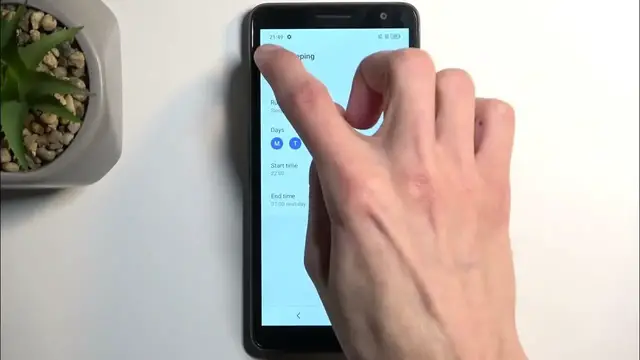
Now moving a little bit further down, we have schedule. There is one always pre-made, and it's usually called sleeping, and it starts at 10 p.m. and ends at 7 a.m
1:36
Now you can create new ones by selecting add more schedules, or you can edit the existing ones by tapping on the actual text
1:43
and this will then allow you to choose the days of the week, start and end time
1:47
Now if you're planning to use a schedule, once you set the parameters of it
1:51
just make sure that it is enabled right over here, like so. And do not disturb mode will then turn on the actual do not disturb mode at the provided start and end time
2:02
So once this is enabled, that's all you need to do. Everything else will be done automatically
2:10
And that's basically all the worth mentioning options. So let's close this, and now whenever you want to enable your mode manually
2:18
all you need to do is just simply tap on the toggle, and that's it
2:22
Now on this device we don't have anything that would allow us to turn it off automatically
2:26
Some other devices do have a timer that allows you to select a timer when you tap on it manually
2:34
Here you do need to remember to turn it off yourself, otherwise it will be running indefinitely in the background
2:40
Now to turn it off, all you need to do is just tap on the toggle once again. So with that being said, if you found this very helpful, don't forget to hit like, subscribe, and thanks for watching
2:52
www.microsoft.com www.microsoft.com www.microsoft.com www.microsoft.com