0:00
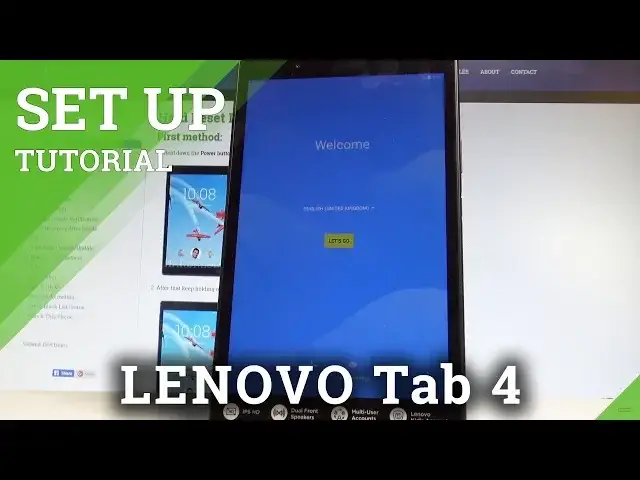
Here I have Renovotab 4LTE and let me show you how to go through the initializing setup
0:10
process on the following device. So at the very beginning let's start by using a welcome panel
0:15
Here you've got the list of available languages that you can use on this device
0:20
In my case let me choose simply the English. Here let me tap English and let's choose your region, alright United Kingdom for example
0:28
Here you can also choose vision settings and for example use the talkback and you may also
0:33
use emergency and make some emergency calls if you need something. If not let's go back and choose let's go
0:40
You can insert sim card but you may also activate your device without the sim card
0:44
If you would like to watch how to insert the sim and SD card you can watch our other video
0:51
Let's tap skip for now. Let's choose setup as new in my case or if you would like to you can copy your data from
0:58
the iPhone or Android. Now you can connect your device to a WiFi
1:03
It's not necessary, you can activate your device without the WiFi but I usually recommend
1:08
this step because you can do more with your internet connection. So let me choose my network, the device obtaining the IP address and the phone is connected
1:18
Now the tablet is simply checking for any available updates so this may take a minute
1:23
or two so let's wait. Let's be patient. Alright, now you can sign in into a Google account
1:35
It's not necessary, you can bypass this step but also the Google account enables some interesting features
1:41
So let me do it. You can do it in two ways. You can create a new account by using that blue link or use the existing Google account
1:48
So in my case let me use the existing one. Let's just simply input your email
1:55
That's it. Now it's time to tap next and the device is asking you to enter the password so let's
2:03
wait a couple of seconds until I input my password. My tablet is ready so let's tap next
2:12
Alright, choose agree. The phone is checking info and getting the account information
2:23
Alright, here you can sign in into the Lenovo ID or you can skip it by tapping skip
2:30
You may protect your tablet by using PIN, PATR or password or you can do it by using
2:34
our other videos. You can see how to do it in settings and for now let's choose not now
2:39
Skip anyway. Here we've got some Google services that you can enable and use for example the backup
2:45
to Google Drive, help app find your location, improve location accuracy, send system data
2:51
In my case let me agree to all of them. Let's tap more and accept the following license
2:59
So let me skip the joining to Lenovo user experience and choose all set
3:04
The tablet is adding the finishing touches. Here we've got the information about multi-user and the home screen just pops up so it means
3:11
that the hardware set operation, that the setup process of course is done so everything
3:17
went well and now you may use your device. Thank you for watching. If you like this video please subscribe our channel and leave a thumbs up under the video