0:00
Hi everyone! In front of me I've got a Samsung Galaxy Tab S9 FE and let me share with you
0:06
how to change this navigation type with the buttons to the gestures. So let's start with opening the settings and in this left section we have to
0:18
scroll in order to find the display. Now let's scroll down again to localize the navigation bar
0:26
and as you can see we've got two different options so the buttons and swipe gestures
0:31
Before we will set the gestures a quick disclaimer you can reorder the buttons here so if you decide
0:36
that you want to stick to this navigation type you can customize it here you can change the
0:40
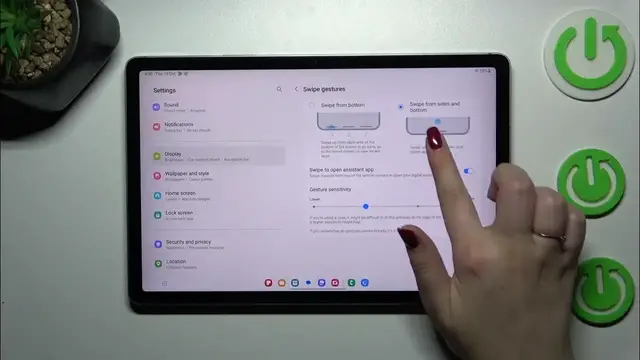
button position also so it's up to you. Let's set the swipe gestures so simply tap on this option
0:48
and as you can see instead of the three buttons we've got this line in the middle of the screen
0:52
which is responsible for some gestures for some reason we do not have any kind of tutorial of how
0:57
to use the gestures but no worries I'll show it and explain everything later on. Here we've got
1:05
some options which we can customize so the gesture hint a show button to hide keyboard and block
1:10
gestures with S Pen it's up to you and more options basically we've got the gesture sensitivity which
1:18
is connected only with this option because as you can see in this one instead of one line we will
1:25
have it divided into three categories which resemble and complement the three button navigation so
1:32
basically it's up to you which option you prefer to use it is more like between the gestures and
1:39
the buttons so it is a good start if you're not really ready to use the gestures the full gestures
1:44
option so as I said the gesture sensitivity which is connected only with this option so basically
1:49
you can make it higher or lower but to be honest I highly recommend to get back to this option after
1:55
a while of using the gestures so you will be able to decide whether you need the sensitivity to be
2:00
lower or higher and you can swipe to open the assistant app. All right enough talking let's
2:08
learn how to use the gestures so basically if you want to get back to the previous page just like
2:13
using the back button you have to swipe your finger from the side to the center of your device
2:18
and you can do it from the right and from the left side it works just like that after swiping you will
2:23
see this arrow if you can see it simply release the finger and as I said the same from the left
2:32
if you want to get back directly to the home page simply swipe your finger from the bottom to the
2:36
center of your device however this motion should be quick and short so just like that
2:43
as you can see we've got the home page and if you want to open the recents simply swipe your finger
2:48
from the bottom to the center again so repeat the gesture however elongate it so hold your finger
2:53
somewhere here like that and as you can see here we've got the recents. All right so that will be
3:00
all thank you so much for watching I hope that this video was helpful and if it was please hit
3:05
the subscribe button and leave the thumbs up