0:00
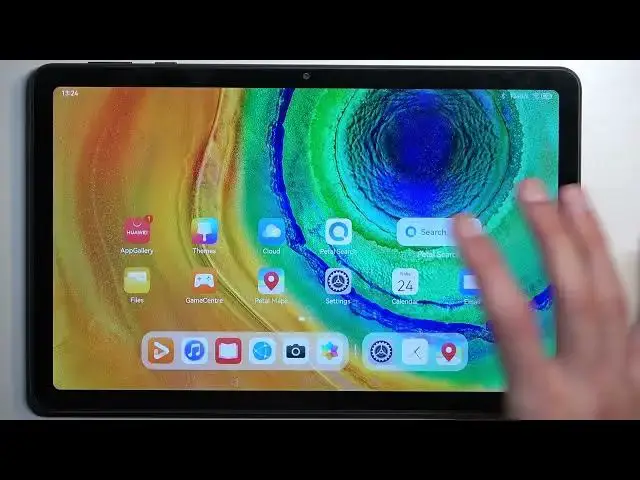
Welcome, and follow me as a Huawei MatePad SE
0:03
and today I'll show you how we can record screen on this tablet
0:10
So to get started, simply pull down your toggles from the top right side of your screen
0:17
and then you can slide, swipe on it once more, and this will extend the list of toggles right here
0:22
And as you can see, one of those toggles is screen recorder. Once you see it, simply tap on it
0:30
It will automatically begin recording, or maybe after a couple seconds. As you can see, it gives us a timer along with a microphone
0:36
which will be by default enabled. You can also tap on the drop-down to get the show touches
0:41
which as you can see records this kind of semi-transparent grey dot that follows my finger
0:46
This will be obviously visible on a screen recording. Obviously, whatever you will do right now will be recorded by the device
0:52
If you open up some kind of apps, they will be visible. And once you're done, you can stop by tapping on the countdown there or timer
1:02
and this will automatically save your screen recording to your gallery application
1:07
Now there is one thing to keep in mind when recording screen. Some applications will block it
1:12
So just to name a few, Netflix would be one of those apps that blocks screen recorder
1:19
Bank accounts will also block screen recorder. I believe any place where you actually type in passwords
1:26
I think blocks the screen recorder, but I could be wrong about that one
1:30
But the first ones, I'm pretty sure, banks and Netflix for sure blocks it
1:35
Now what that means is when you're recording it, you will have sound and all that stuff
1:39
but you just won't have image. All you will see is a black screen. So obviously not something that you might want to record
1:47
Anyway, from here, I'm just going to open up gallery, just so I can show you the screen recording
1:55
So we, I guess, have it under camera. Nope, that's not it
2:03
Okay, just get away. Where is the file
2:15
Come on. So that is interesting
2:28
So apparently it saved the screen recording, but I can't locate it under the gallery application
2:34
which Huawei technology, let's go. So I'm going to try to find it somewhere else, like the file manager
2:47
So let's go to videos and apparently there's no videos. Great. Yeah, so it didn't save it for some reason
3:02
Let's try it again, I guess. Screen recorder. There we go, it's recording
3:17
So something happened with the first one where it just didn't save it for some stupid reason
3:22
As you've seen, I did stop it the same way. And now this four second one that I just recorded is showing up here
3:29
The other one did not. Don't know what happened to it. I have no clue whatsoever
3:36
This one recorded, although there was not much to it. So yeah, anyway, if you found this interesting, informative
3:44
don't forget to hit the like button, subscribe and thanks for watching