0:27
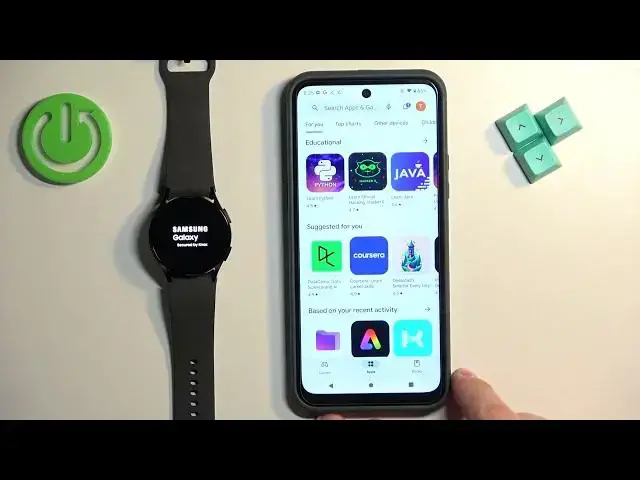
until the watch turns on
0:28
It takes a couple of seconds. While the watch is turning on
0:32
we need to download and install the Galaxy Wearable app on our phone. So, make sure
0:38
you have the internet connection and Bluetooth enabled. Once you do, open
0:42
the Play Store on your phone. Let me lower the brightness a little on our phone
0:47
like this. So, once you open the Play Store, tap on the search and
0:54
type in Galaxy i tap na search. Zobaczcie, Galaxy Wearable by Samsung
1:08
Tap na install button to download and install it. Let's wait until the application is done installing
1:14
As you can see, in the meantime, the watch turned on and we see the list of languages on the screen
1:20
Once you see it, scroll through the list by swiping up and down on the screen
1:24
find the language you would like to use on your watch Once you find it, tap on it to select it
1:29
Then tap on the check mark to confirm. And next, select the country you want
1:37
The region I going to select the United Kingdom And then tap on restart And let wait until the watch is done rebooting As you can see the app is done downloading
1:46
So we can tap on the open button to open it. Then we can tap on continue
1:50
Allow the required permissions. And wait. As you can see the app is looking for the nearby devices
1:58
But our watch is still booting. So we need to wait. OK, now watch is finally done rebooting
2:08
Now we can tap on search again to look for the nearby devices again
2:14
And as you can see this time it detected our watch. So let's tap on it to select it
2:25
Tap on pair on the phone and on the check mark on the watch to confirm the pairing
3:44
I again, we can allow ordinary access to notifications. So basically, if you want to receive the notifications from your phone on your watch
3:53
you need to allow this permission. If you don't care, you can deny it. Right here we can agree to the terms of use for the Google services
4:04
like usage and diagnostic reports and location. You can check or uncheck the boxes and then tap on Agree
4:14
I'm just going to tap on OK. And right here we can basically log in into a Google account
4:27
If you want to use, for example, Google Play Store, Gmail and stuff like that on your watch
4:32
you will need to log in into one. And you can basically use the account you are logged in on your phone
4:38
and basically select it and tap Next and copy it to your watch
4:42
I'm just going to tap on skip to skip this step, but if you want to use Google services, remember to add the account
4:48
You can also add it later on in settings if you want to. Here I'm going to tap on skip
5:32
Then tap on Next. Or rather, before you tap on Next, you can select preferred wrist
5:37
and the button positions. Basically, if you want to wear your watch on the right hand or wrist
5:43
and you want the switches to be on the other side, you can select different side of the switches
5:49
What it will do, basically it will flip the screen. It won't do anything to the switches, but it will flip the screen
5:55
So the top of the screen is on the other side, basically. OK
5:59
Then tap next, next, next, next, next. And let's wait until the process is complete
6:14
And once you see the Galaxy Watch 6 in the app, on this page, on the device page
6:19
it means that the devices are paired together. It's still starting on the watch, but the pairing process is complete
6:26
And that's how you pair this watch with the Android 4. Dziękuję za uwagę