0:00
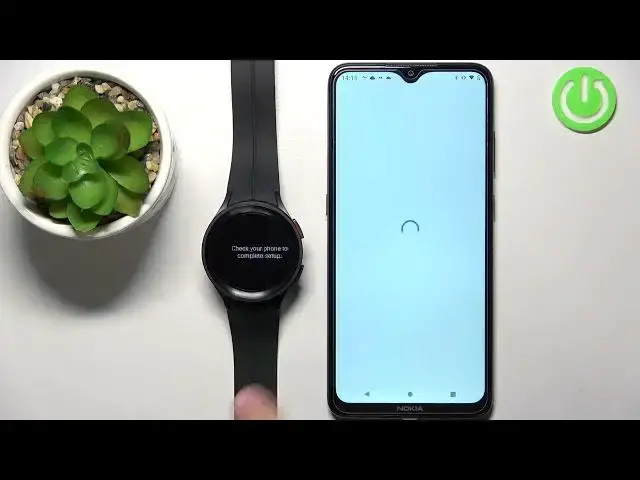
Welcome! In front of me I have a Samsung Galaxy Watch 5 Pro and I'm gonna show you how to pair this watch with the Android phone
0:12
First, we need to turn on our watch. To turn it on, press and hold the home button and keep holding it until you see the Samsung logo on the screen
0:20
Once you see the logo, you can release the button and wait until the watch turns on
0:24
Okay, and after the watch turns on, you should see the list of languages on the screen
0:32
And you can scroll through this list by swiping on the screen like that, up and down
0:36
Now, find the language you'd like to use on your watch, tap on it to select it
0:40
For example, I'm gonna select the English, then tap on the checkmark to confirm
0:47
And now we can select the region. And again, you can scroll through the list, find the region you want to select, and then tap on it, then tap on the restart button and wait until your watch is done rebooting
1:02
In the meantime, we can go to our phone. Make sure that the phone is connected to the internet and also the Bluetooth is enabled on it
1:11
Once you have the internet connection and Bluetooth enabled on your phone, you can open the Google Play Store
1:18
In the Play Store, tap on search, type in Galaxy Wearable, then tap on search
1:30
We need to download this application called Galaxy Wearable. Samsung looks like this, the icon
1:36
Now, let's tap on the install button to download and install it
1:47
And once the application is done installing, you can tap on the open button to open it
1:54
Okay, now let's wait until the watch is done rebooting. Once you see the welcome screen on the watch, you can swipe up on the screen and you will see this message that basically we need to download and install the Galaxy Wearable app on our phone and use it to connect the devices
2:09
We already installed the app, so we can go to it. Tap on the start button
2:22
After a couple of seconds, the app should find the Galaxy Watch 5 Pro. Tap on it to select it
2:37
Now we need to tap on pair and connect. Tap on pair
2:43
Sometimes you also need to confirm the pairing on the watch. So if you have this option, tap on the checkmark to confirm
2:51
And now, as you can see, we can log in to a Samsung account
2:55
If you want to use the features like Samsung Health, Backup and Restore, Bixby and Find My Watch, you need to log in to this account
3:02
If you don't care, you can also skip this step by tapping on skip
3:07
We're gonna skip it for now, but if you want to use the features, log in
3:14
Now we can agree to send the diagnostic data to Samsung if you want to
3:20
I'm just gonna tap on continue and not check the box, but if you want to send the diagnostic data to Samsung, you can check it and then tap on continue
3:28
I'm just gonna uncheck it and tap continue, then tap on OK
3:36
And here we can agree to the Terms of Service for the Google account or Google or Wear OS rather
3:44
And we have also option to check or uncheck. We have the state connected over Wi-Fi, use the research on diagnostic reports and location
3:53
And you can check the boxes next to them to agree to them or deny the features
3:58
Then once you're done, scroll all the way down and tap on I agree
4:05
OK, now we can also add a Google account to the watch
4:10
Basically, you can copy the account that you already have on your phone or you can also tap on choose other account and you can select different account
4:19
For example, I have two of them and I can select one and tap on it to select it and then use this account
4:27
Basically, what it allows you to do, if you copy the Google account to your watch, you'll be able to use the Google apps like Play Store, Gmail and stuff like that, Maps on your watch
4:41
So if you want to download applications on your watch, you need to log in basically or add the Google account to your watch
4:47
If you want to open the calendar app or Gmail app rather, you also need the Google account
4:53
Basically, if you want to use the Google services on your watch, you need to add the account
4:59
I'm going to select this one
5:09
Also, you can skip it. Basically, you don't need to add the account. You can tap on skip and skip this step and basically don't use any account but be aware that you won't be able to use the Play Store and stuff like that
5:20
You can also add the account later on if you want to via the Galaxy Wearable application
5:26
So, be aware of that. Okay, I'm just going to enter the password to the account
5:40
And then I'm going to tap on next to log in to the account and copy it to my watch
5:49
Okay, and once you see the device page for Galaxy Watch 5 Pro in the Galaxy Wearable app, this means that the devices are paired together
5:58
Also, your watch will take some time starting basically. We need to wait until it's done
6:05
And after it's done, you can tap on the start button right here and you can go through the tutorial and after that you can use your watch normally
6:16
So, let's go through the tutorial quickly. Okay, and now we can use our watch
6:26
And that's how you pair this watch with the Android phone. Thank you for watching
6:31
If you found this video helpful, please consider subscribing to our channel and leaving a like on the video